When you connect to an online accounting system for data collection, a token is stored temporarily (typically for 90 days). This applies to QuickBooks Online, Xero, Oracle NetSuite, and Sage Intacct.
This stored token allows Crunchafi Data Extraction users to request new reports from their clients when data has been updated instead of repeating the connection process. There may be times, however, when you need to disconnect Crunchafi Data Extraction from the system early or at the end of a project.
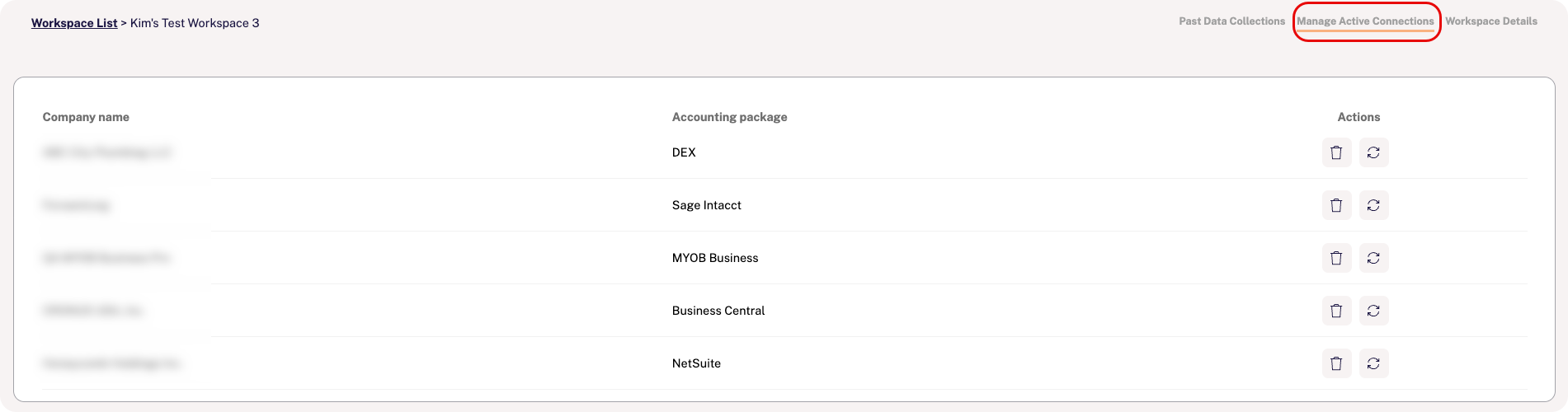
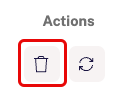
To disconnect an active connection from the portal:
Alternatively, company administrators can disconnect from the settings in their accounting systems. Refer to the articles below for more information: