If you've received a secure URL for Crunchafi Data Extraction, follow that link to access the Data Extraction Portal for your specific financial system.
Requirements:
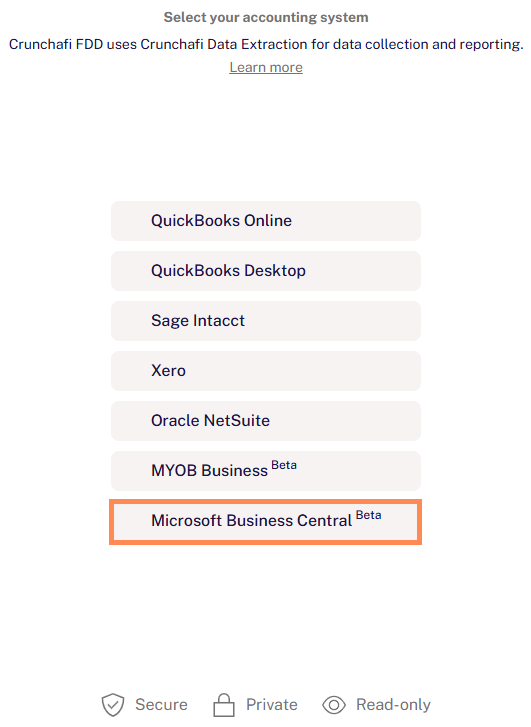
To share your financial reports, click the button for Microsoft Business Central.
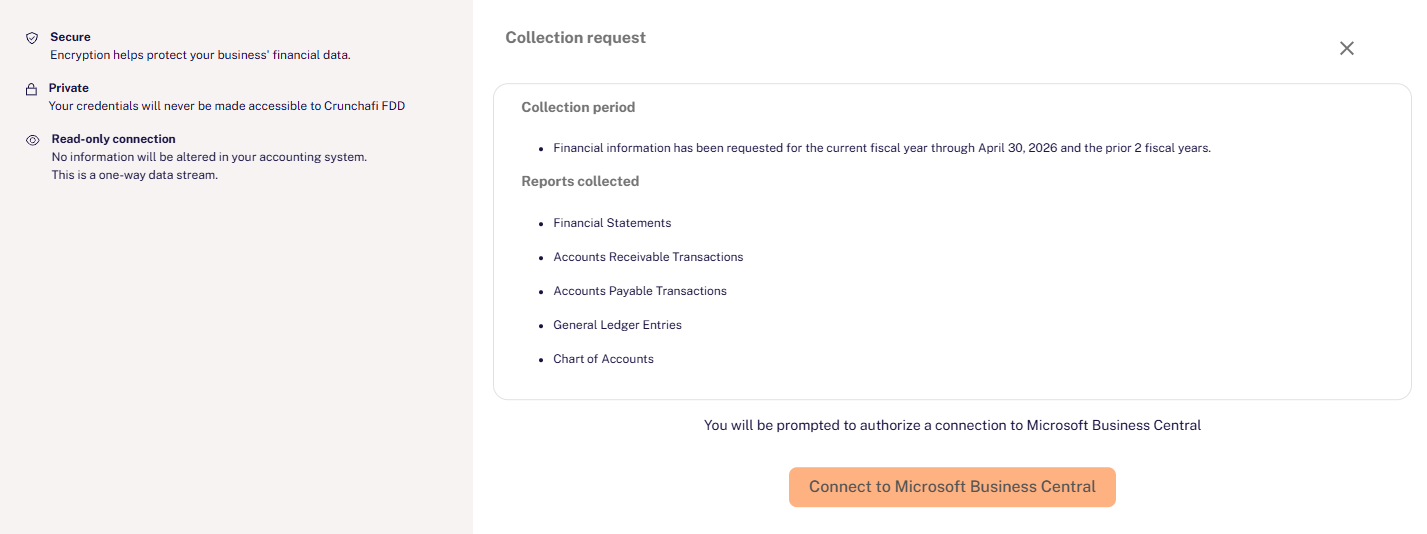
Review the requested information
The next screen provides additional background information about Data Extraction and the process for sharing your financial information. Note: the specific dates to be shared are provided. Click Connect to Microsoft Business Central to proceed.
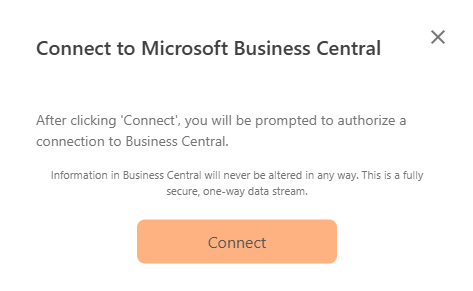
Click the Connect button to launch the Microsoft Business Central login screen.
Before making your first connection to Microsoft Business Central, you may receive an alert that advises you that Booyami, needs admin approval to access your file. This is the correct step.
.png?width=400&height=301&name=image%20(5).png)
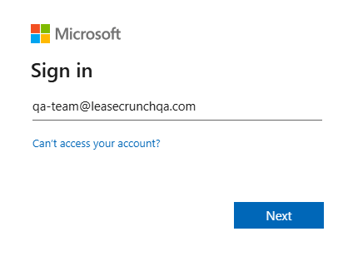
In the official Microsoft Sign In window, provide the Email and Password for an Admin account with access to the correct Business Central company.
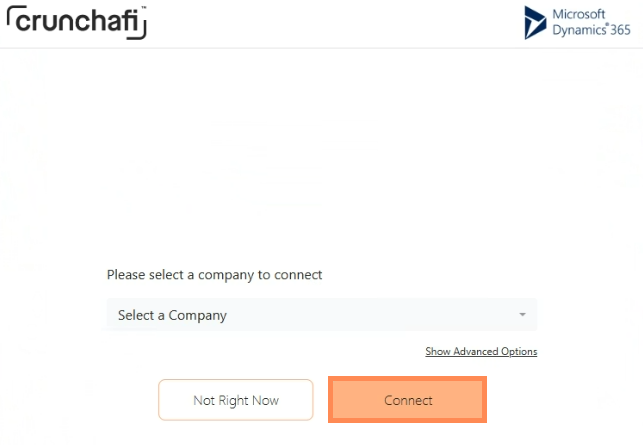
At this point, you have the option to select "Map Chart of Accounts". If this is something you would like to do, please review this article, "How to Map Chart of Accounts in Microsoft Business Central" for more information
If you opt not to do this step, you can proceed by clicking on the Connect button
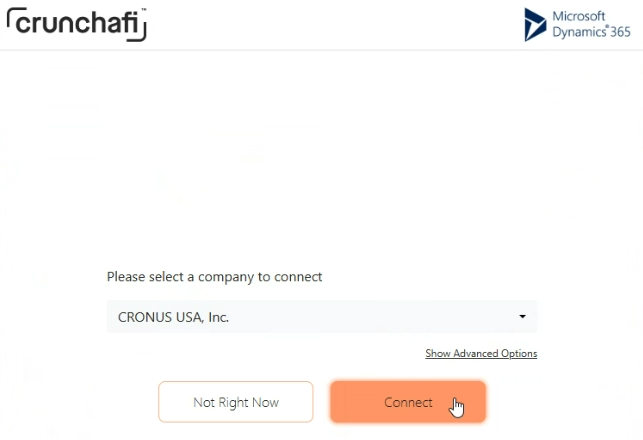
When the connection starts, the portal will provide a progress bar and status updates.
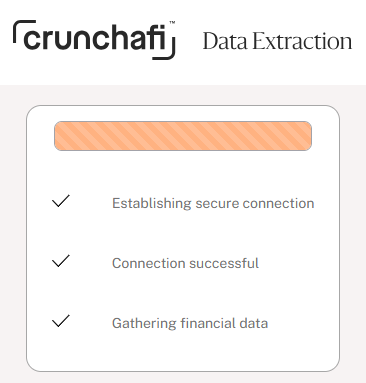
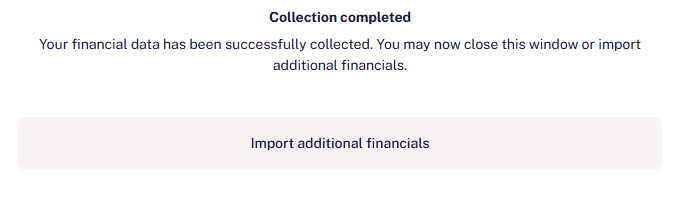
The Data Extraction window will announce when the collection is complete. You've successfully collected reports from Microsoft Business Central!
Your financial institution may give you an opportunity to upload additional documents or download a copy of the submitted reports.