Note: Although mapping the Chart of Accounts is optional, Cash and Prior Year Earnings must be classified for a successful collection. You may need to expand the category to find the appropriate Dynamics subcategory.
After selecting the company, you have the option to click on the Show Advanced Options button if you would like to map the Chart of Accounts in Microsoft Business Central
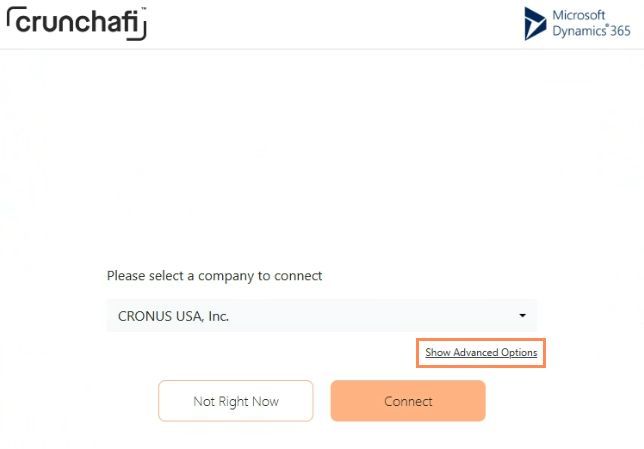
Clicking on this link opens an optional checkbox that will allow you to map the Chart of Accounts in Microsoft Business Central
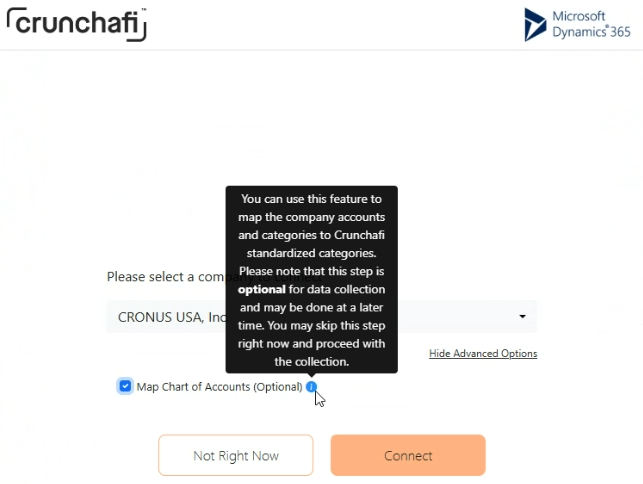
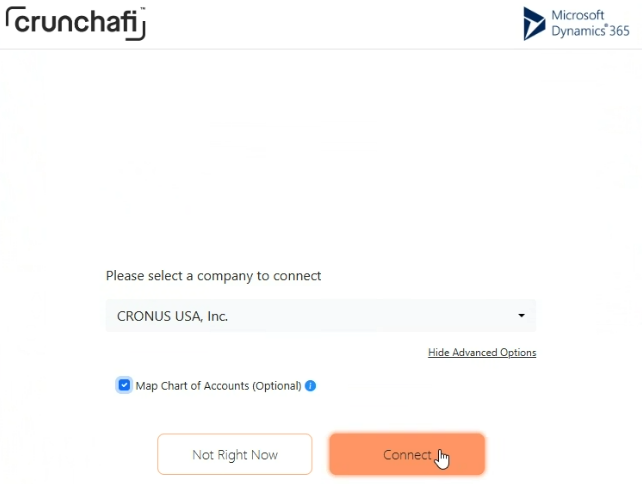
After checking the box for "Map Chart of Accounts", click on the Connect button.
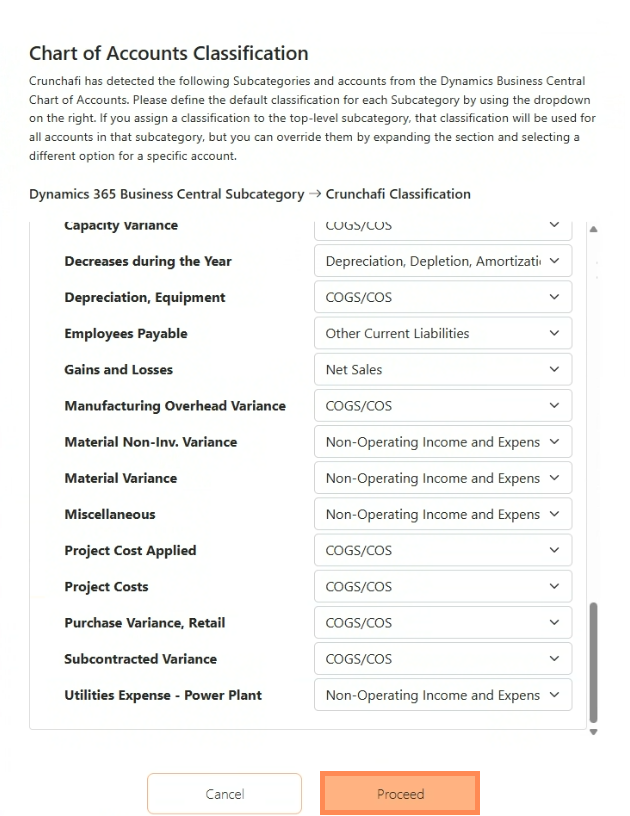
Crunchafi Data Extraction detects subcategories and accounts from the Business Central Chart of Accounts, and you can define the default classification for each subcategory.
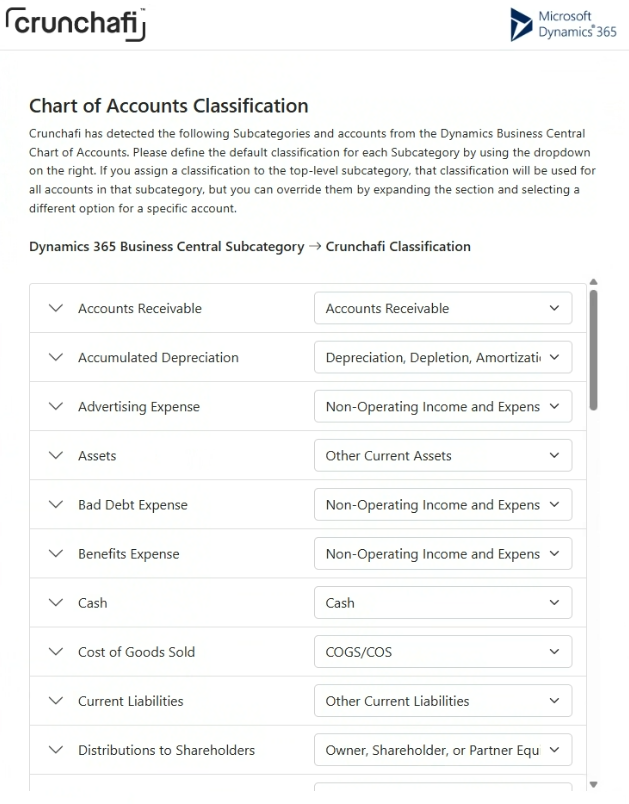
Crunchafi Data Extraction will auto-populate classifications, but here is where you can assign them to another category.
Tip: Once you are done with mapping, be sure to scroll all the way to the bottom of the pop-up window to hit the "Proceed" button
If the client has not done the mapping, this is what the Crunchafi Data Extraction portal will show: