Using Excel Upload Template
Crunchafi Data Extraction’s Excel Update Template converts uploaded financial statement data into a structured Excel workbook for auditing and analysis. This is an alternative for workbook production in cases when your client does not have an accounting system currently supported by Data Extraction's third-party connectors. This is not enabled by default. Contact your Crunchafi CSM for assistance or reach out to our support team.
To get started:
- Click New Data Collection from the workspaces list page or from the workspace details page.
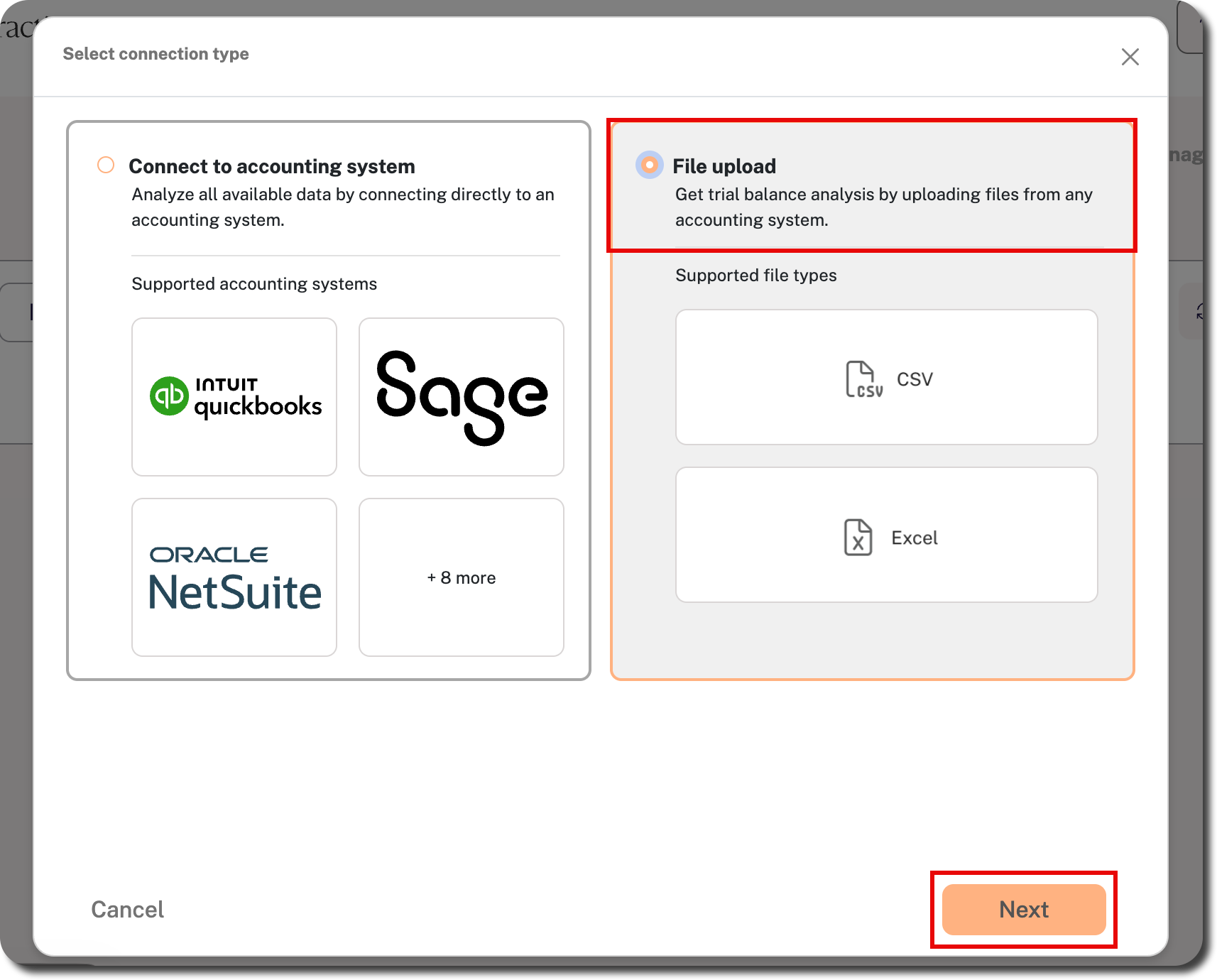
- Select File Upload from the connection type screen and click Next.
📝
Note
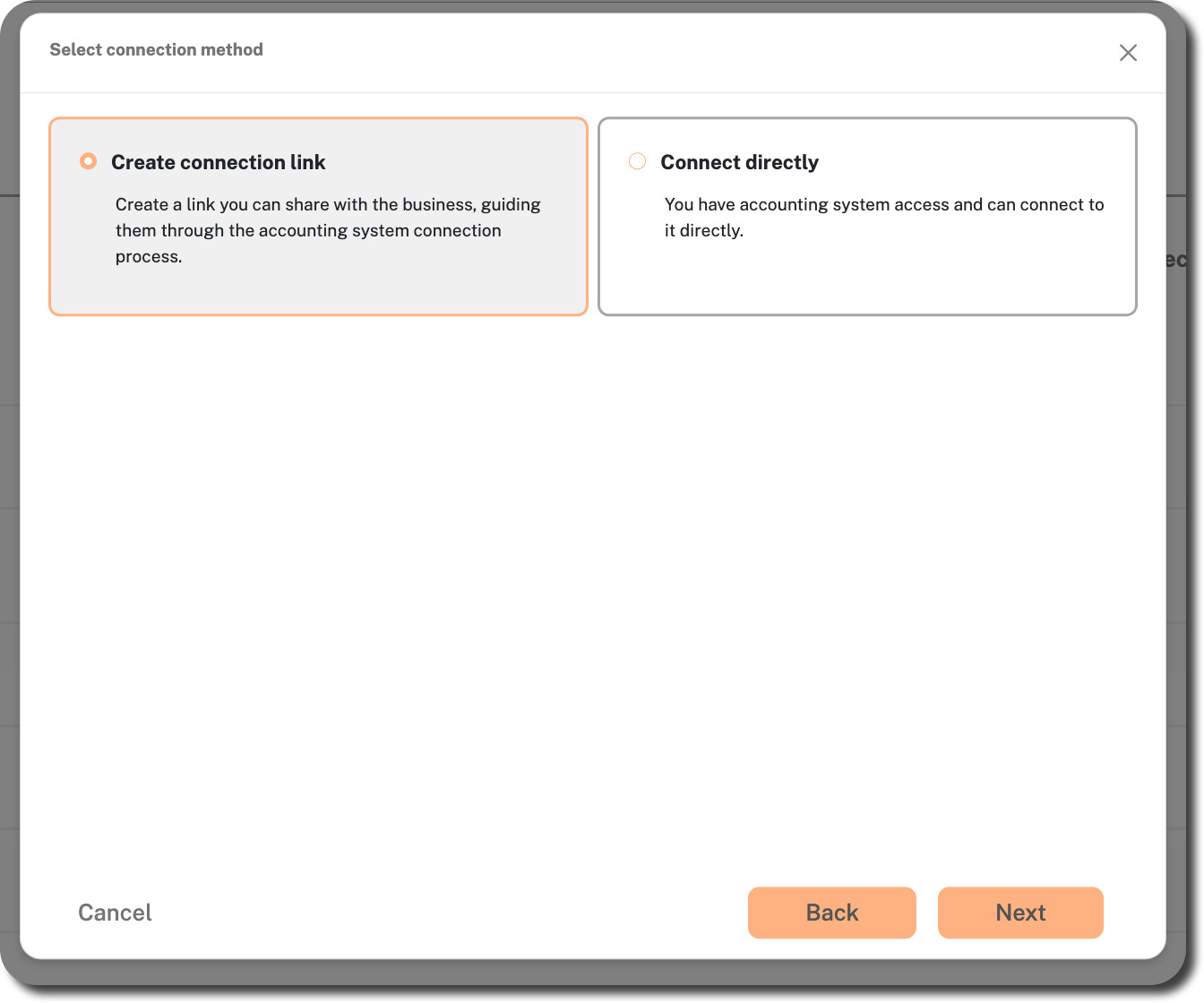
If you only see the options to Create connection link or Connect directly (see image below), this means that your firm is currently only using Crunchafi's connections to third-party systems for data collection activities. Contact your Crunchafi CSM for assistance.
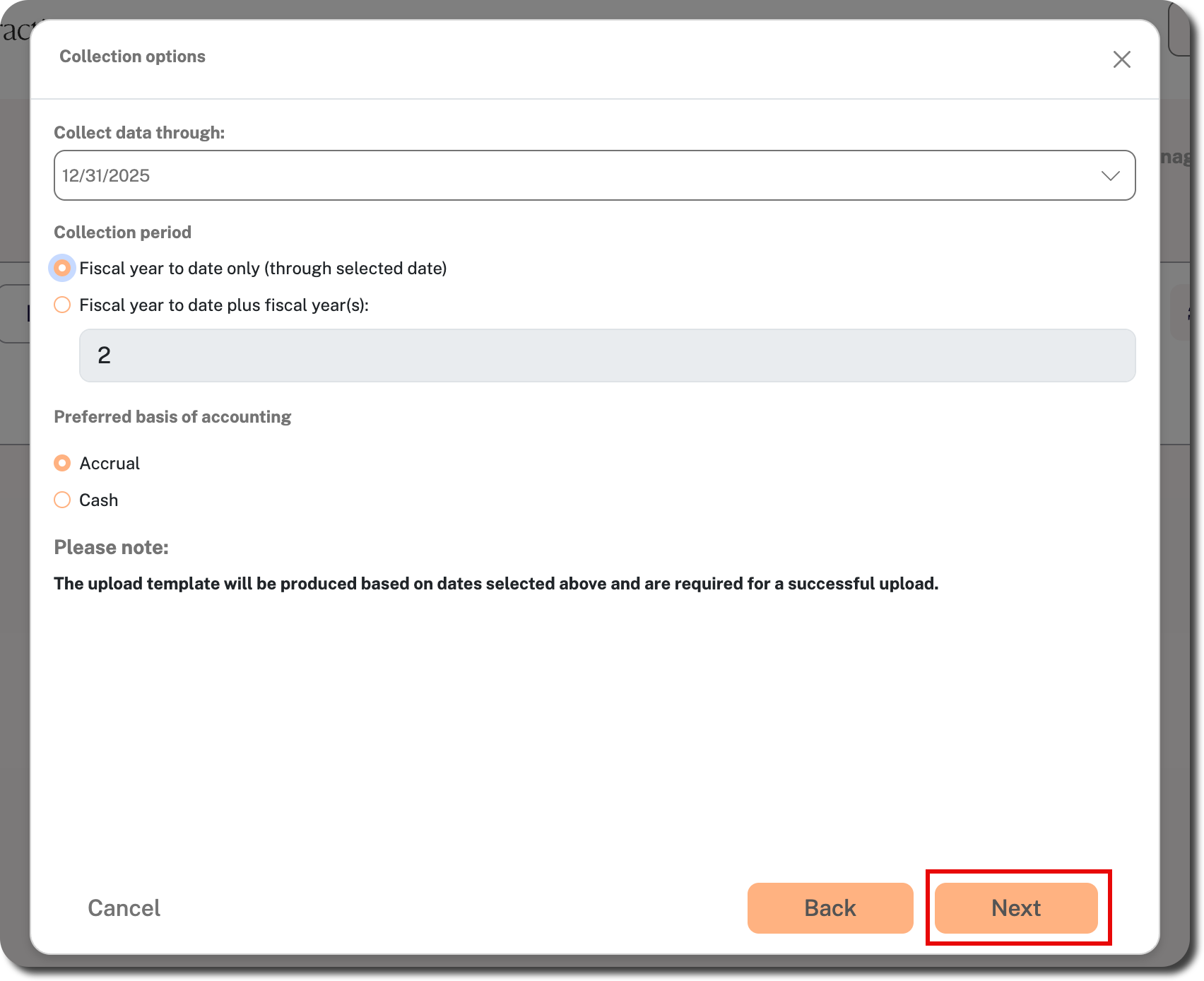
- Select/enter the parameters for data collection (all fields are required) and click Next:
- Collect data through: Specify the end of the period for your data. Defaults to the current date, but you can click on the arrow at the far-right of the field to choose a previous month, day, and year.
- Collection period: Defaults to collect the fiscal year to date plus 2 more fiscal years. Hover over the field and use the up/down arrows at the far-right to change the number of additional fiscal years, or choose the Fiscal year to date only option, if applicable.
- Basis of accounting: Leave this field set to Accrual.
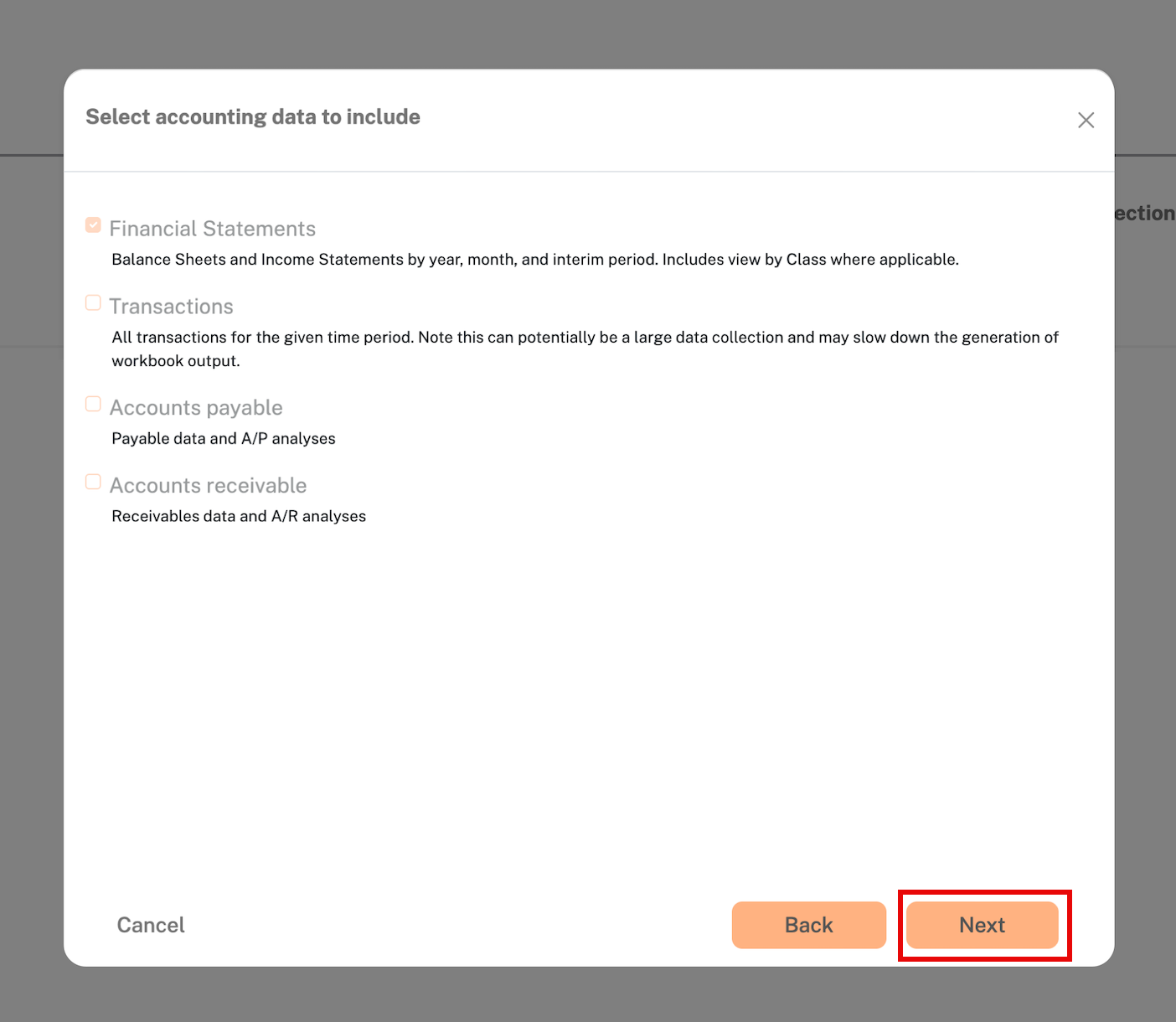
- Review which type of data can be used for workbook outputs and click Next.
📝
reminder
The Excel upload template only uses Financial Statement data for workbook production (e.g., balance sheets, income statements, or trial balance).
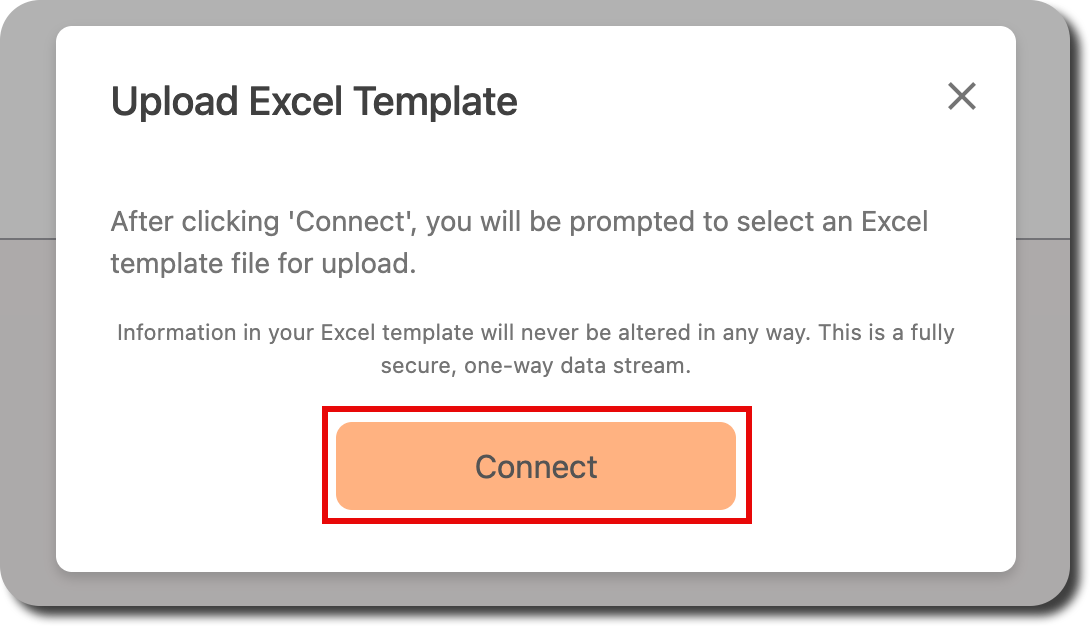
- Click Connect when prompted.
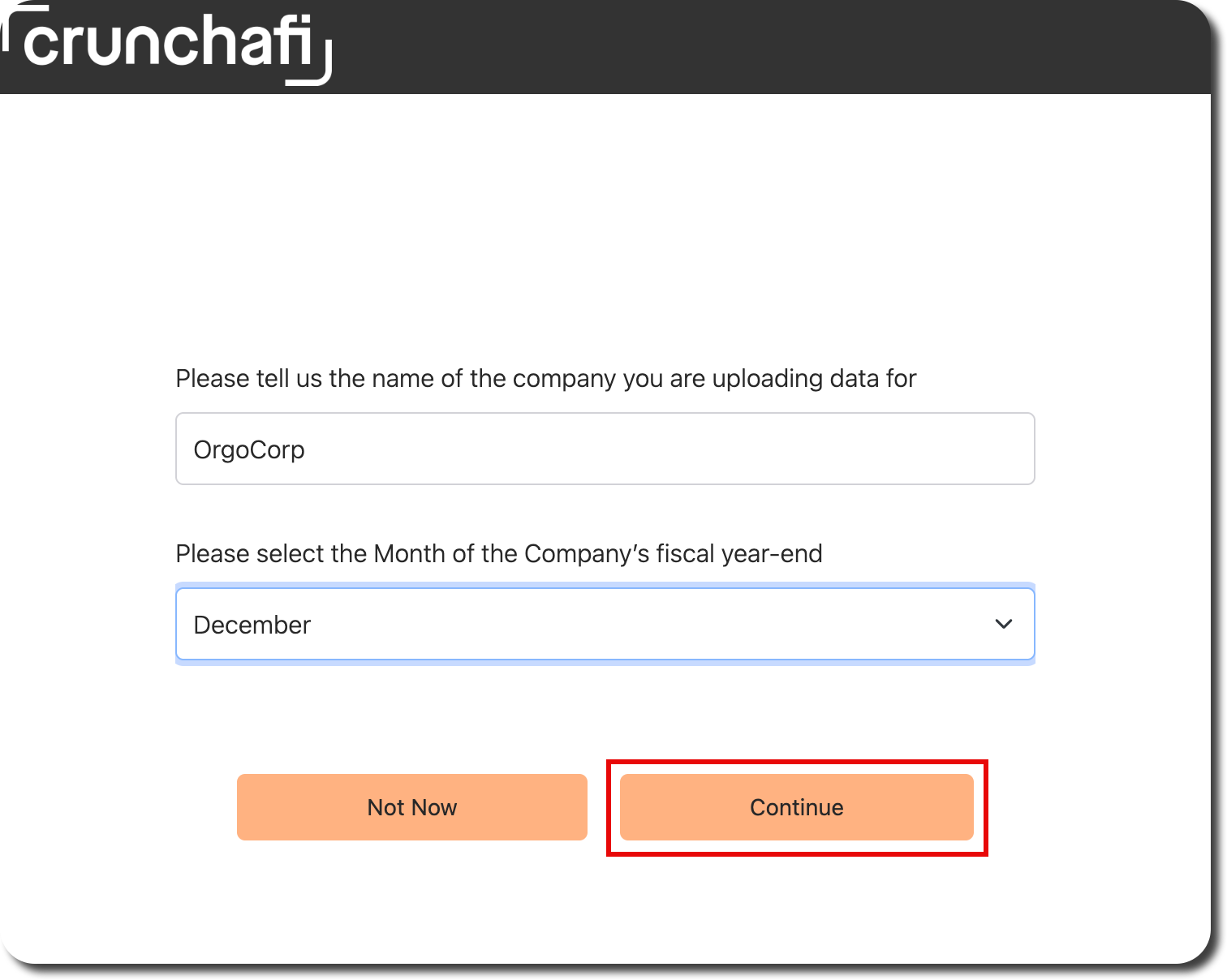
- Enter/select the following and click Continue to generate a custom Excel template for your data:
- Enter the name of the company for which you are uploading data
- Select the month of the company’s fiscal year-end
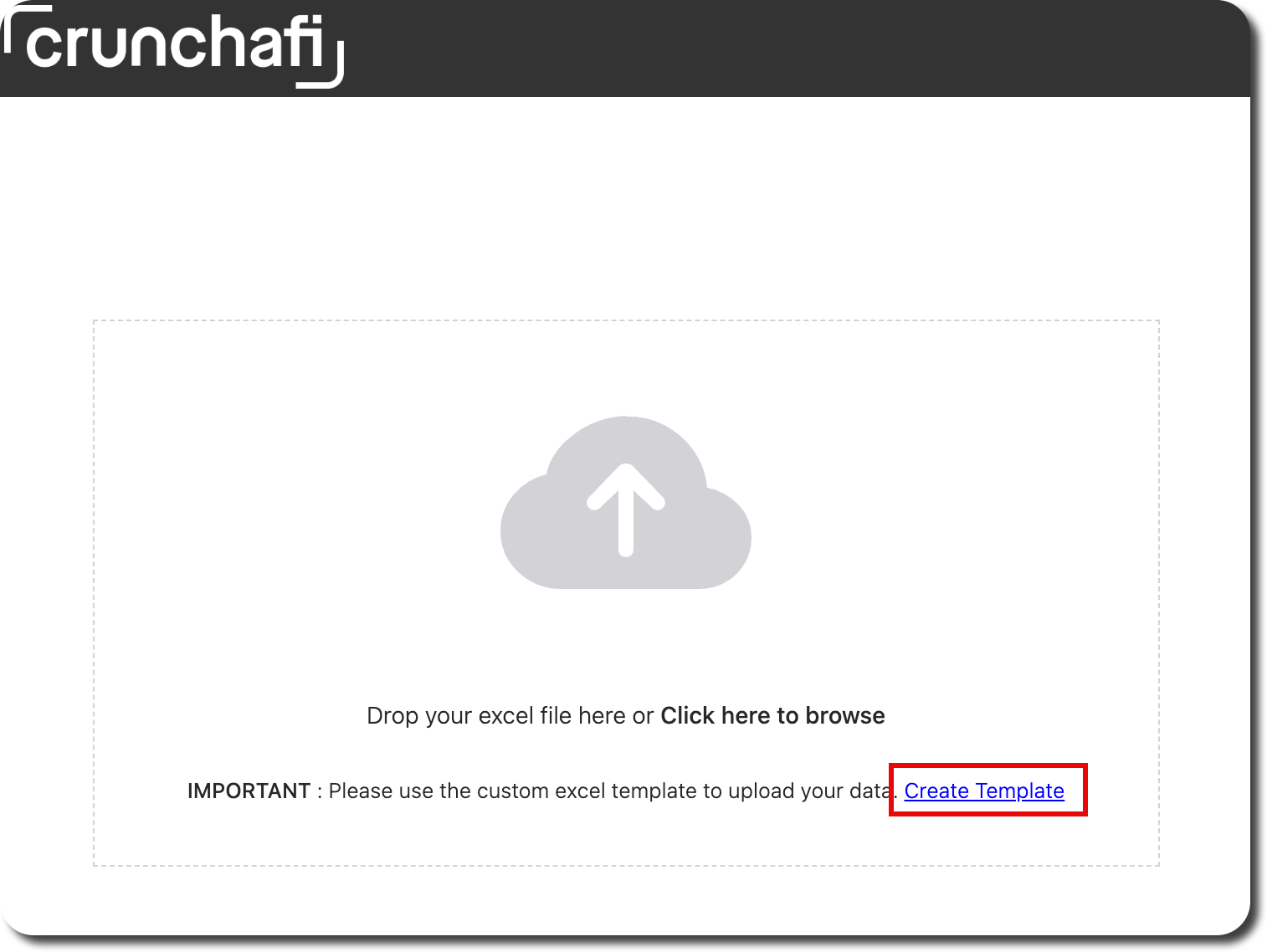
- Click Create Template to download the custom template. The template is produced based on the collection parameters from Step 3.
-
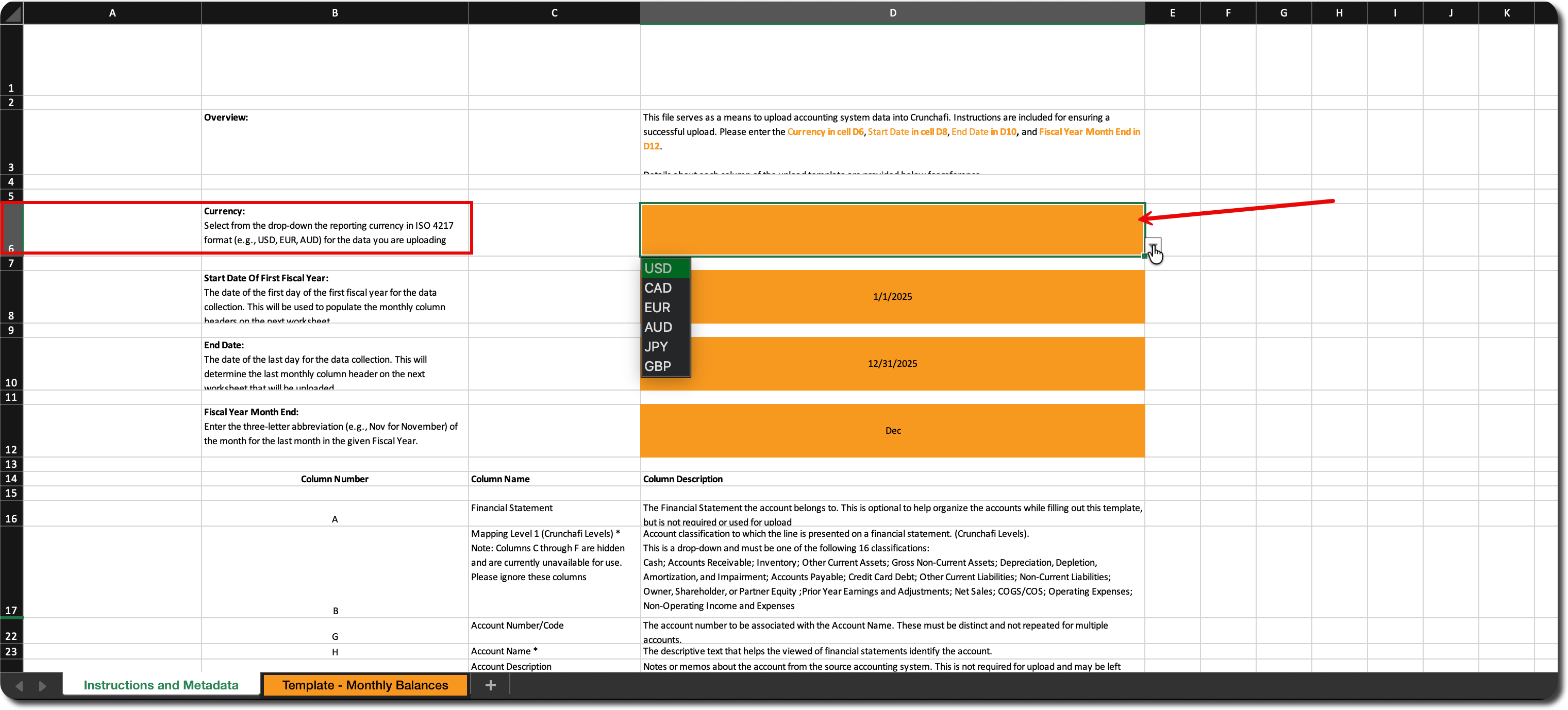
Open the file and review the instructions and metadata in the first tab.
- Select the currency from the dropdown in Column D, Row 6.
-
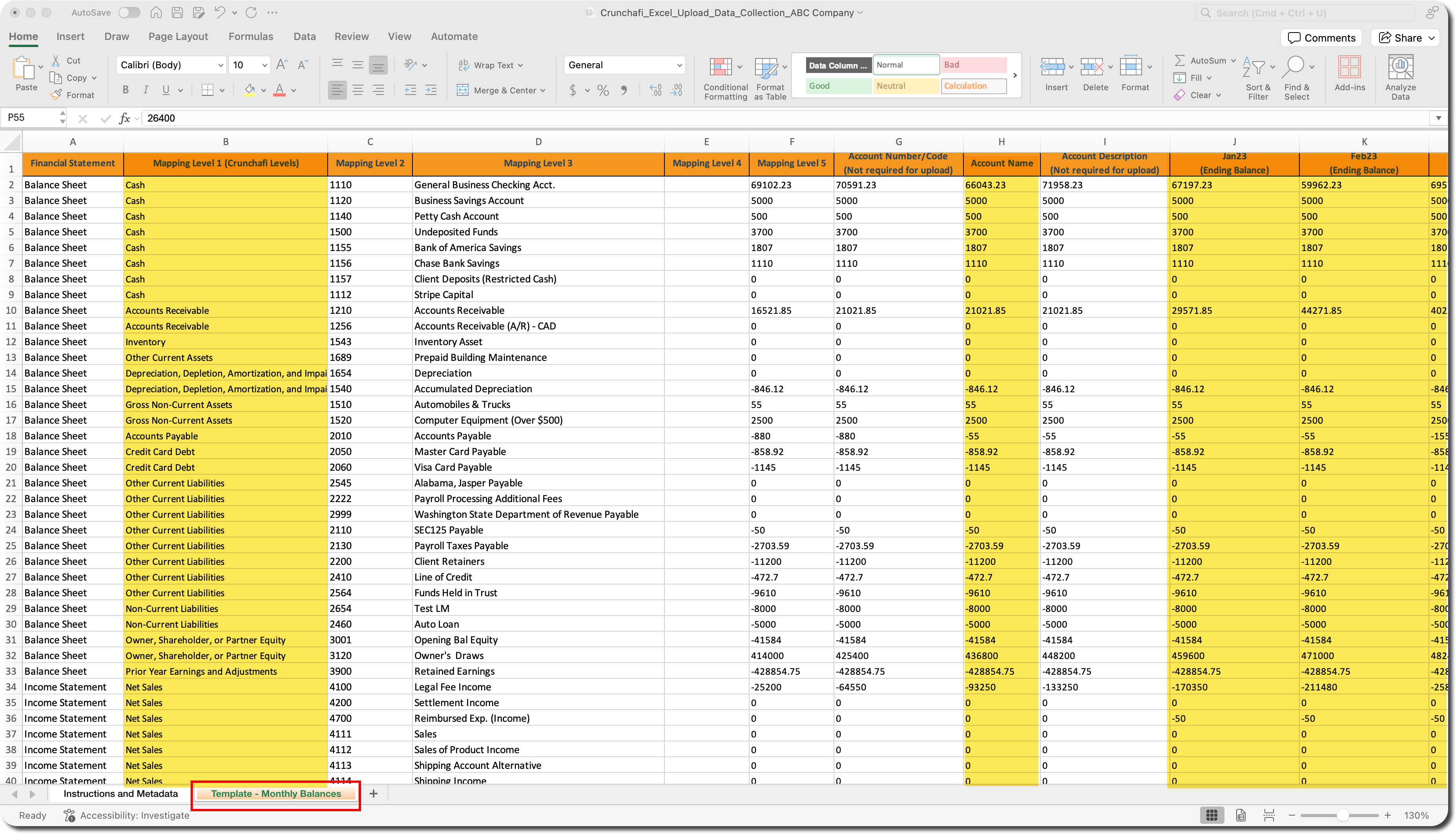
Switch to the Template – Monthly Balances tab to enter your data. The following minimum information is required for successful file processing:
- Column B: Mapping Level 1 (i.e., account classification for mapping to Crunchafi)
- Column H: Account Name
- Column J through end: Ending balance for each month in the template (do not leave any cells blank and each column must sum to 0)
- Save the file to your device.
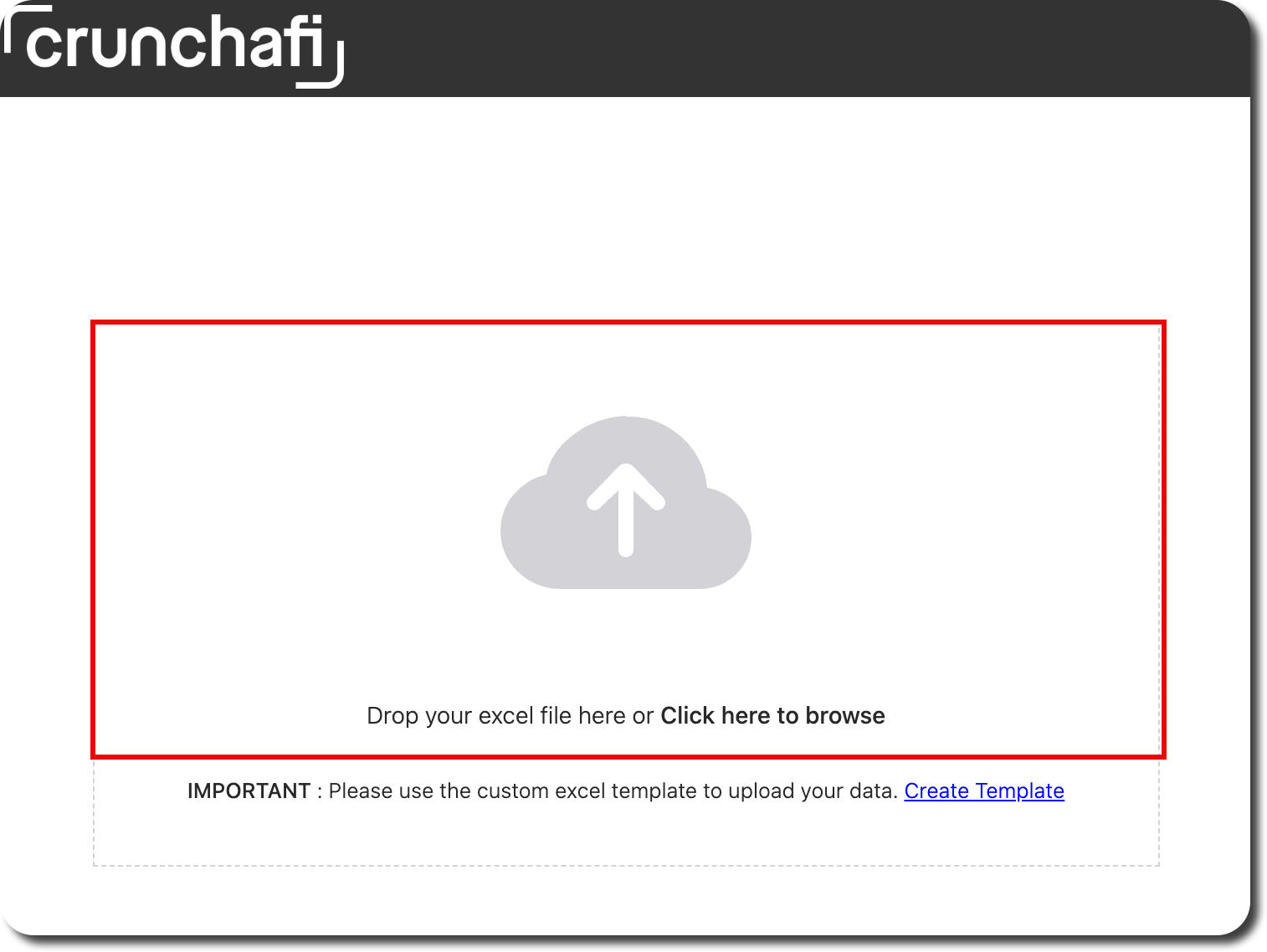
- In Data Extraction, drag and drop the Excel file or choose Click here to browse. If the upload is not successful, errors will be highlighted so that you can correct and re-upload the file.
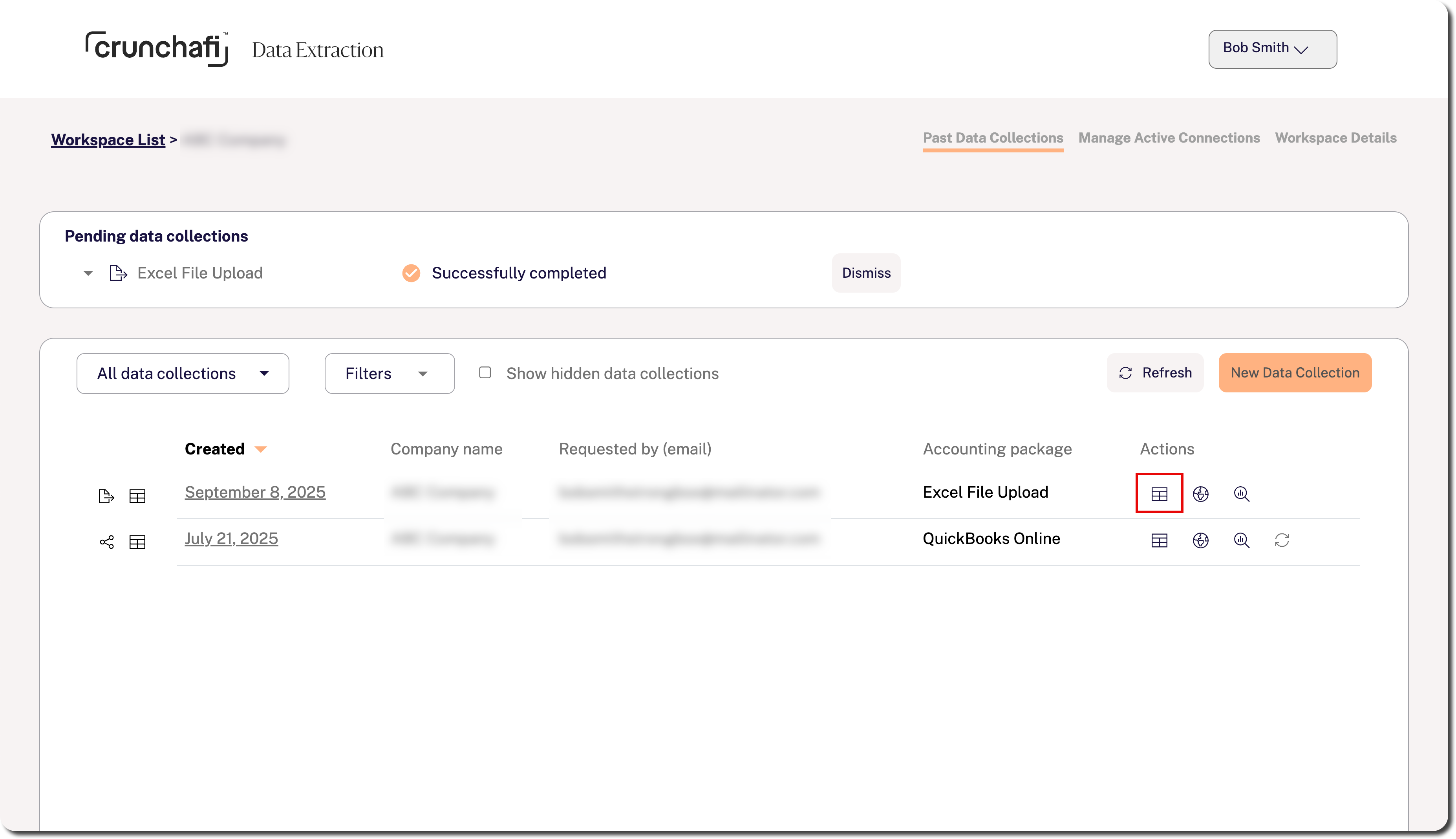
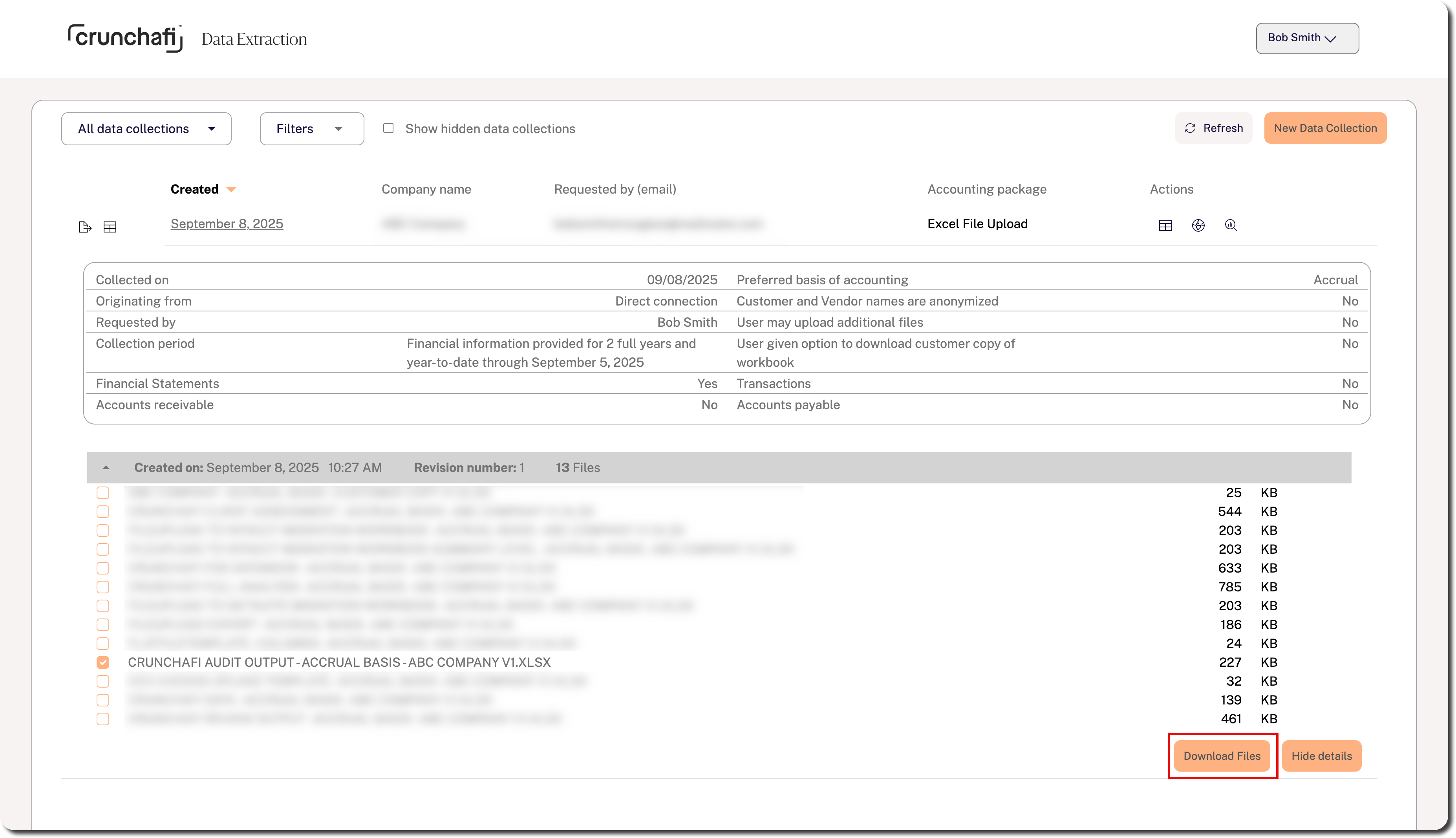
- From the workspace details page, click on the table icon under the Actions column to view the Data Extraction workbook output.
- Choose the relevant output files and click Download Files.
📝
Note
Which output files are available for a collection depend on your firm’s plan.
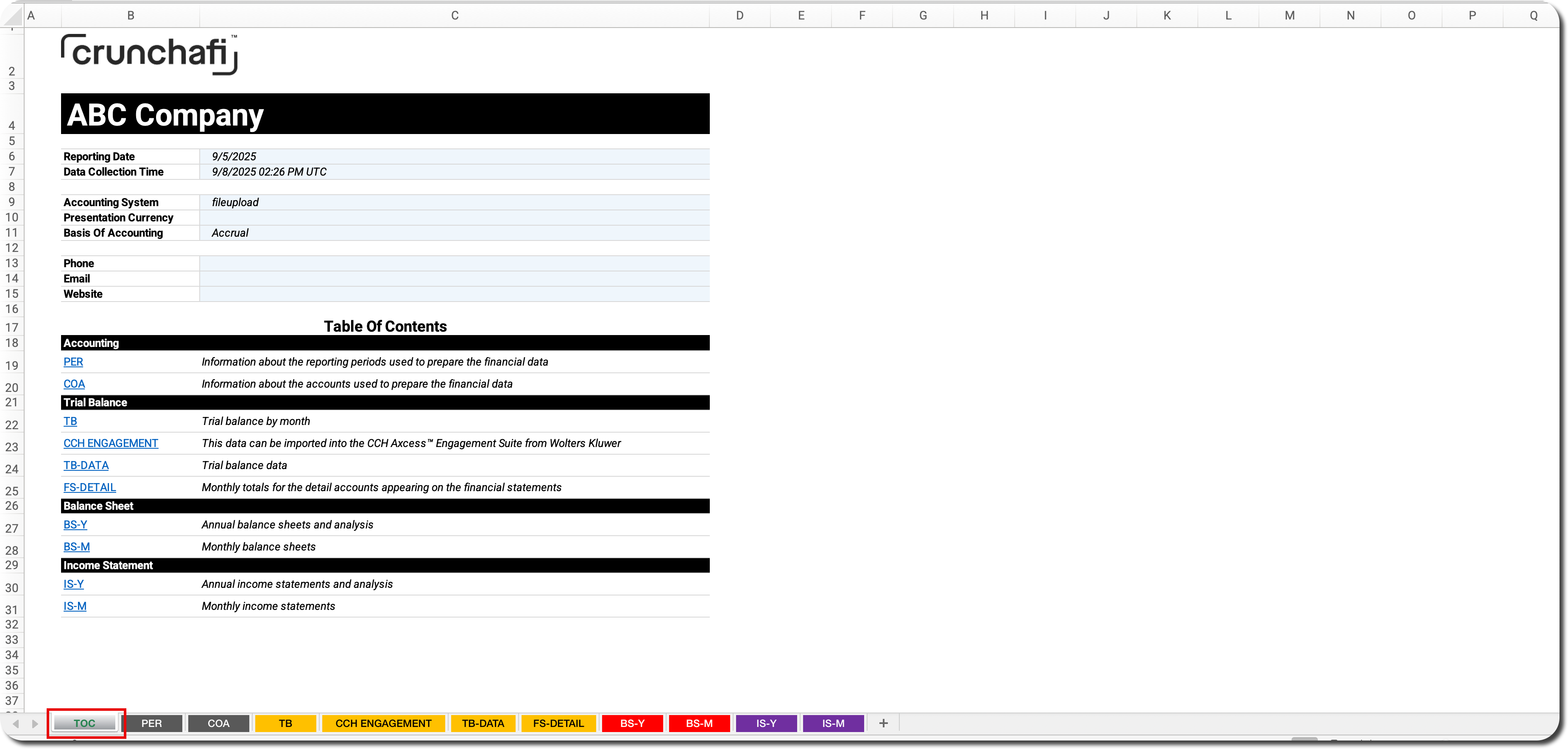
- Use the TOC tab to view available reports.