We periodically release improvements to the Crunchafi (Strongbox) Connect application to help with processing QuickBooks files.
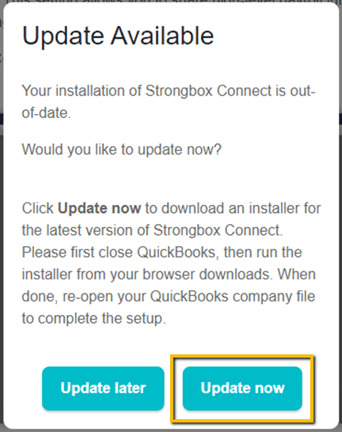
If you haven't updated Crunchafi (Strongbox) Connect recently, you'll see a pop-up window advising that an update is available. Follow the steps below for the best experience with your Crunchafi (Strongbox) Connect plug-in.
Note:
You may need assistance from your IT Helpdesk to install the update. If so they can download the latest update directly through this link:
Close QuickBooks Desktop
The existing Crunchafi (Strongbox) Connect application must be closed before it can be updated. By closing QuickBooks, you will ensure that the plug-in is no longer running.
Click on Update now
Select a location to save the update file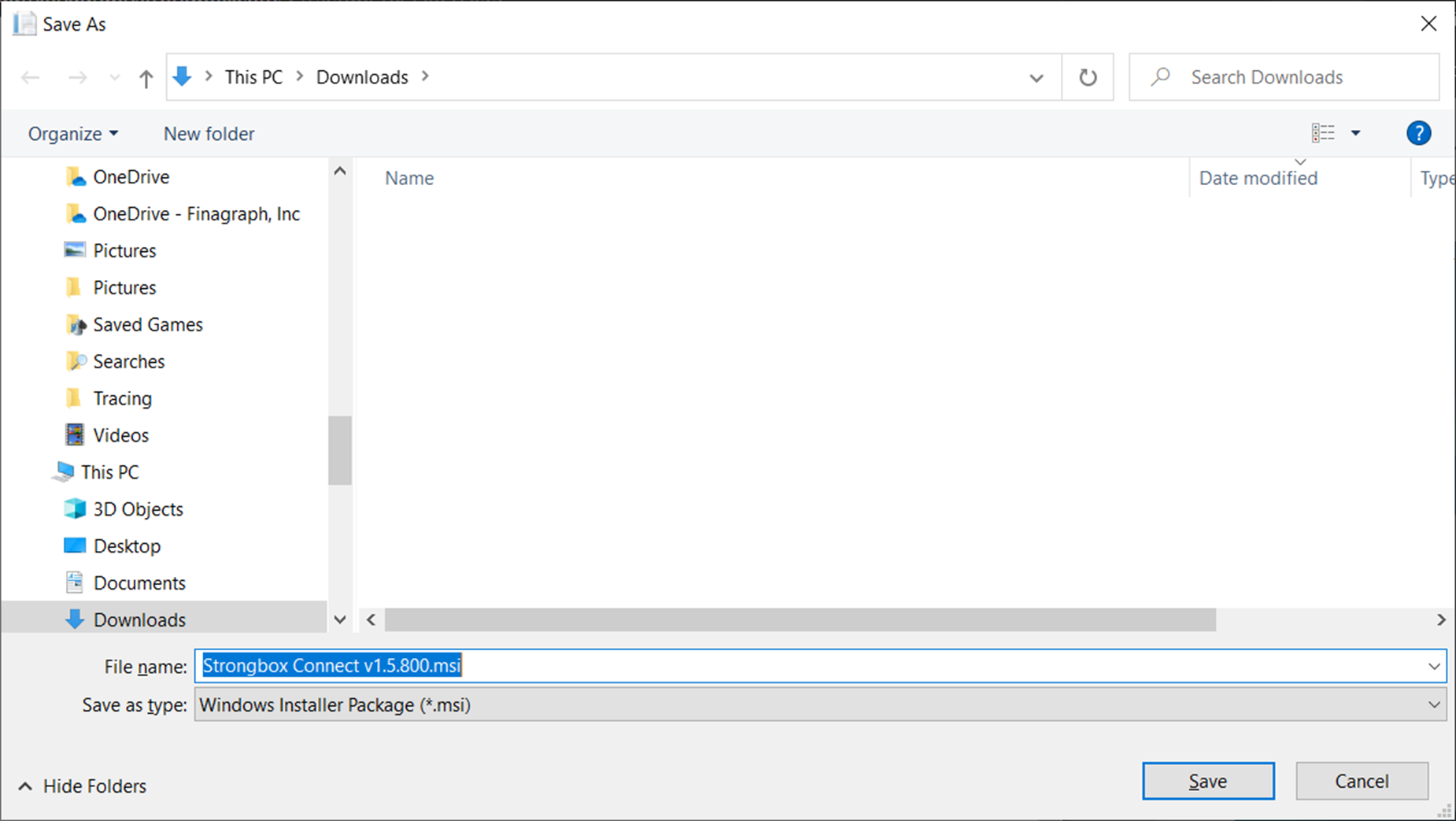
Open the downloaded file
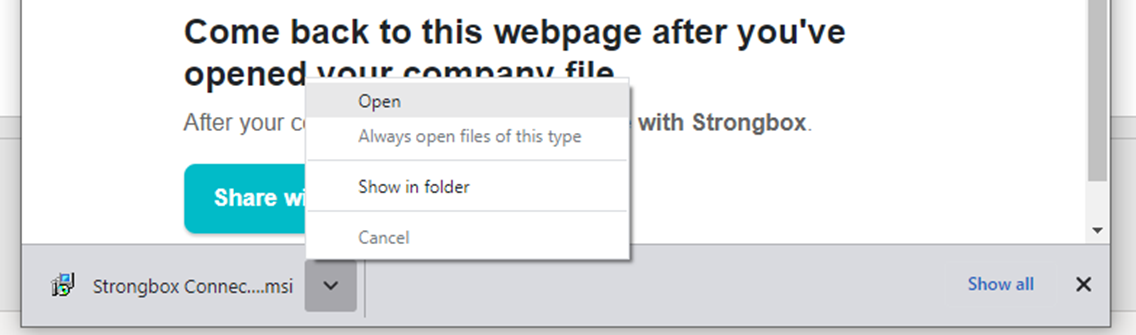
When the download has complete, the file will appear in the bottom of your Chrome browser. Click the menu button and select Open.
Click Next to start the install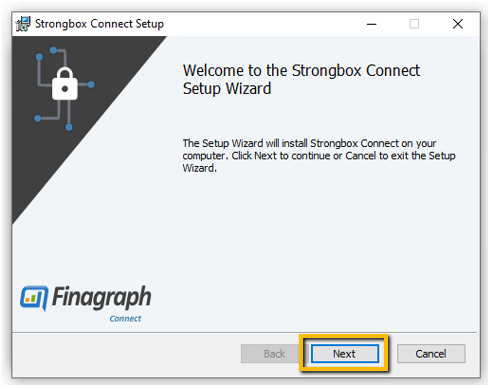
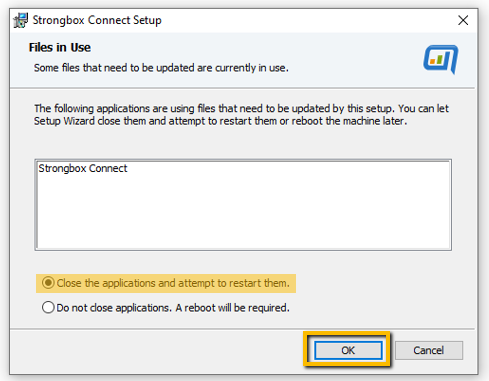
If you have not closed QuickBooks
You may see an error that Crunchafi (Strongbox) Connect is in use.
Close QuickBooks, then select "Close the application and attempt to restart them." and click OK.
If you do not close QuickBooks first, the install might not complete correctly.
Allow the install to complete and then click Finish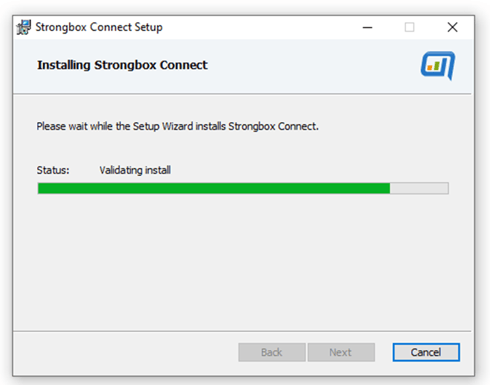
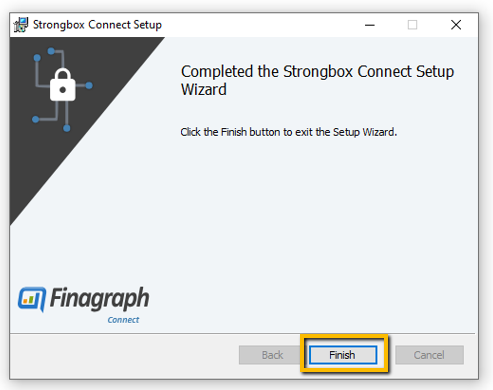
Restart QuickBooks and open the company you wish to collect from
Return to the Crunchafi (Strongbox) Connect to QuickBooks Desktop Guide
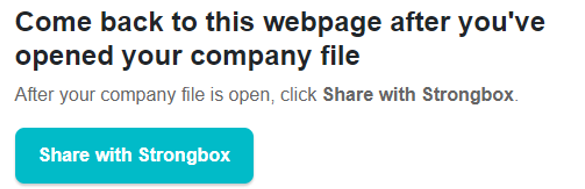
Select Share with Crunchafi (Strongbox) to complete the collection.