If Crunchafi (Strongbox) Connect does not launch or does not show up in the System tray:
For users on Chrome or Microsoft Edge, click Allow if prompted to confirm that you want to allow Crunchafi Data Extraction to access the QuickBooks Desktop file.. This applies if it is your first connection or if a lot of time has passed since the last connection.
.png?width=400&height=308&name=image%20(8).png)
In Chrome, if the Allow/Block prompt does not appear, click on the site settings icon to the left of the browser URL to confirm and allow pop-ups and apps for this browser on your device:
.png?width=310&height=152&name=image%20(9).png)
In Microsoft Edge, if the Allow/Block prompt does not appear, click on the padlock icon to the left of the browser URL to confirm and allow pop-ups and apps for this browser on your device:
.png?width=385&height=229&name=image%20(10).png)
Only an admin user can grant permissions to enable Crunchafi (Strongbox) Connect.
Log out of the QuickBooks Desktop company file
Log back in as an Admin user
If Crunchafi (Strongbox) Connect does not launch or does not show up in the System tray, move on to Step 2.
When logged into the QuickBooks Desktop Company File as an Admin user:
Go to Edit -> Preferences -> Integrated Applications -> Company Preferences
Verify Crunchafi (Strongbox) Connect is listed with the following options selected under Properties:
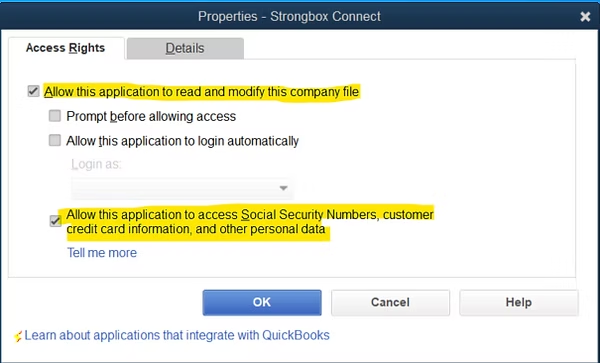
If these options are checked and Crunchafi (Strongbox) Connect does not launch or does not show up in the System tray, move on to Step 3.
If Crunchafi (Strongbox) Connect does not launch or does not show up in the System tray, move on to Step 4.
Use the repair tool to fix issues that may have occurred during installation/update.
Repair your QuickBooks Desktop for Windows
If Crunchafi (Strongbox) Connect does not launch or does not show up in the System tray, move to Step 5.
Uninstall Crunchafi (Strongbox) Connect
Download and start the installation of Crunchafi (Strongbox) Connect
On the "Installation Scope" screen, select the "Install for all users on this machine" option
Note: This requires "Windows Administrator" privileges. You may have to work with your IT team to enable installation. 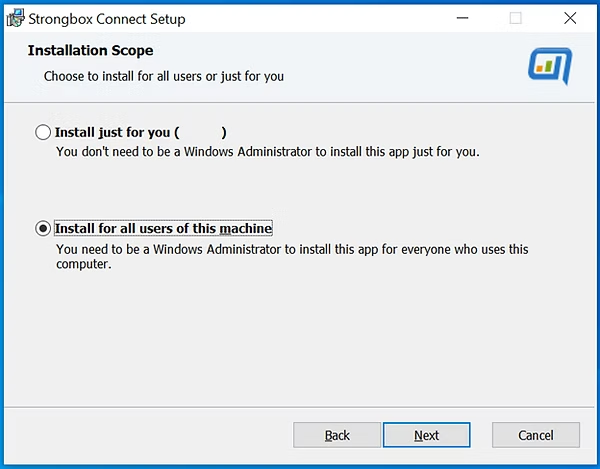
4. After completing the installation, launch QuickBooks Desktop and log in as an Admin user.
If you are still unable to see Crunchafi (Strongbox) Connect being launched when opening the company file, please reach out to the Crunchafi Data Extraction support team at support@crunchafi.com.