Requirements:
There are 3 windows to move through in order to create your data collection.
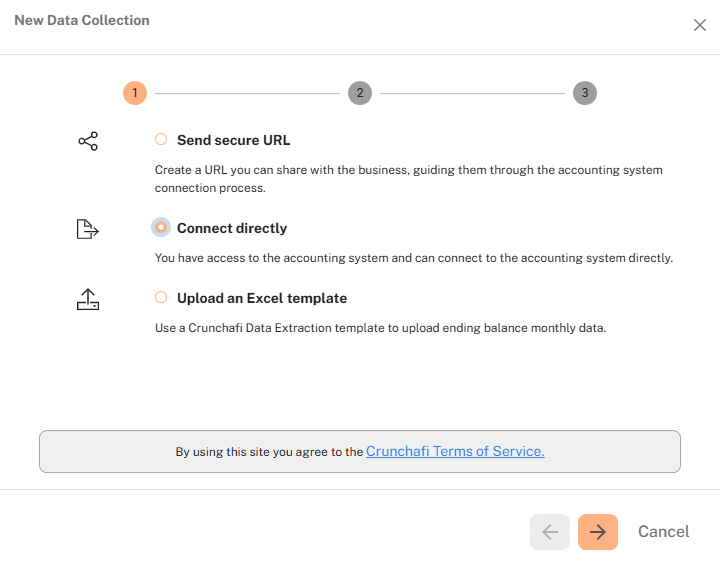
Configure your desired options for the data collection. Make sure you have selected the radio button to Connect directly, and then click the Next button at the bottom of the dialog box in order to move forward to select the time frame you'd like to collect.
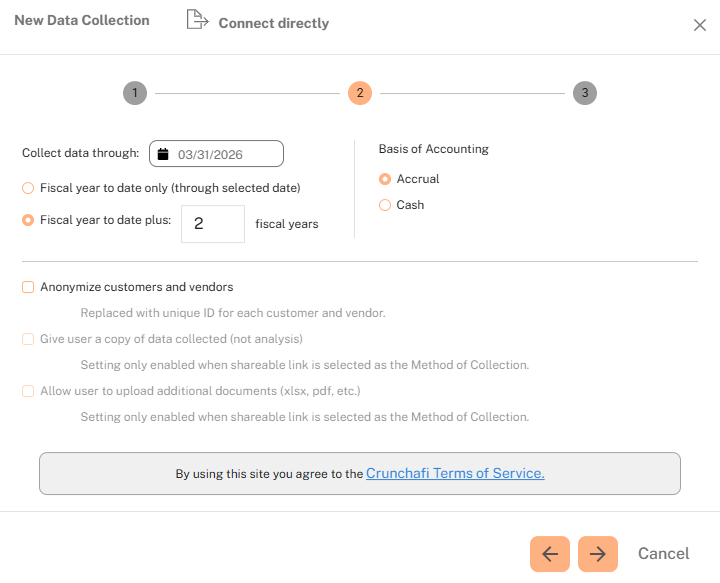
Now you can select the month of the current fiscal year, and you can either choose to gather through that month for FYTD, or you can choose up to 5 additional years of data. You can also choose your Preferred Basis of Accounting at this step as well.
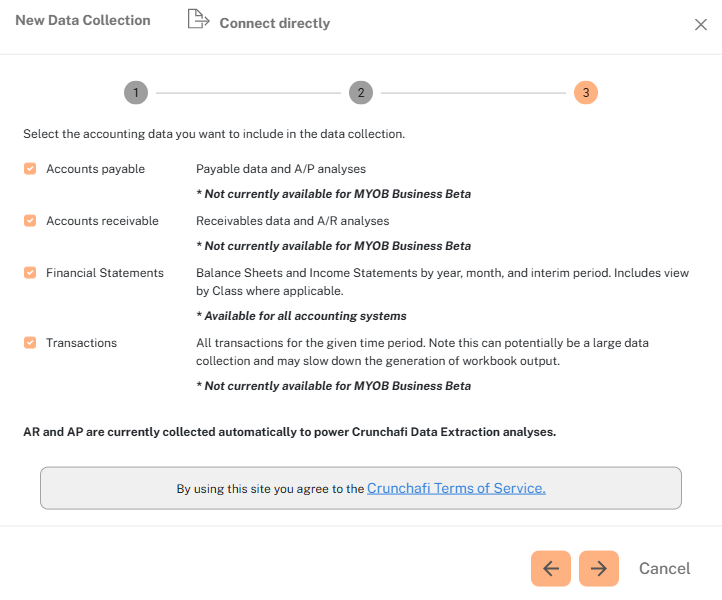
Finally, you can select the accounting data that you want to include in the data collection. Please note that Transactions can potentially be a large data collection and may slow down the generation of workbook output. After clicking Next, you will move on to selecting your accounting system.
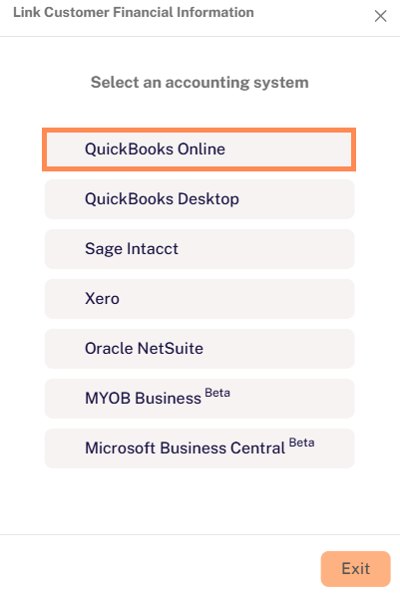
To share your financial reports, click the button for QuickBooks Online.
Click the green Connect to QuickBooks button to launch the QuickBooks Online login screen.
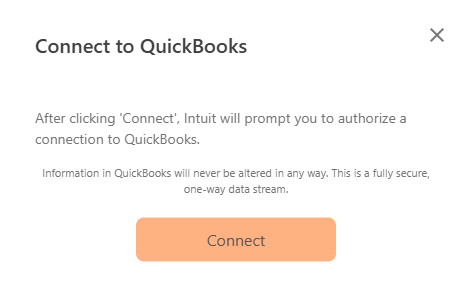
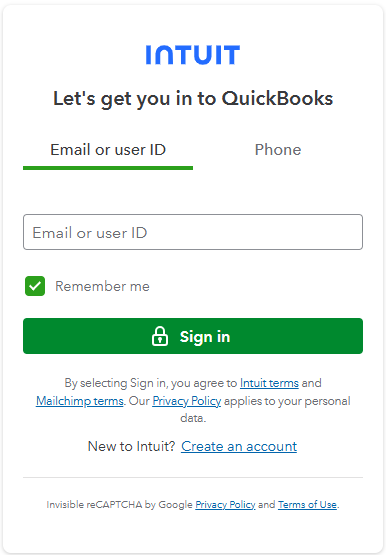
In the official Intuit Sign In window, provide the Email (or user ID) and Password for your account with access to the correct QuickBooks company.
Note: as outlined above, the account must be either an Admin user or an Accounting Firm User.
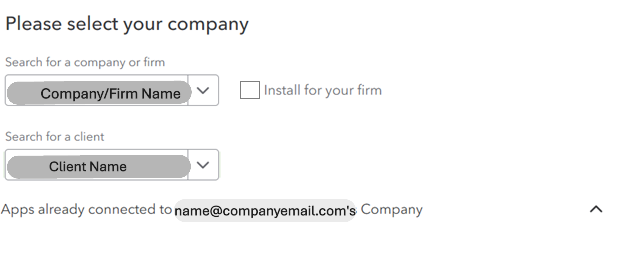
Note: ensure the "Install for your firm" checkbox is unchecked
On the Crunchafi Data Extraction Portal Workspace list, you'll also see an indication of an import in progress.

You've successfully collected reports from QuickBooks Online!
When the Data Collection is complete, the portal will update with a success message, which includes a link to the appropriate collection where you can download the completed workbook.