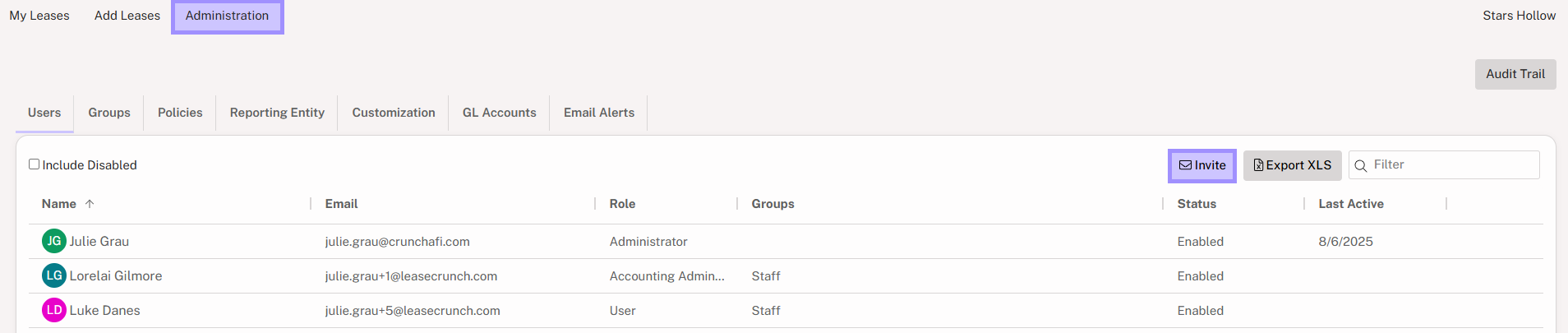
The first step to inviting new users into Crunchafi Lease Accounting is to click on the Administration Tab after logging in.
Then, click the Invite button on the top right side of the page.
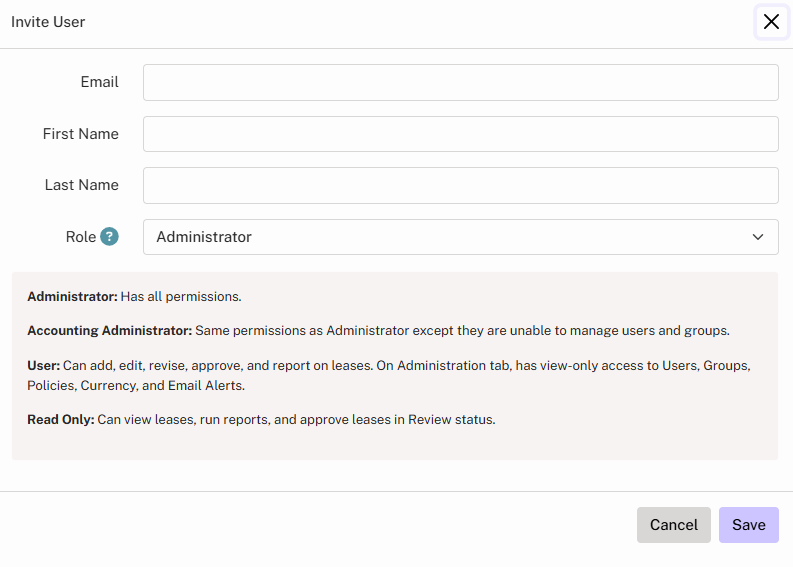
After clicking Invite, a pop-up will appear to enter the new users email address, first name, and last name, then select the Role for the new user. A description of what each role can do is shown in the blue box below the selection box.
After clicking Save, the user will receive an invitation email with a link to create their account with Crunchafi Lease Accounting. The process they follow is detailed in our Knowledge Base article How to create your Crunchafi Lease Accounting User Account.
The new user will now be added to the list of enabled users, and changes to their user account can be made by clicking on the pencil on the right side of the row when hovering over that row.
Note: Until a user clicks the link in the welcome email and creates their account, the invitation can be resent by hovering over the user row and clicking on the envelope icon. Once the account is created, the envelope will no longer appear.