
Follow the instructions in this article to update a user's permissions or disable their account. User access can only be managed by users with the Administrator role.
Updating Permissions
1. Go to Administration > Users and click on the edit icon at the end of the user's row.
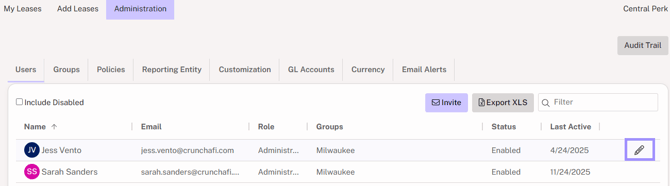
2. Update the Role dropdown based on the permissions they should have for user management, lease management, and more.
-
Administrator: This level of access allows the user to make changes to all settings in the account, including enabling and disabling users, inviting new users, and editing all leases, Reporting Entities, and GL Accounts.
-
Accounting Administrator: Same permissions as Administrator except unable to manage users and groups.
-
User: This level of access provides full access to the My Leases and Add Leases Tabs, and read only access to some parts of the administration tab. This role does not have permissions to add new Reporting Entities or GL Accounts.
-
Read Only: Can view leases, run reports and approve leases in the Review status.
3. Click Save.
Disabling a User Account
Disabling an account blocks all access to Crunchafi Lease Accounting for that user and removes them from the list.
1. Go to Administration > Users and click on the edit icon at the end of the user's row.
2. Click on the Disabled option for the Status.
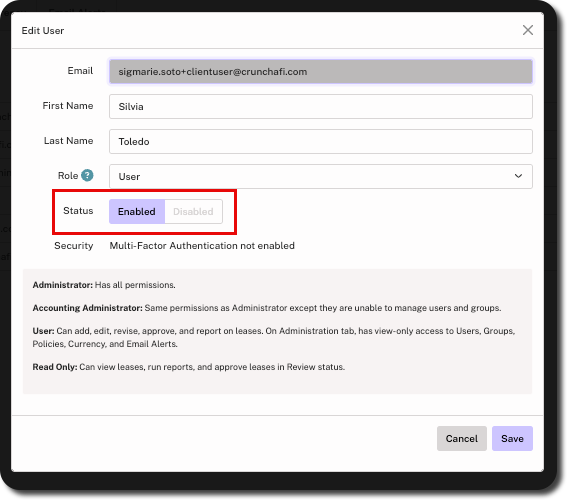
3. Click Save.
Enabling a User Account
1. Go to Administration > Users and select the Include Disabled box above the list.
2. Click on the edit icon at the end of the user's row.
3. Click on the Enabled option for the Status.
4. Click Save.
For instructions on how to make changes to users in CPA Firm Accounts, click here.