How do I add firm users?
From the Firm Account Screen, select Users can be added to Crunchafi Lease Accounting by Firm Administrators.
Firm name is shown in the upper right corner.

- Navigate to the Users tab
- Click the Invite button (Firms using SSO will contact their IT Department to add additional users. The Invite button will not be shown.)
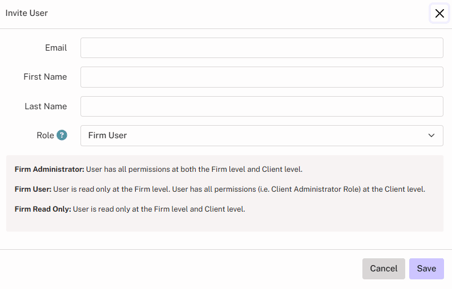
- Enter Email address, First Name and Last Name, then select a Role
- Firm Administrator: User has all permissions at both the Firm level and Client Level
- Firm User: User is read-only at the Firm level. User has all permissions (i.e. Client Administrator Role) at the Client level.
- Firm Read Only: User is read-only at the Firm level and Client level.
- Click Invite.
- User will receive an email to verify the account and create a password.
More information about permissions for each Role is shown below:
| Permissions at Firm Account |
Firm Administrator |
Firm User |
Firm Read Only |
| Client Accounts Tab |
Add/Edit |
View Only |
View Only |
| Users Tab |
Add/Edit |
View Only |
View Only |
| Groups Tab |
Add/Edit |
View Only |
View Only |
| Audit Trail |
View Only |
No Access |
No Access |
| Permissions at Client Account |
All Permissions** |
All Permissions** |
View Only* |
** Same rights as Administrator role at the Client Account
* Same rights as Read Only role at the Client Account
For a list of permissions for different roles at the Client Account level, see FASB / IFRS or GASB Help Guidance.