
View our admin settings walk-through or refer to the instructions below. For general information on how to navigate Crunchafi Lease Accounting, click here.
TOURIAL_EMBED_HERE
To get started, click on Administration from the top navigation bar. All menus and configuration options covered below are located under this page.

Select a topic below for more details:
- Adding Users
- Adding Groups
- Configuring Policies & Settings
- Adding Reporting Entities
- Additional Customization Options
- Setting Up Email Alerts
Adding Users
Click Invite in the top-right corner of the Users tab to invite new users to your account.

Enter the user's email address, first name, and last name, and choose the relevant role (review the descriptions for more information). Click Save.
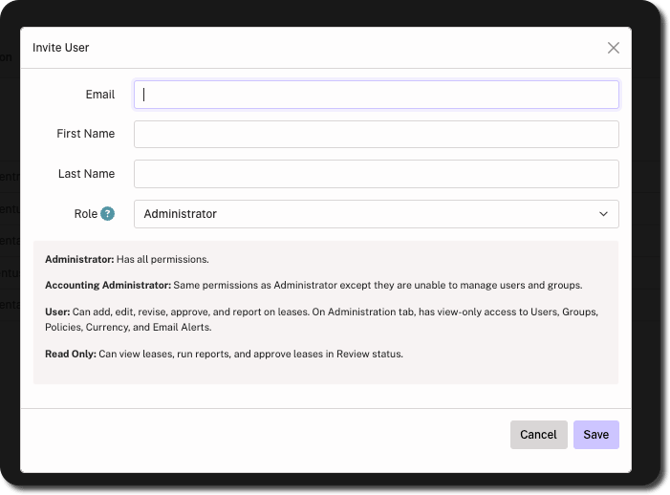
The user will receive an invitation email with instructions on how to set up their account.
Adding Groups
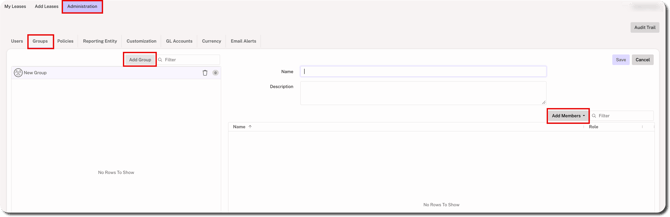
Groups are used to send email alerts important lease activity, such as upcoming end dates for leases under a specific Reporting Entity. To add a group:
Go to the Groups tab, click the Add Group button. Enter a name (required) and description (optional). Click the Add Members dropdown to select one or more users and click Save.
TIP
If you are a firm-level user, groups can also be used to control access to client accounts. For additional information about firm-level groups, click here.
Policies
The Policies tab is separated into two sections:
- Accounting Policies: Settings you want to enable or disable for your organization, such as disabling firm access to your account or requiring approval for new leases.
- Lease Accounting Policy Documents: Use our lease accounting policy templates to make your elections and upload them back into Crunchafi for reference.
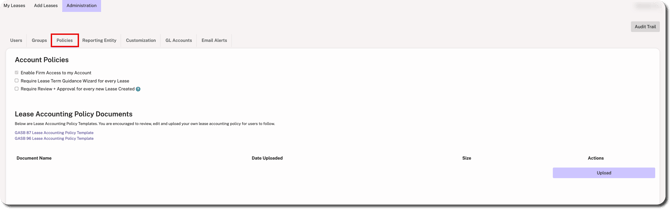
Accounting Policies
Review and select/de-select options as needed for your organization.
- Enable Firm Access to my Account: Enabled by default. If left enabled, you agree to allow your CPA firm to access accounts associated with your relationship. This can only be managed by client users with the Administrator or Accounting Administrator roles.
- Require Lease Term Guidance Wizard for every Lease: Each lease requires users to work through the wizard to consider termination clauses and renewal terms (not enabled by default).
- Require Review + Approval for every new Lease Created: Each lease entered will require approval by another user (not enabled by default). Non-admin and read-only users have permissions to approve leases.
Lease Accounting Policy Documents
Click on any of the GASB 87 or GASB 96 policy templates to download it, open it on your device, and make/save the necessary elections. Click Upload under the Actions column to store the policy document in Crunchafi.
Reporting Entities
To start adding leases, you must add at least one Reporting Entity under the relevant GASB agreement type (i.e., GASB 87, 96, and/or 94) depending on the needs of your organization.
1. From the Reporting Entity tab, click the +Add button.
2. Enter the entity name and select one of the GASB options from the Standard dropdown.
3. Select the Initial Application Date, which is the beginning of the earliest period presented in the financial statements in which the lease standard is first applied. For additional guidance on choosing the correct Initial Application Date based on the GASB type, click here.
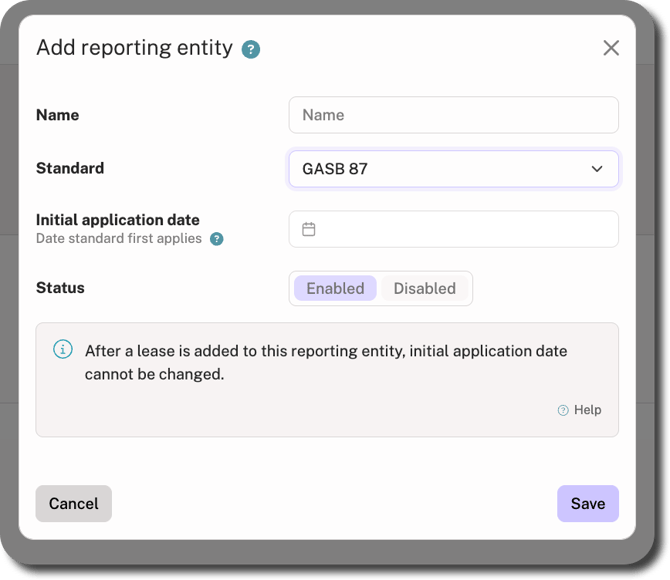
4. Click Save in the bottom-right corner.
IMPORTANT
After a lease is associated with this Reporting Entity, the Accounting Standard and Initial Application Date cannot be changed.
Customization
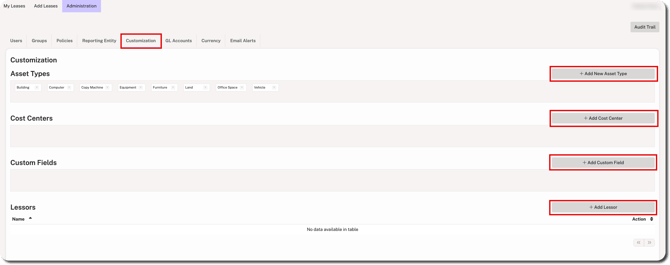
Use this tab to capture values and other pieces of data that are important for your leases. This includes expanding the default list of asset types or creating custom fields. Click the + Add button to the right of the field type, enter the value, and then click Save.
- Asset Type: Add relevant asset types beyond those built into Crunchafi. These options will show across all Reporting Entities. Delete or add new options as needed.
- Cost Centers: Used to allocate expenses, if applicable.
- Custom Fields: Used to add extra pieces of data for tracking, if applicable. When added, these appear as optional open text fields in the add/edit lease flow.
- Lessor: Used to add each Lessor (e.g., owner) for the lease assets. Lessors cannot be deleted, only edited.
NOTE
Certain user roles can also add new Asset Types, Custom Fields, or Lessors by using the Add button available when entering a new lease.
GL Accounts
From the GL Accounts tab, update and add the lease-related GL descriptions and account numbers to match the selected Reporting Entity's chart of accounts. This allows journal entries to map directly into the accounting system. Use the toggles at the top of the tab to switch between Lessee and Lessor if needed.
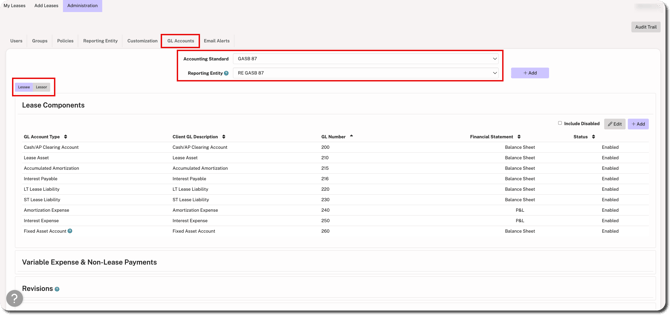
If you have more than one Reporting Entity under any of the GASB standard types, select a different entity from the dropdown to make any changes. To create an additional Reporting Entity, click +Add to the right of the dropdown.
Click here for more details on GL Accounts, including how to delete or edit them. At least one GL Account under each Account Type must remain active.
Email Alerts
Email Alerts are used to notify you and your team about important activities related to your leases. This eliminates the need to set manual reminders or repeatedly check lease details.
TIP
If you need to notify the same users for different types of leases, consider creating groups. For example, a group could be useful if you want to alert the same users when leases under a certain Reporting Entity are approaching their end date.
From the Email Alerts tab, click +Add in the top-right corner.
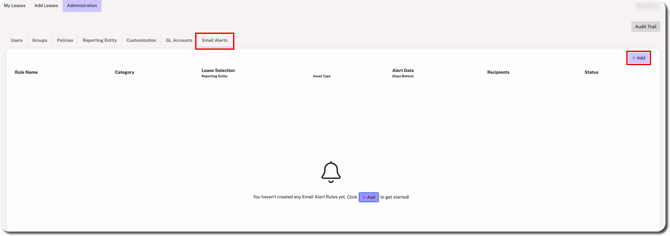
Do the following from the Add Alert Rule window:
- Rule Name: Enter a descriptive name for the alert
- Category: Select a category (e.g., Lease End Date)
- Lease Selection: Update the dropdowns to assign the alert to a specific Reporting Entity and/or Asset Type. Leave one or both dropdowns as-is to apply it to all.
- Email Alert: Enter the number of days before the lease event (e.g., lease end date) you want the alert to be sent. You can enter multiple intervals by pressing enter (e.g., 30, 90, 180).
- Choose Email Recipients: On the right side of the window, leave as-is to send to all active Crunchafi users or choose Groups & Users to select groups or individual users.
Click Save and then click Test to send a sample email alert to yourself.
NOTE
Ensure that events@crunchafi.com is on the safe sender list for your organization to avoid notifications landing in users' spam folders.