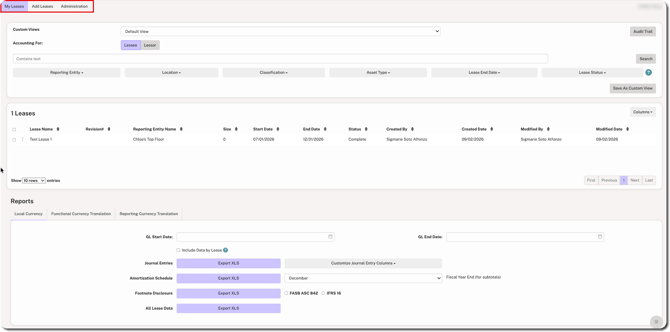
Crunchafi Lease Accounting is separated into three main sections:
- My Leases: View, edit, or complete existing leases; save custom views for quick filtering; and generate crucial reports (e.g., Journal Entries or Footnote Disclosures).
- Add Leases: Create leases by manually entering the details or using Crunchafi's AI Lease Abstraction feature to extract the details from a PDF.
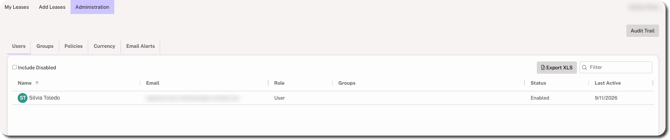
- Administration: View/manage configurations for your leases ranging from enabling Crunchafi's review flow to creating email alerts for important lease dates. Non-admins have read-only access to select administration menus.
My Leases
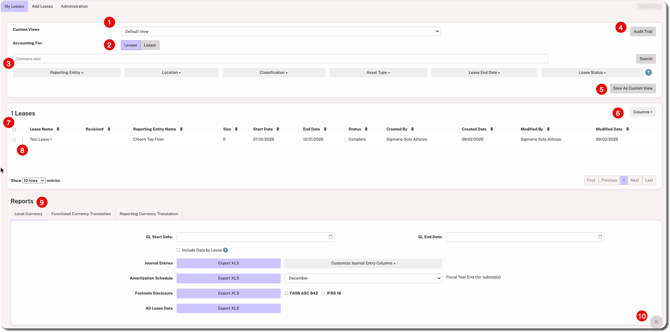
The My Leases page is your main dashboard and reporting center. You can do the following from this view:
- Switch between your Custom Views for quick filtering, if applicable. The default view shows leases in all statuses except deleted.
- Choose whether to view leases categorized as lessee or lessor, if applicable.
- Apply various filters to narrow the list of leases, such as by Reporting Entity, Location, Classification, and/or Status.
- Click Audit Trail in the top-right corner to view all lease activity, including user name, date and time, lease name, and which fields were modified.
- Click Save as Custom View to store a filtered view for future use.
- Use the Columns dropdown under the Leases table to customize which fields are displayed for each lease. Default columns include lease name and status. You can choose other options, such as description, term, and currency.
- Select checkboxes for one, multiple, or all leases to generate reports. Only reports in completed status can be selected for reporting.
- Click on the ⋮ (more) menu to choose from various actions, such as View, Edit, Clone, or Delete. Which options are available depend on the status.
- Select GL Start Date / GL End Date to export one or more of the available reports for the selected leases (i.e., Journal Entries, Amortization Schedule, Footnote Disclosure, or All Lease Data). Use the tabs to switch to currency translation reporting options.
- Click the icon in the bottom-right corner to access the Report Center, which shows reports generated within the past 45 days.
Add Leases
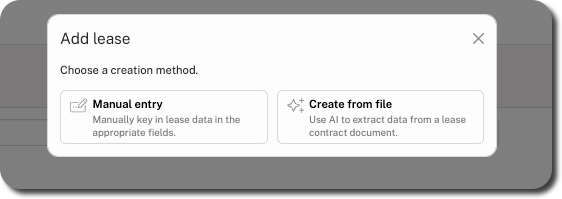
Click Add Leases in the top navigation bar to choose from the following options:
- Manual entry: Fill in or select the details using our step-by-step flow.
- Create from file: Use AI Lease Abstraction to extract lease details from a PDF.
NOTE
To start adding leases, an admin must have already created at least one Reporting Entity associated with the elevant accounting standard.
Administration
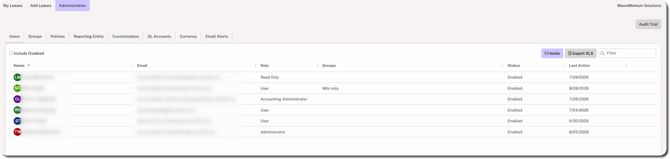
Admins can manage and configure the following from the Administration menu in Crunchafi Lease Accounting:
- Users: Add new users, edit user names or roles, or deactivate accounts.
- Groups: Create groups of users to receive email alerts for important lease dates.
- Policies: Enable/disable certain settings, such as Crunchafi's Review + Approval flow for new leases, as well as upload standard-specific policy documents.
- Reporting Entity: Add Reporting Entities associated with a specific accounting standard. At least one entity is required to add leases.
- Customization: Capture pieces of data that are important for your lease portfolio, such as expanding the default list of asset types or creating custom fields.
- GL Accounts: Add and update lease-related GL descriptions and account numbers to match the selected Reporting Entity's chart of accounts.
- Currency: This only applies to organizations operating in multiple currencies.
- Email Alerts: Set alerts to notify you, other users, or groups of users about important activities related to your leases, such as upcoming end dates.
For additional information on administration and configuration in Crunchafi Lease Accounting, click here.
The following read-only menus appear to non-admin users: Users, Groups, Policies, Currency, and Email Alerts.