
View our AI Lease Abstraction walk-through or follow the instructions below.
TOURIAL_EMBED_HERE
1. Click Add Leases from the navigation bar and select Create from file. For instructions on how to manually enter lease details, click here.
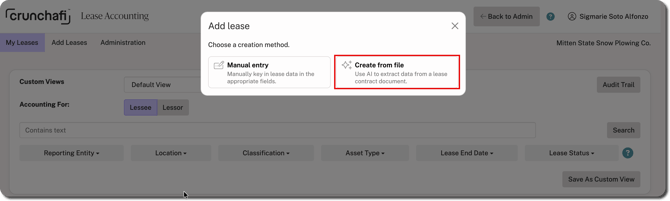
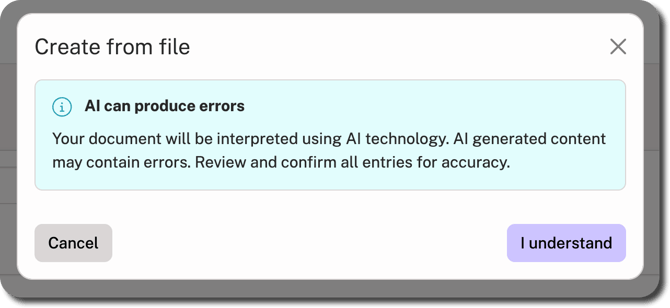
2. Click I understand to accept AI usage when promtped.
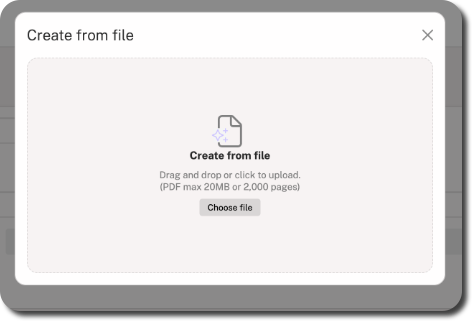
3. Drag and drop the file or click Choose file to find/select the file on your device.
4. Review the details pulled from the file on the left side of the screen. You can see a preview of the uploaded PDF on the right.
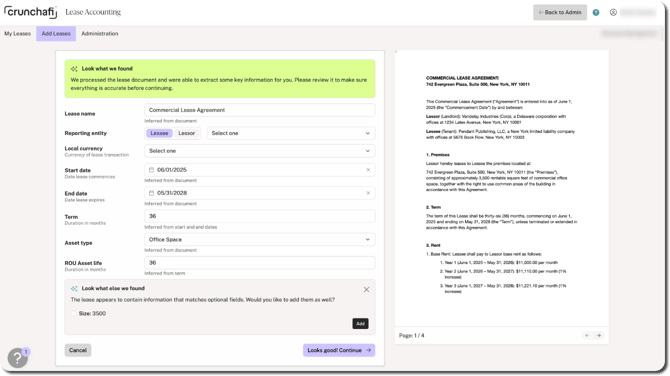
5. Update or fill in any fields as needed (e.g., Start Date, End Date, Lease Name, etc.) and check for any other optional fields detected by AI at the bottom of the form.
6. Click Looks good! Continue in the bottom-right corner.
What's Next
The information extracted from the file is used to populate the Description & Term tab in the lease flow. Make any additional changes if needed and then click Save Changes in the bottom-right corner. Fill in any required or optional information in the remaining sections:
- Lease Payments (has required fields)
- GL Accounts (has required fields)
- Variable Expenses & Other Payments (optional step)
- Attach Documents (contains the file you uploaded; additional files are optional)
Click Save Changes in the bottom-right corner to navigate to each section. For details on the fields under the sections of the lease upload flow, click here.
If you finished all the sections of the lease, it appears with a Complete status on the My Leases page. For organizations with the Review + Approval policy enabled, leases awaiting approval appear in Review status.