
A Reporting Entity is the entity for which financial statements are produced. To start adding leases in Crunchafi Lease Accounting, a user with the Administrator or Accounting Administrator roles must add at least one Reporting Entity under the relevant standard (i.e., FASB, IFRS, GASB, or FRS) per the instructions below.
1. Go to Administration > Reporting Entity and click the +Add button.

2. Enter the entity name and select the relevant standard from the dropdown (i.e., FASB ASC 842, IFRS 16, or FRS 102 OR GASB 87, 94, or 96).
3. Select options for the following fields:
- Initial Application Date: This is the date as of which the Reporting Entity will adopt the standard. View additional Initial Application Date guidance below.
- Local Currency: Choose the currency used to pay lease obligations. This does not apply to leases under GASB.
- Functional Currency: Defaults to the selected Local Currency but can be changed if it is different (e.g., if the currency of its parent company is different).
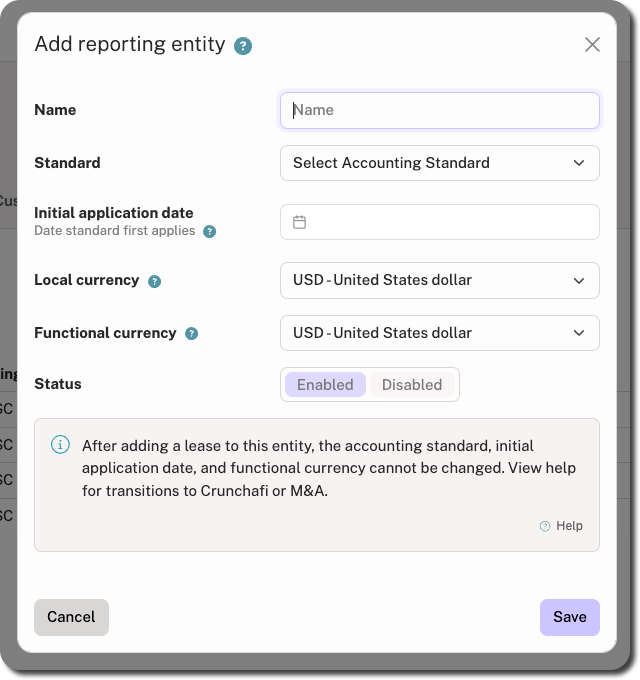
4. Click Save in the bottom-right corner.
IMPORTANT
After a lease is associated with this Reporting Entity, the Accounting Standard, Initial Application Date, and Functional Currency cannot be changed.
Adding Locations to a Reporting Entity
For each Reporting Entity, you can add locations from this menu or from the Add Leases screen.
NOTE
Locations are specific to the individual Reporting Entity.
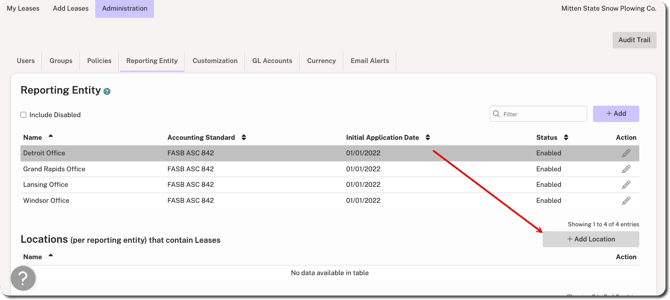
To associate one or more locations with a Reporting Entity from the admin menu, click on the Reporting Entity row from the list and click +Add Location in the bottom-right corner. Enter the details and click Add.
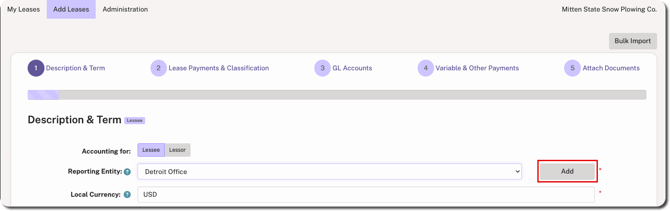
To add a location from the Add Leases screen, select the Reporting Entity from the dropdown in Step 1 of the flow and click Add to the right of the field. Enter the details and click Add.
Disabling a Reporting Entity
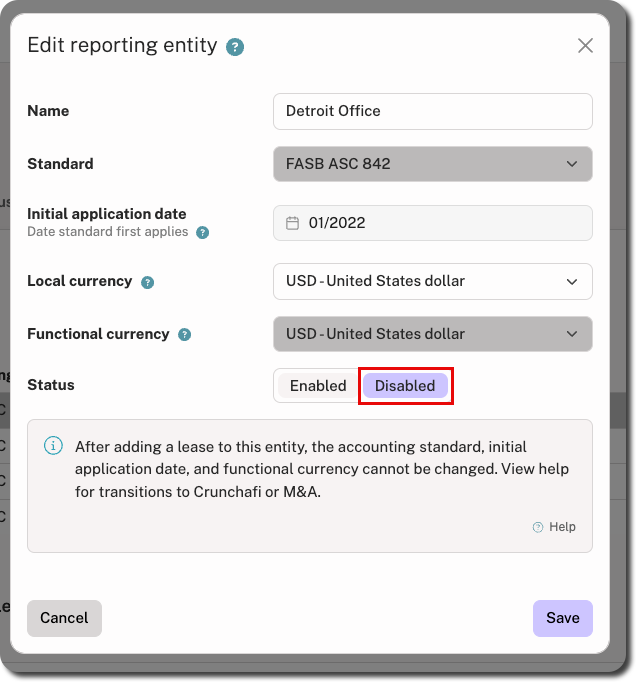
Click the edit icon under the Actions column for the relevant Reporting Entity.
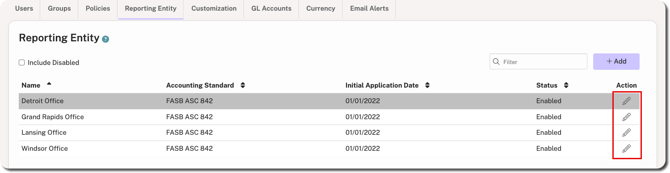
Select the Disabled status and click Save in the bottom-right corner.
Initial Application Date Guidance
When selecting the Initial Application Date, keep the following in mind:
- Initial Application Date is set to the first of the fiscal period in which you are adopting the standard. For most organizations following ASC 842, this is January 1, 2022.
- What are incorrect Initial Application Dates?
- January 1, 1990
- March 1, 1896
- January 1, 2010
View Crunchafi's guidance on Initial Application Date for additional details on how to choose a date in line with your specific standard and scenario. For information specific to ASC 842, check out the following: