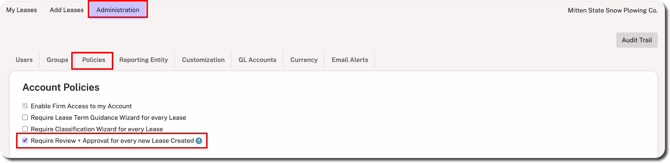
To confirm if this feature is enabled, go to Administration > Policies to check if the Require Review + Approval for every new Lease Created box is selected. Only users with the Administrator or Accounting Administrator roles can enable or disable this feature.
IMPORTANT
This feature should only be enabled if your organization has at least two users in Crunchafi Lease Accounting. The user who created or last edited the lease cannot approve the lease when this feature is turned on.
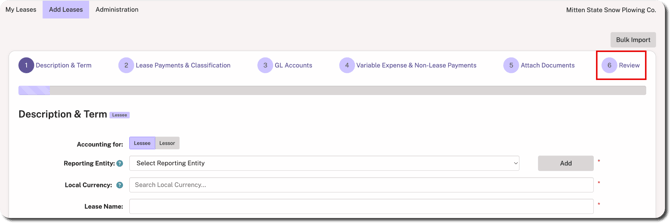
When this is enabled, users will see an extra Review step in the add leases workflow.
To use this feature, view our walk-through or follow the step-by-step instructions below.
TOURIAL_EMBED_HERE
Submitting a Lease for Review
1. Follow the steps in the Add Lease article to enter your general details.
2. From the Review step, enter the email address of the user who should be notified to review and then click Add. You can add multiple reviewers if applicable.
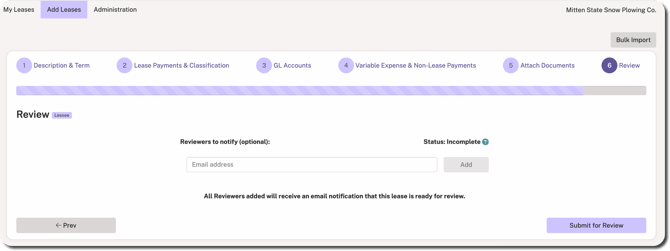
3. Click Submit for Review in the bottom-right corner.
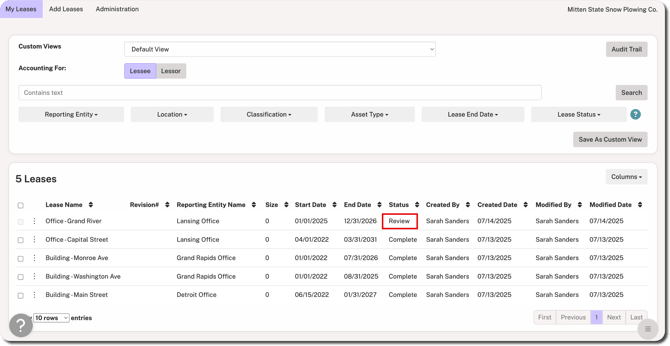
On the My Leases page, the lease displays a Review status until it is approved.
Reviewing & Approving a Lease
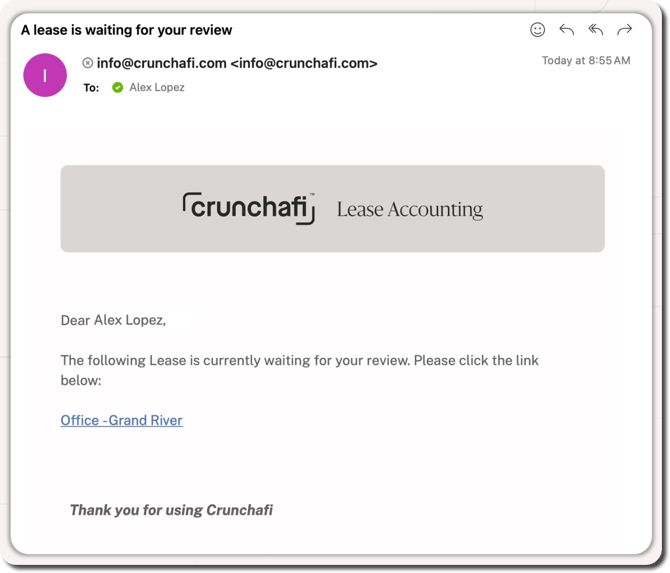
1. If you are notified a lease requires your review, click on the link from the notification email. You will be prompted to enter your Crunchafi credentials if you are not logged in.
2. Click the ⋮ (more) option to the left of the lease name and click View from the My Leases page.
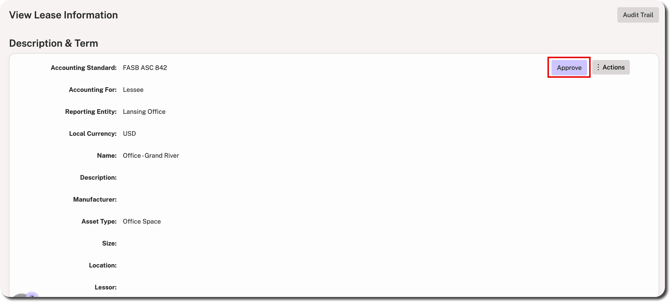
3. Review the lease details for thoroughness and accuracy and then click Approve in the top-right corner.