
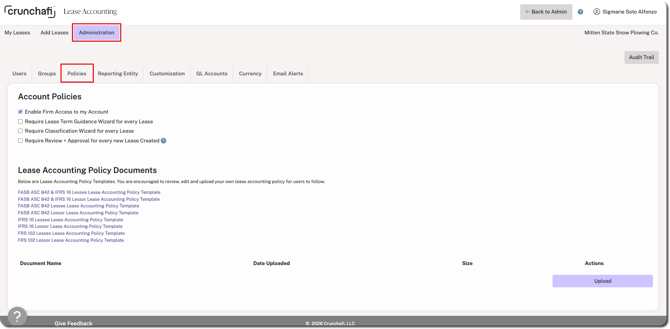
These settings are available for users with the Administrator or Accounting Administrator roles and can be managed by going to Administration > Policies.
-
Enable Firm Access to my Account: When selected, you agree to allow the CPA firm to access accounts you have established as part of your relationship (enabled by default).
-
Require Lease Term Guidance Wizard for every Lease: When selected, each lease will require users to consider termination clauses and renewal terms by working through the Wizard (not enabled by default).
-
Require Classification Wizard for every Lease: When selected, each lease will require users to consider the five classification criteria by working through the Wizard (not enabled by default). This does not apply to GASB or FRS 102.
-
Require Review + Approval for every new Lease Created: When selected, each lease entered will require approval by another user (not enabled by default). Non-admin and read-only users have permissions to approve leases.
-
Lease Accounting Policy Documents: Download the appropriate template, identify your policy decisions, and upload the completed version for reference. Crunchafi users with any role can view the policy election document(s).