
This applies to organizations operating under multiple currencies for reporting purposes. View our walk-through or follow the instructions covered in the sections below.
TOURIAL_EMBED_HERE
Administration
Before running your report, you must add the exchange rates under Administration > Currency for each currency and for each month within the date ranges of your reports. You can simplify your entry by selecting the option to Default Average Rate to the previous month's EOM rate. For additional information on admin setup for foreign currency reporting, click here.
NOTE
When running reports, you might need to translate from one currency and back. Both need to be entered for reports to run properly (e.g., CNY to USD and USD to CNY).
Functional Currency Translation
This section covers how to use Functional Currency Translation to generate reports when leases share the same functional currency but have different local currencies. For months listed after the GL End Date, Crunchafi uses the GL End Date rates for translation. Leases belonging to the same Reporting Entity will have the same functional currency.
1. Go to the My Leases page and select the lease for which you want to run the report.
2. Scroll down to the Reports section and switch to the Functional Currency Translation tab.
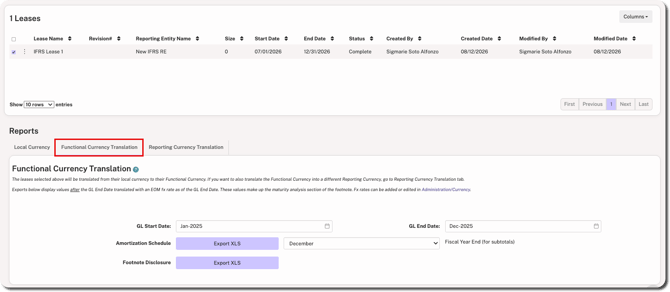
3. Enter the GL Start Date and GL End Date.
4. Click Export XLS next to the Amortization Schedule and Footnote Disclosure reports.
Reporting Currency Translation
This section covers how to use Reporting Currency Translation for leases that in multiple currencies and need to be translated into another currency before finally being translated into the functional currency. All local to functional exchange rates must be entered for this date range in order for this report to work. For months listed after the GL End Date, Crunchafi uses the GL End Date rates for translation.
1. Go to the My Leases page and select the lease for which you want to run the report.
2. Scroll down to the Reports section and switch to the Reporting Currency Translation tab.
3. Fill in the to Final Reporting Currency field.
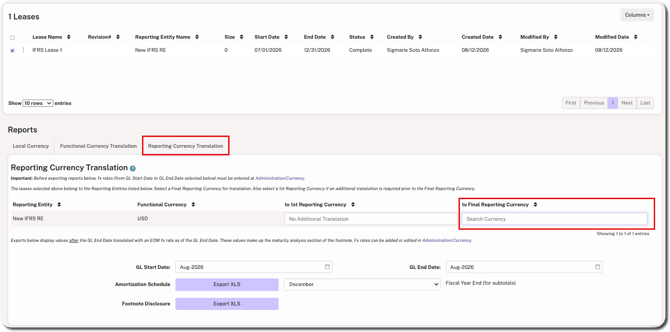
4. Enter the GL Start Date and GL End Date.
5. Click Export XLS next to the Amortization Schedule and Footnote Disclosure reports.
NOTE
If you have leases under more than one accounting standard, you must choose the relevant standard for the Footnote Disclosure (displayed to the right of the field).