
Click Add Leases from the top navigation bar and choose one of the following:
- Manual Entry to enter the lease details using the step-by-step workflow below
- Create from file to use AI Lease Abstraction
Continue below for the manual entry steps.
Step 1: Description & Term
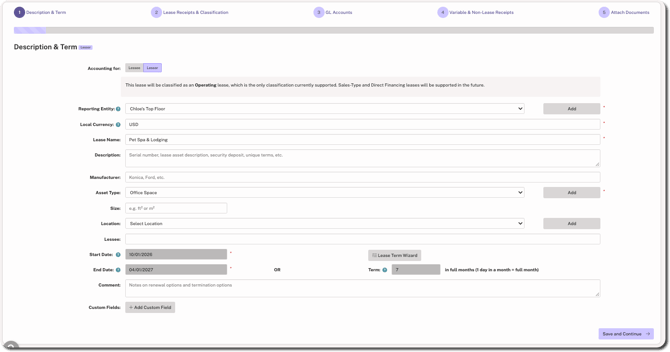
Fill in the details (including adding any custom fields) and click Save and Continue. The following are minimum required fields:
- Reporting Entity
- Local Currency (defaults based on selected Reporting Entity)
- Lease Name
- Asset Type
- Start Date & End Date OR Lease Term (use the Lease Term Wizard, if applicable, to help walk through early termination and renewal options)
- ROU Asset Life
IMPORTANT NOTES
- When adding existing lessor leases, it's important to determine if you'll use the original Initial Application Date or use the current year Initial Application Date. For additional guidance, refer to the section below.
- Lessor leases are automatically classified as operating leases; other classifications for lessor leases are not currently supported.
- Depending on settings under Administration > Policies, using the wizard may be required.
Step 2: Lease Receipts & Classification
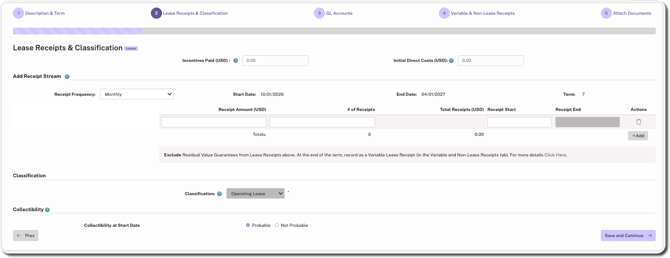
Fill in Incentives Paid and Initial Direct Costs (if applicable). Next, select payment frequency, payment amount, number of payments, and payment start dates. To add payment escalations, click +Add to enter additional payment rows.
If entering a transition lease where the start date equals the Initial Application Date of the Reporting Entity, enter Existing Balances.
The Classification dropdown defaults to Operating Lease and cannot be changed when recording a lease as a lessor under FASB.
Click Save and Continue in the bottom-right corner.
Step 3: GL Accounts
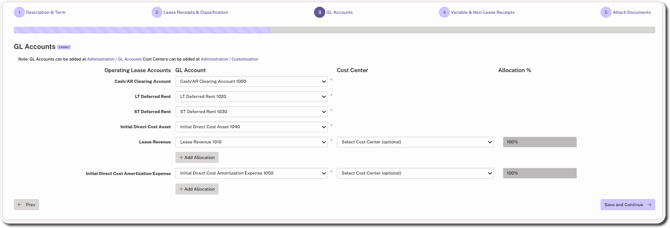
Enter GL Accounts and Cost Center allocations. The accounts available are based on the selected Reporting Entity. If there is only one account available, it will be selected by default. Click Save and Continue.
Step 4: Variable & Non-Lease Receipts (Optional)
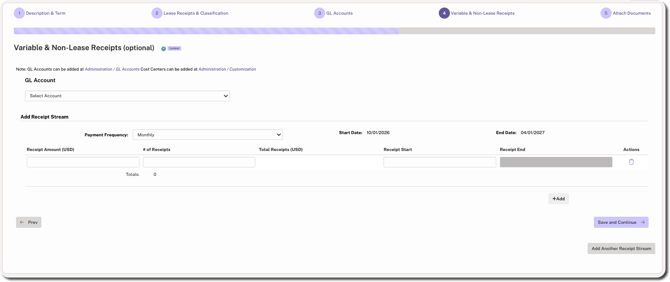
This step is optional, but it can be used to enter variable type receipts to help organizations easily populate disclosures in preparation for filing. For more information on what may qualify, click here. Click Save and Continue.
Step 5: Attach Documents (Optional)
Click Upload, find/select the file, and click Open. You can add a name to the lease file (optional).

Click Finish in the bottom-right corner if you are done adding details, or use the Prev button in the bottom-left corner to edit details in other steps.
If the Review + Approval policy is enabled under Administration > Policies, there will be a Save and Continue button in place of the Finish button to move onto to Step 6.
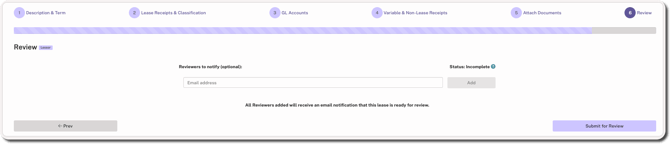
Step 6: Review (Depends on Settings)
If the Review + Approval policy is enabled, the final step will be to Submit for Review. Optionally, you can add a Reviewer to be notified via email that a lease is ready for review.
What's Next
If you finished all the sections of the lease, it appears with a Complete status on the My Leases page. For organizations with the Review + Approval policy enabled, leases awaiting approval will be in Review status.
If you exit the lease without completing all required sections, it appears with an Incomplete status on the My Leases page. Click on the ⋮ (more) option to the left of the lease name and select Continue. If applicable, make sure to click on the Lessor toggle next to Accounting for to see your lessor leases if you have leases of both types in Crunchafi.
Option 1: Using the Original Initial Application Date
Purpose: This option is for reporting on leases as of the original Initial Application Date.
Example: Organization adopted ASC 842 as of 1/1/22 and recorded lessor leases outside of Crunchafi Lease Accounting.
How to:
- Use the existing Reporting Entity and the original Initial Application Date
- Update GL Accounts to match existing Lessor related reporting
- Enter leases through the Add Leases workflow using Manual Entry or Create from File to use AI Lease Abstraction.
- Select the Accounting Standard, if available
- Select Lessor
- Enter the lease data beginning with start dates on or after the Initial Application Date.
- Add Deferred Rent as an Existing Balance on step 2 of the workflow. Use the balances that existed as of the original Initial Application Date.
- Add all Lessor leases that started after the Initial Application Date
- Reporting on Lessor leases is found at My Leases by selecting the Lessor toggle
- If needed, make a current year adjustment for any differences between the Lease Accounting software reporting and prior reporting
Option 2: Using the Current Year Initial Application Date
Purpose: This option is for reporting on leases under ASC 842 for the current fiscal year.
Example: Organization adopted ASC 842 as of 1/1/22 and recorded lessor leases outside of Crunchafi Lease Accounting. Organization will utilize the Lease Accounting software as of the current fiscal year of 1/1/24 moving forward.
How to:
- Navigate to Administration - Reporting Entity - Click Add
- Add Entity Name and select Initial Application Date as the beginning of the current fiscal year. (Example: Initial Application Date of 1/1/24) Update Currency and click Add.
- Update Reporting Entity Locations as needed
- Navigate to Administration - GL Accounts Update GL Accounts to match current lessor related reporting
- Enter leases through the Add Leases workflow using Manual Entry or Create from File to use AI Lease Abstraction.
- Select the Accounting Standard, if available
- Select Lessor
- Enter the lease data beginning with start dates on or after the Initial Application Date.
- Add Deferred Rent as an Existing Balance on step 2 of the the workflow. Use the balances that existed as of the beginning of the current fiscal year.
- Add all Lessor leases that started after the Initial Application Date
- Reporting on Lessor leases is found at My Leases by selecting the Lessor toggle