
Keeping your BUCS Remote Agent up to date ensures continued access to new features, security updates, and reliable data refresh performance.
⚠️ IMPORTANT
- The update follows the same steps as a standard installation and will upgrade your existing agent without requiring additional configuration in most cases
- You must have admin access to the server where the agent is installed
- The agent should be installed on a dedicated, always-on server
- Confirm you have access to the BUCS Customer Portal in case reauthorization is required as part of the update
Download the Latest BUCS Remote Agent
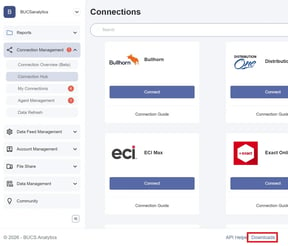
- Navigate to the BUCS Customer Portal > Downloads.
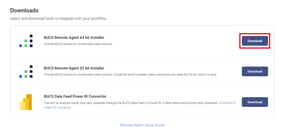
- Click Download for latest BUCS Remote Agent installer.
💡 TIP
Use the 64-bit installer unless BUCS has specified otherwise.
Initiate the Update
- Locate the downloaded installer file on the server where the agent is currently installed.
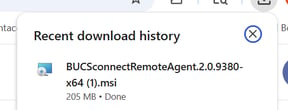
- Double-click the installer to begin the update process.
💡 TIP
You do not need to uninstall the existing agent from your device. Running the installer will upgrade the current version.
Proceed Through the Setup Wizard
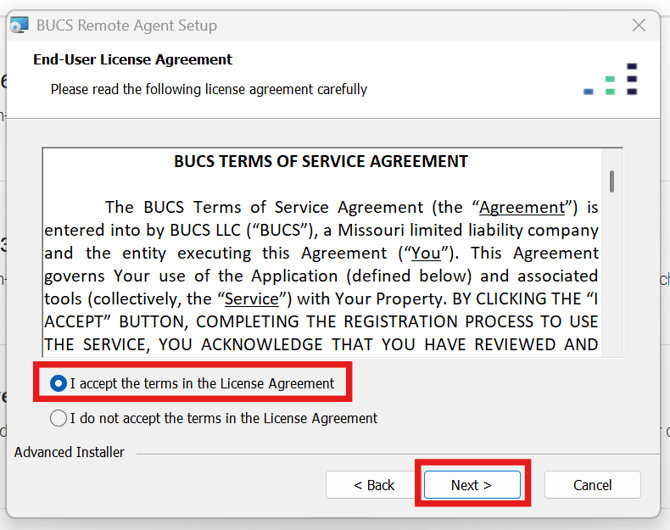
- Click Next to begin the setup wizard.
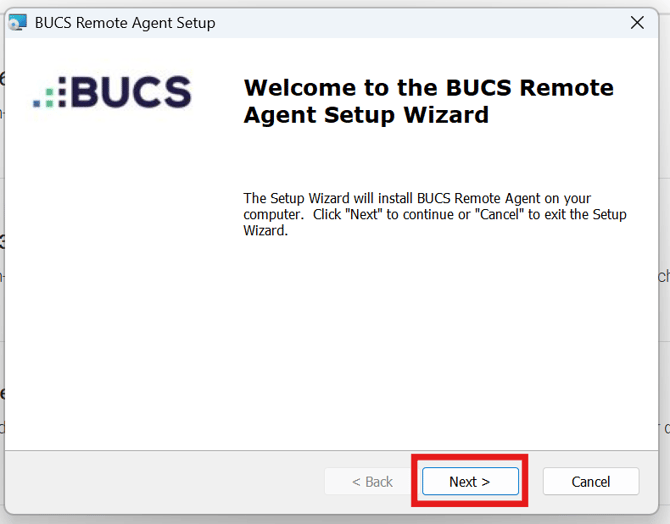
- Review and Accept the BUCS Terms of Service. Click Next to continue.
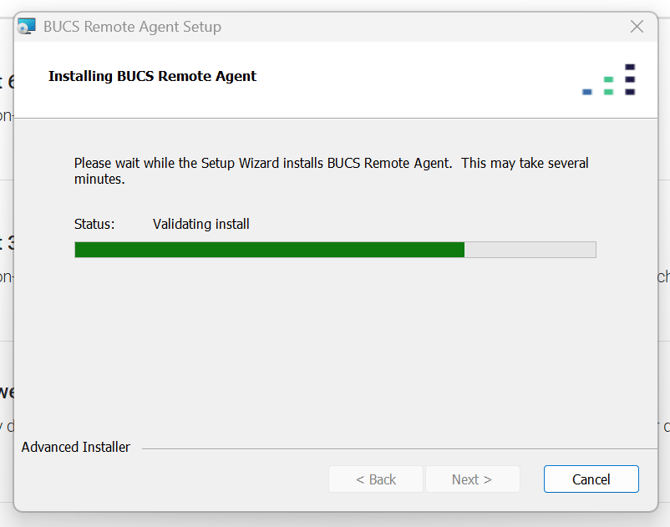
Installation Process
The installation will begin automatically and will update your BUCS Remote Agent to the latest version. If prompted, click Yes to allow the application to make changes.
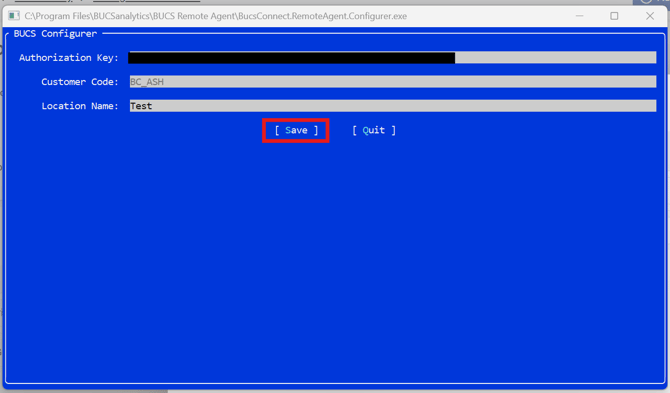
Confirm Configuration
-
In most cases, your existing configuration (Authorization Key, Customer Code, and Location Name) will be retained.
-
Click Save.
⚠️ IMPORTANT
If the Remote Agent Configurer App opens and prompts you for credentials, take the following steps from the BUCS Customer Portal:
- Go to Connection Management > Agent Management.
- Click Generate New Key.
- Copy and retain the Authorization Key and Customer Code values.
- Paste the values into the Configurer App.
- Click Save and then click Quite.
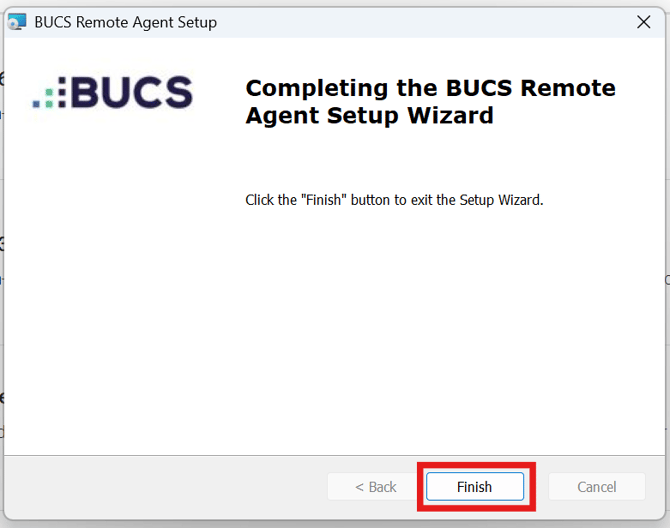
Finish the Update
- Click Finish from the setup wizard.
Verify the Agent is Running
After the update is complete:
- Confirm the agent service is running on the server
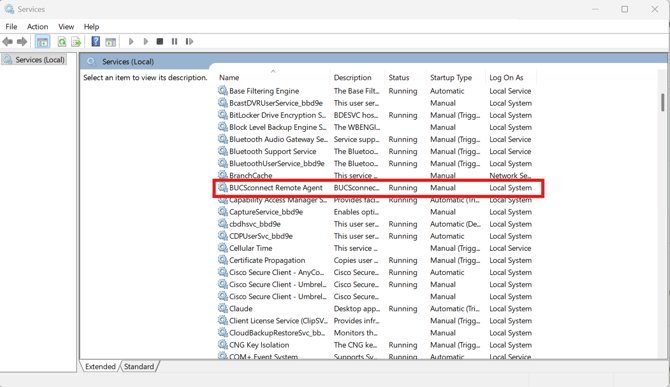
- Verify data refreshes are continuing as expected in the BUCS Customer Portal.
💡 TIP
If you experience issues after the update, restart the server and/or the BUCS Remote Agent service. Notify the BUCS team if you need assistance verifying the update or troubleshooting any issues.