
This article will show you how to:
⚠️ IMPORTANT
There are fees associated with signing up new subsidiary companies. Contact your account manager for more details.
To sign up subsidiary companies, users need the Account Administrator role. Click here to learn how to manage user roles.
Set Up New Subsidiary Company
- Navigate to BUCS Customer Portal > Account Management > Company Profile.
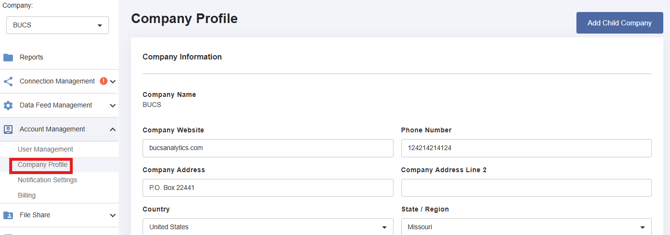
- Click Add Child Company.

- Fill in required company information details for the child company. Click Save.
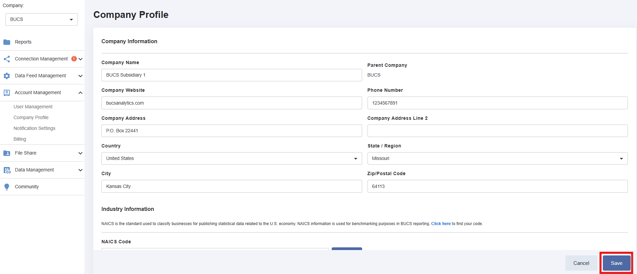
The subsidiary will be listed under the Child Companies section of your Company Profile.

Edit Subsidiary Company Details
- Navigate to BUCS Customer Portal > Account Management > Company Profile.
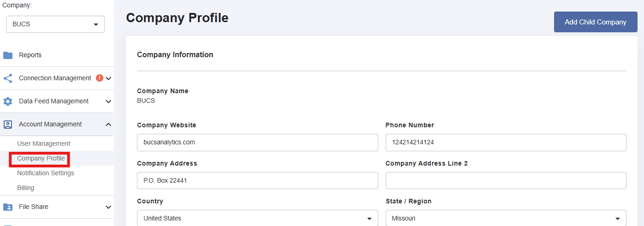
- Under the Child Companies section, click the edit icon for the company.

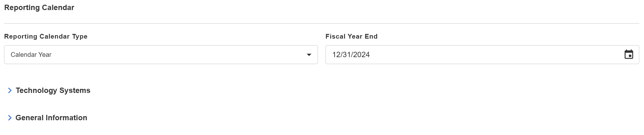
- Add or edit details on the Child Company Profile page.

Onboard Subsidiary Companies
After you add a subsidiary, the new company appears in the Company dropdown in your portal and you will automatically have Account Administrator permissions for it.

To onboard users from that company:
- Select the new subsidiary company from the list. You have access to create new users, create new connections, and complete other onboarding activities for the company. Reference the BUCS Set Up Guide for onboarding steps.
- Set up any new users who will help onboard this new company. Reference our user management guide to help add users.
Need additional help? Reach out to the BUCS support team at support@bucsanalytics.com.