
To remove the Review + Approval requirement on a lease, you must first disable this setting under the Administration menu and then clone the desired lease per the instructions below.
1. Go to Administration > Policies.
2. De-select the box for Require Review + Approval for every new Lease Created.

3. Go to the My Leases tab and find the lease. If it has not been reviewed/approved, it will show a status of Review instead of Complete.

4. Hover over the ⋮ (more) option to the left of the lease name and select Clone.
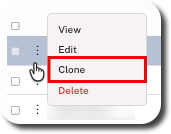
5. Click Clone and edit and go back to the My Leases page. The lease copy appears on the list with a status of Complete.

6. Hover over the ⋮ (more) option to the left of the original lease and select Delete.
TIP
Before deleting the lease, edit its name to prevent future use and reduce confusion.
7. Hover over the ⋮ (more) option to the left of the copied lease and select Edit.
8. Select Edit Lease and click Continue.
9. Update the lease name to remove 'Copy' and make any other updates to the name.
NOTE
Cloned leases are billable for customers with a Pay-Per-Lease account. If the original lease has already been billed for, reach out to billing@crunchafi.com so that our team can take the appropriate steps to avoid duplicate charges for the cloned lease.
If you still want other leases to be reviewed moving forward, make sure to re-enable the Review + Approval feature under Administration > Policies.