
1. Click Add Leases and select Manual entry.
2. Click Bulk Import in the top-right corner.

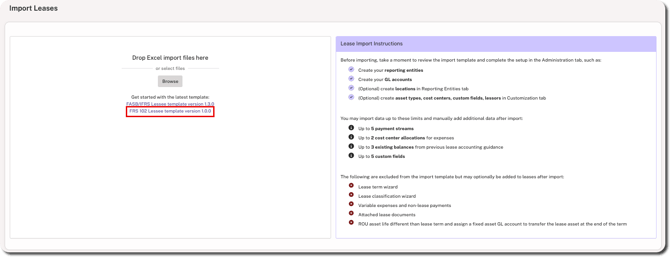
3. Review the import instructions on the right side of the page.
4. Click on the FRS template link to download the latest version. Additional templates may be displayed depending on the standard(s) your organisation is configured to use in Crunchafi Lease Accounting.
5. Fill in the Excel template with the lease information (i.e., one lease per row) and save the file to your device.
IMPORTANT
- Row 1 shows the lease field names
- Row 2 indicates which fields are required
- Row 3 provides additional context or guidance for filling in values
- The System tab on the template is read-only and should remain as-is
- Columns that are optional but do not apply can be left blank
Click here for more information about file formatting requirements.

6. Go back to Crunchafi to drag and drop the file or click Browse to find/select the file on your device.
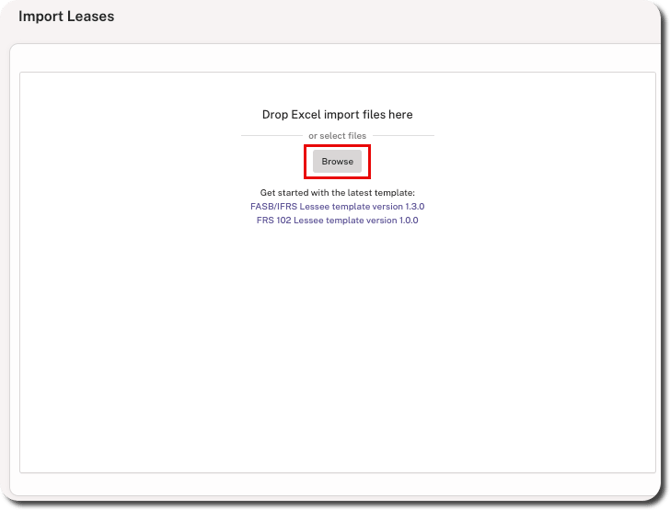
Once processed, the uploaded file displays a status of Validated/Imported if no errors were found. The leases can be found and viewed on the My Leases page.

NOTE
If the Review + Approval policy is enabled for your organisation, the leases will appear in Review status on the My Leases page.
Bulk Import Errors
If the file upload cannot be imported, the screen displays a status of Validation Error. Click the download icon to view the error log and correct your file. Crunchafi Lease Accounting does not process partial imports. If data for one lease is invalid, the import will fail.
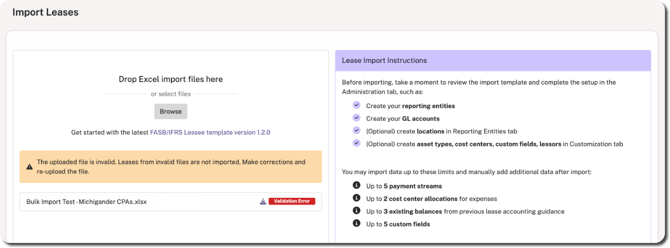
Any rows with validation errors are highlighted in red in your file as shown in the example below. For additional guidance, view the Troubleshooting Bulk Import Error Logs article and/or refer to the file formatting requirements in the next section.

FRS Bulk Import File Formatting Requirements
See the table below for information on data validation and other formatting requirements. If you are ready to import your file, go to Step 6 above.
| Column Header | Required or Optional | Data Type | Comments/Notes |
| Reporting Entity | Required | Text | Must be an exact match to an existing Reporting Entity added to Crunchafi (including spelling, capitalization, and spacing). |
| Local Currency | Required | Text |
Must be an exact match to the 3-letter code of an existing currency in Crunchafi (e.g., GBP, EUR, etc.). |
| Historical fx rate from Local to Functional Currency | Required (see notes) | Decimal Number | Only required if the Local Currency is not the same as the Functional Currency for the specified Reporting Entity. Up to 18 digits allowed with a maximum of 6 decimals places. |
| Lease Name | Required | Text | Up to 500 characters allowed, including spaces, punctuation, numbers, or special characters. |
| Description | Optional | Text | Up to 500 characters allowed, including spaces, punctuation, numbers, or special characters. |
| Manufacturer | Optional | Text | Up to 250 characters allowed, including spaces, punctuation, numbers, or special characters. |
| Asset Type | Required | Text | Must be an exact match to an existing Asset Type added under Administration > Customisation in Crunchafi (including spelling, capitalization, and spacing). |
| Size (e.g., sq. ft.) | Optional | Decimal Number | Up to 10 characters allowed, including decimal points. |
| Location | Optional | Text | Must be an exact match to an existing location added to the associated Reporting Entity in Crunchafi (including spelling, capitalization, and spacing). |
| Lessor Name | Optional | Text | Must be an exact match to an existing lessor added under Administration > Customisation in Crunchafi (including spelling, capitalization, and spacing). Up to 128 characters allowed. |
| Start Date | Required | Date | Must not be after the End Date and must be on or after the specified Reporting Entity's Initial Application Date in Crunchafi. Valid date format required (e.g., MM/DD/YYYY or DD/MM/YYYY). Can be separated by slashes, hyphens, or periods. Entering the month name or abbreviations will cause import errors (e.g., November 1 2026). |
| End Date | Required | Date |
Must be later than the Start Date and cannot be earlier than end dates for any existing lease payments or non-lease payments. Valid date format required (e.g., MM/DD/YYYY or DD/MM/YYYY). Can be separated by slashes, hyphens, or periods. Entering the month name or abbreviations will cause import errors (e.g., November 1 2026). |
| Designation for Footnote Disclosure | Required | List of Values |
Select one of the following options from the dropdown list on the Excel template:
|
| Term Comments | Optional | Text | Up to 500 characters allowed, including spaces, punctuation, numbers, or special characters. |
| Discount % | Required | Decimal Number |
Discount rate must be entered as a decimal value. For example, enter 1.23% as 0.0123. |
|
Payment Frequency
|
Required | List of Values | Select one of the following values from the dropdown list on the Excel template: Monthly, Quarterly, or Yearly. |
|
Payment Amount - 1 (Up to 5 allowed) |
Required | Decimal Number | Enter payment amount as decimal value up to 9 digits (e.g., 5000.00). At least 1 payment stream is required and up to 5 payment streams are allowed. The Excel template includes numbered columns for each separate payment stream (e.g., Payment Amount - 1, Payment Amount - 2, etc.). A payment stream must have values for the following columns: Payment Amount, # of Payments, and Payment Start. |
|
# of Payments - 1 (Up to 5 allowed) |
Required | Number | Enter the number of payments as a whole number (e.g., 6). This is used to calculate the Total Payments for the lease (i.e., Payment Amount x Number of Payments). At least 1 payment stream is required and up to 5 payment streams are allowed. The Excel template includes numbered columns for each separate payment stream (e.g., # of Payments - 1, # of Payments - 2, etc.). A payment stream must have values for the following columns: Payment Amount, # of Payments, and Payment Start. |
|
Payment Start - 1 (Up to 5 allowed) |
Required | Date |
Must be on or after the Lease Start Date. Valid date format required (e.g., DD/MM/YYYY or MM/DD/YYYY). Can be separated by slashes, hyphens, or periods. Entering the month name or abbreviations will cause import errors (e.g., November 1 2026). At least 1 payment stream is required and up to 5 payment streams are allowed. The Excel template includes numbered columns for each separate payment stream (e.g., Payment Start - 1, Payment Start - 2, etc.). A payment stream must have values for the following columns: Payment Amount, # of Payments, and Payment Start. The Payment End Date is automatically calculated based on the Payment Start, # of Payments, and Payment Frequency. |
|
GL Account # for Existing Balances under Previous Lease Accounting - 1 (Up to 3 allowed) |
Optional | Alphanumeric |
Must be an exact match to an existing and active GL Number under Administration > GL Accounts for the specified Reporting Entity in Crunchafi. Applies to transition leases only. Up to 3 existing balances are allowed. The Excel template includes numbered columns for each existing balance. If a value is entered under this column for a lease, a value is also required for the corresponding Existing Balance under Previous Lease Guidance column. |
|
Existing Balance under Previous Lease Guidance - 1 (Up to 3 allowed) |
Optional | Decimal Number | Enter amount as positive number (e.g., 20000.00). Applies to transition leases only. Up to 3 existing balances are allowed. The Excel template includes numbered columns for each existing balance. If a value is entered under this column for a lease, a value is also required for the corresponding GL Account # for Existing Balances under Previous Lease Accounting column. |
|
Cash/AP Clearing Account - GL Account Number |
Required | Alphanumeric | Must be an exact match to an existing and active GL Number under Administration > GL Accounts for the specified Reporting Entity in Crunchafi. |
|
ROU Asset - GL Account Number |
Required | Alphanumeric | Must be an exact match to an existing and active GL Number under Administration > GL Accounts for the specified Reporting Entity in Crunchafi. |
|
Accumulated Depreciation - GL Account Number |
Required | Alphanumeric | Must be an exact match to an existing and active GL Number under Administration > GL Accounts for the specified Reporting Entity in Crunchafi. |
|
LT Lease Liability - GL Account Number |
Required | Alphanumeric | Must be an exact match to an existing and active GL Number under Administration > GL Accounts for the specified Reporting Entity in Crunchafi. |
|
ST Lease Liability - GL Account Number |
Required | Alphanumeric | Must be an exact match to an existing and active GL Number under Administration > GL Accounts for the specified Reporting Entity in Crunchafi. |
|
Depreciation Expense - GL Account Number |
Required | Alphanumeric | Must be an exact match to an existing and active GL Number under Administration > GL Accounts for the specified Reporting Entity in Crunchafi. |
|
Depreciation Expense Cost Center-1 (Up to 2 allowed) |
Optional | Text | Must be an exact match to an existing cost centre added under Administration > Customisation in Crunchafi (including spelling, capitalization, and spacing). Up to 250 characters allowed. Up to 2 cost centres can be specified. The Excel template includes numbered columns for each cost centre and allocation combination (e.g., Depreciation Expense Cost Center - 1, Depreciation Expense Cost Center - 2). |
|
Depreciation Expense Cost Center Allocation %-1 |
Optional | Decimal Number |
If there is a value under the Depreciation Expense Cost Center column and the allocation is 100%, enter 1 under this column. If it is not 100%, enter the percentage as a decimal value. For example, enter 33.33% as 0.3333. In this case, a value must also be entered under the second allocation column (i.e., Depreciation Expense Cost Center Allocation % - 2) so that it equals 100%. |
|
Interest Expense - GL Account Number |
Required | Alphanumeric | Must be an exact match to an existing and active GL Number under Administration > GL Accounts for the specified Reporting Entity in Crunchafi. Since there is no classification under FRS 102, every lease follows one lessee model and this field is always required. |
|
Interest Expense Cost Center-1 (Up to 2 allowed) |
Optional | Text | Must be an exact match to an existing cost centre added under Administration > Customisation in Crunchafi (including spelling, capitalization, and spacing). Up to 250 characters allowed. Up to 2 cost centres can be specified. The Excel template includes numbered columns for each cost centre and allocation combination (e.g., Interest Expense Cost Center - 1, Depreciation Expense Cost Center - 2). |
|
Interest Expense Cost Center Allocation %-1 |
Optional | Decimal Number |
If there is a value under the Interest Expense Cost Center column and the allocation is 100%, enter 1 under this column. If it is not 100%, enter the percentage as a decimal value. For example, enter 33.33% as 0.3333. In this case, a value must also be entered under the second allocation column (i.e., Depreciation Expense Cost Center Allocation % - 2) so that it equals 100%. |
|
Custom Field (Up to 5 allowed) |
Optional | Text |
Up to 5 custom fields are allowed. Must be an exact match to an existing custom field added under Administration > Customisation in Crunchafi (including spelling, capitalization, and spacing). The Excel template includes numbered columns for each custom field and value combination (e.g., Custom Field - 1, Custom Field - 2, etc.). If a value is entered under the Custom Field column for a lease, a value is also required for the corresponding Value column. |
|
Value (Up to 5 allowed) |
Optional | Text | Only applies if you are including any custom fields (up to 5). Up to 250 characters are allowed for a value, including spaces, punctuation, numbers, or special characters. The Excel template includes numbered columns for each separate custom field and value combination (e.g., Custom Field - 1, Custom Field - 2, etc.). If a value is entered under the Custom Field column for a lease, a value is also required for the corresponding Value column. |