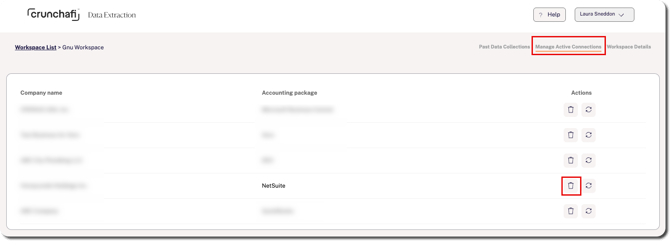
Crunchafi Data Extraction temporarily stores the connection access to accounting systems so that a collection can be generated or refreshed later. These tokens can be revoked through the NetSuite interface or the Data Extraction portal.
From NetSuite
1. Go to Setup > Users/Roles > Access Tokens (do not click on new or search).

2. Look for any entries identified as Data Extraction or Strongbox under Token Name or Application.
3. Click Edit to open the specific Access Token and click Revoke to remove the connection.
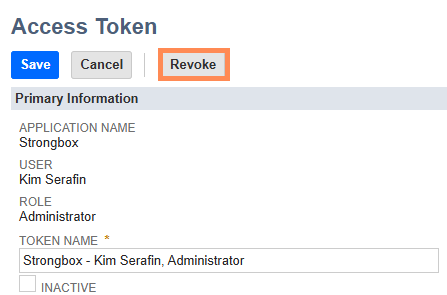
Revoke & Inactive Statuses
- When a token is revoked, it cannot be edited and shows as inactive
- When a token is marked as inactive, it shows as inactive in list views, but the token can still be edited. To reactivate it, click Edit, de-select the Inactive box, and click Save.
For more information about managing and revoking tokens, NetSuite subscribers can review this guide from the NetSuite Help Center:
For more information about managing and revoking tokens, NetSuite subscribers can review the following guide from the NetSuite Help Center: Viewing, Editing, Creating & Revoking TBA Tokens.
From Data Extraction
1. Find and open the workspace from the list view.
2. Go to the Manage Active Connections tab.
3. Click the trashcan icon under the Actions column.