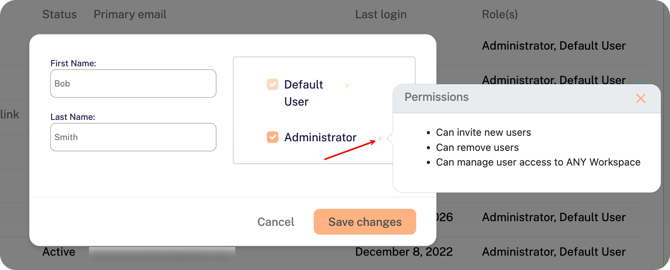
1. Click your name in the top-right corner of the portal and select User Management.

2. Find the user on the list and click on the pencil icon at the far left of the row. 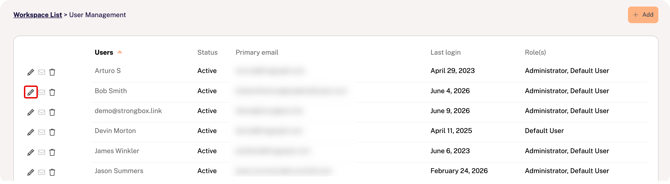
3. Update the first/last name and/or add a department and title (optional).
4. Select or de-select the Administrator box.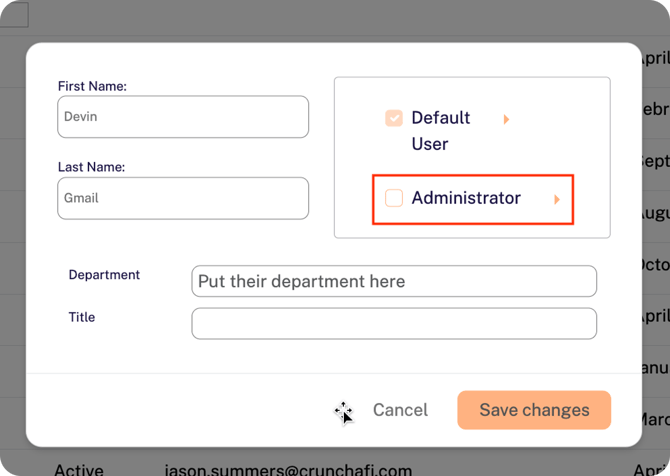
💡
5. Click Save changes in the bottom-right corner of the window.TIP
Clicking on the arrows to the right of the role provides details about the permissions.