We release improvements to Crunchafi/Strongbox Connect to help with processing QuickBooks Desktop files. If you haven't updated it recently, you'll see a pop-up message advising that an update is available. Follow the steps below for the best experience with your Crunchafi/Strongbox Connect plug-in.
NOTE
You may need assistance from your IT team to install the update. If so, they can download the latest update directly through this link: Install Update. The download will begin immediately.
Updating Crunchafi (Strongbox) Connect
-
Close QuickBooks Desktop:
The existing Crunchafi/Strongbox Connect application must be closed before it can be updated. Closing QuickBooks will ensure that the plug-in is no longer running.
-
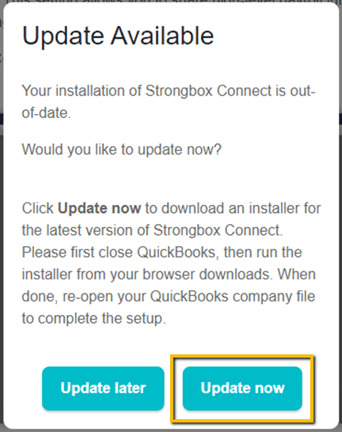
Click on Update now.
-
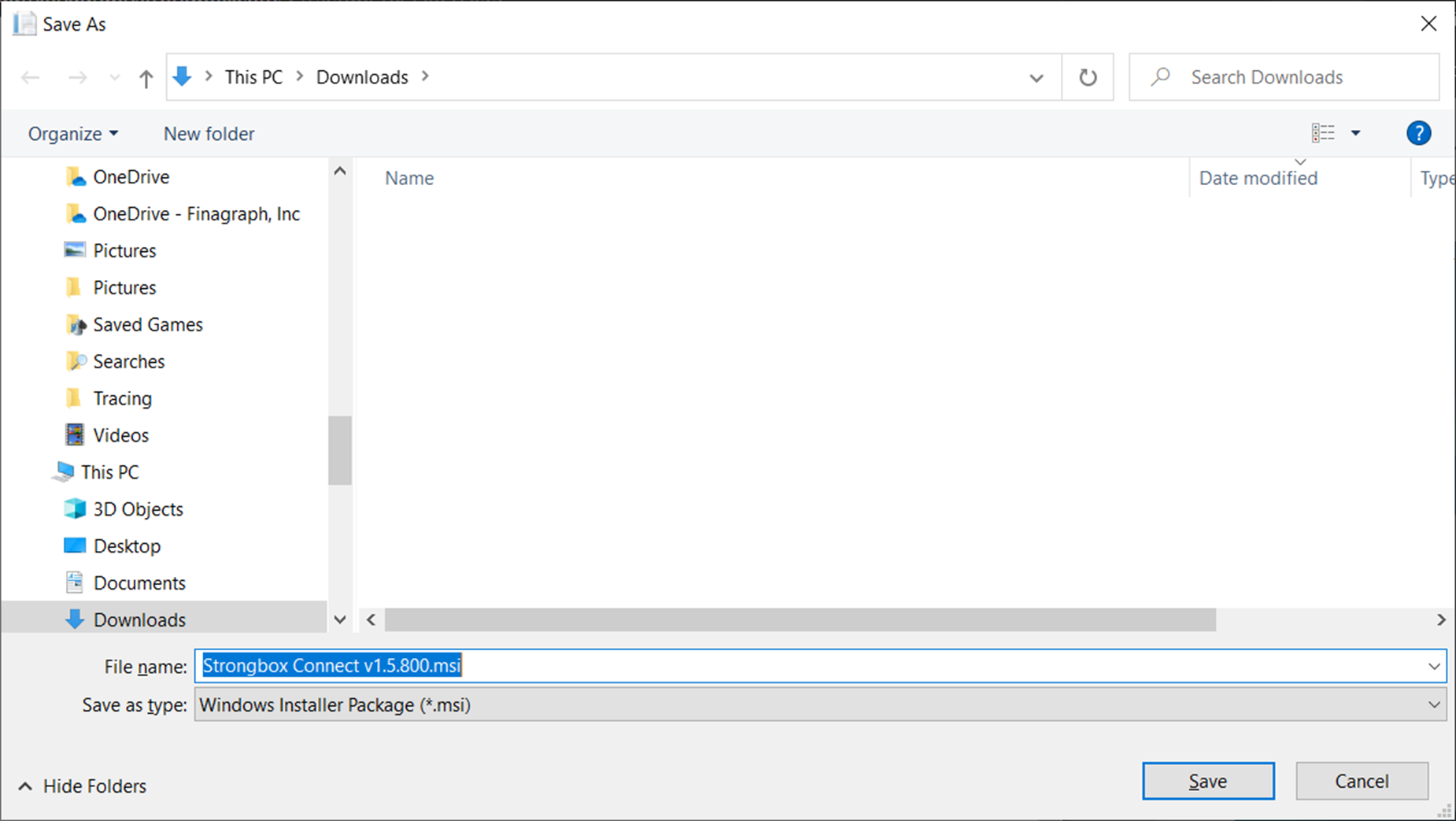
Select a location to save the update file.
-
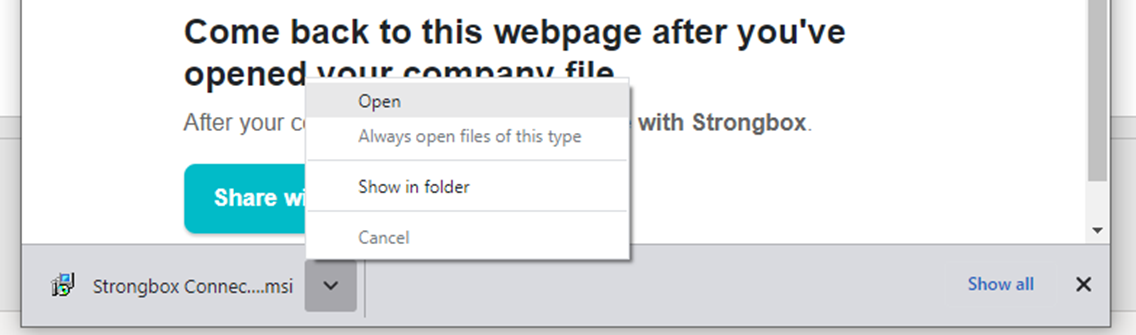
Open the downloaded file. Once the download is completed, the file will appear at the bottom of your browser. Click the menu and select Open.
-
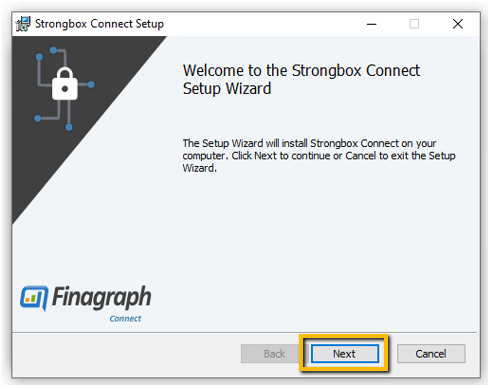
Click Next to start the install.
-
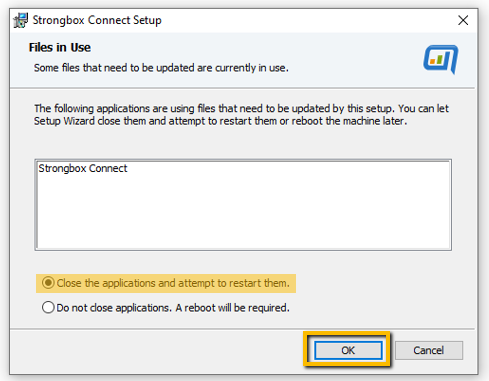
If you have not already closed QuickBooks, you may see an error that Crunchafi/Strongbox Connect is in use and the install may not finish. Close QuickBooks, select Close the application and attempt to restart them, and click OK.
-
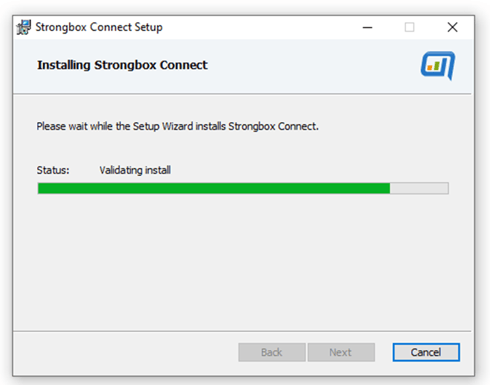
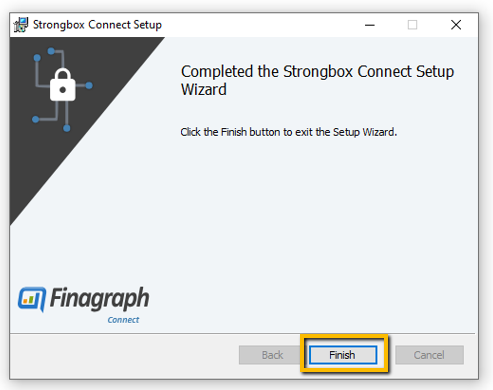
Allow the install to complete and then click Finish.
-
Restart QuickBooks Desktop and open the company you wish to collect from.
-
Return to the Crunchafi/Strongbox Connect to QuickBooks Desktop Guide. Click Share with Strongbox to complete the collection.