When you connect to an accounting system to create a collection in Crunchafi Data Extraction, a token is stored temporarily (typically 90 days). The stored token allows Data Extraction users to request updated reports from their clients. There may be times, however, when you need to disconnect Crunchafi Data Extraction from QuickBooks Online sooner per the steps below.
Only the Admin user who connected to Crunchafi Data Extraction can manage or edit its permissions and access. If you are not the user who connected to QuickBooks Online, you will need to contact that user to make any changes.
- Log into your QuickBooks Online company as an admin user.
- Clicking the integrations button(
 ) to access your current third-party connections.
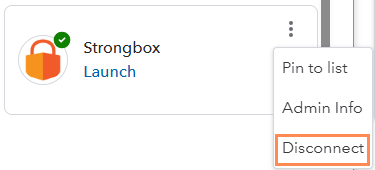
 - On the My Integrations tab, find Strongbox (Crunchafi Data Extraction) and select Disconnect from the ⋮ (more) menu.
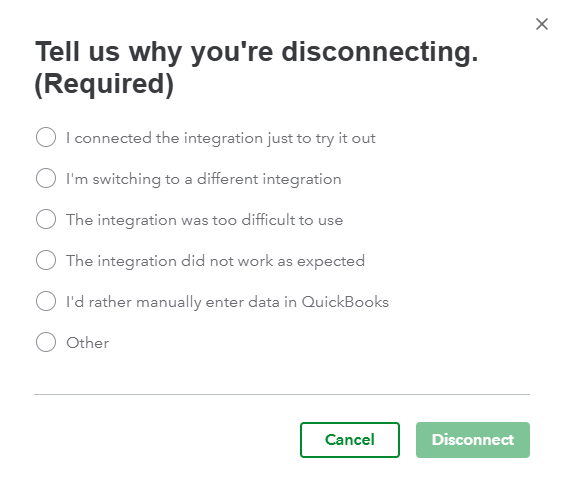
- Select a reason (usually optional) and click Disconnect to continue.