
Step 1: Ensure you are logged into QuickBooks Desktop as an Admin
Only an admin user can grant permissions to enable Crunchafi/Strongbox Connect.
-
Log out of the QuickBooks Desktop company file
-
Log back in as an Admin
If Crunchafi/Strongbox Connect does not launch or does not show up in the system tray, move on to Step 2.
Step 2: Ensure that Crunchafi/Strongbox Connect is registered with QuickBooks Desktop
When logged into the QuickBooks Desktop company file as an Admin:
-
Go to Edit > Preferences > Integrated Applications > Company Preferences
-
Verify Crunchafi/Strongbox Connect is listed with the following options selected under the Access Rights tab of the properties window and click OK:
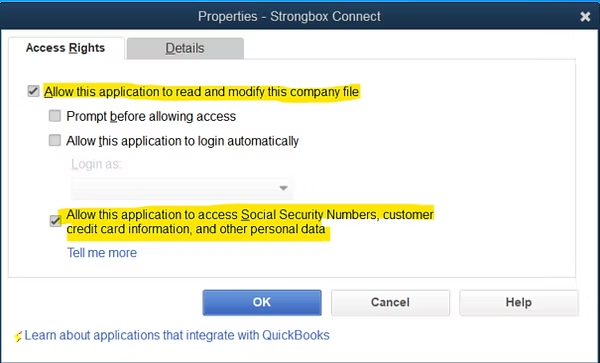
If these options are selected and Crunchafi/Strongbox Connect still does not launch or does not show up in the system tray, move on to Step 3.
Step 3: Ensure that QuickBooks Desktop has the latest updates
- Go to Help > Update QuickBooks Desktop > Get and install the latest updates
- Close and re-open the company file
If Crunchafi/Strongbox Connect still does not launch or does not show up in the system tray, move on to Step 4.
Step 4: Run the QuickBooks Desktop Repair tool
Use the repair tool to fix issues that may have occurred during installation/update. Click below for more information from the Intuit help center.
Repair your QuickBooks Desktop for Windows
If Crunchafi/Strongbox Connect still does not launch or does not show up in the system tray, move to Step 5.
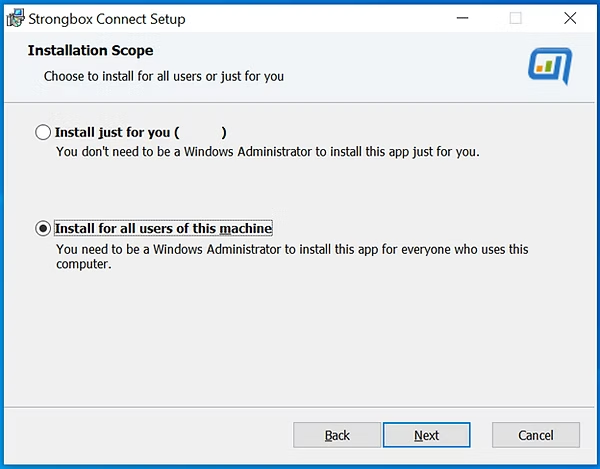
Step 5: Reinstall Crunchafi/Strongbox Connect by choosing the "Install for all users on this machine" option
NOTE
This requires Windows Administrator privileges. You may need to work with your firm's IT team to enable installation.
-
Uninstall Crunchafi/Strongbox Connect
-
Download and start the installation of Crunchafi/Strongbox Connect
-
For Installation Scope, select the Install for all users on this machine option
- After completing the installation, relaunch QuickBooks Desktop and log in as an Admin
If Crunchafi/Strongbox Connect still does not launch when opening the company file, reach out to the Crunchafi Data Extraction support team at support@crunchafi.com.