Requirements
- You must log in as an admin from your MYOB Business account to approve the connection to Crunchafi Data Extraction.
Sharing Requested Data
1. Copy and paste the secure URL shared by your firm into your browser.
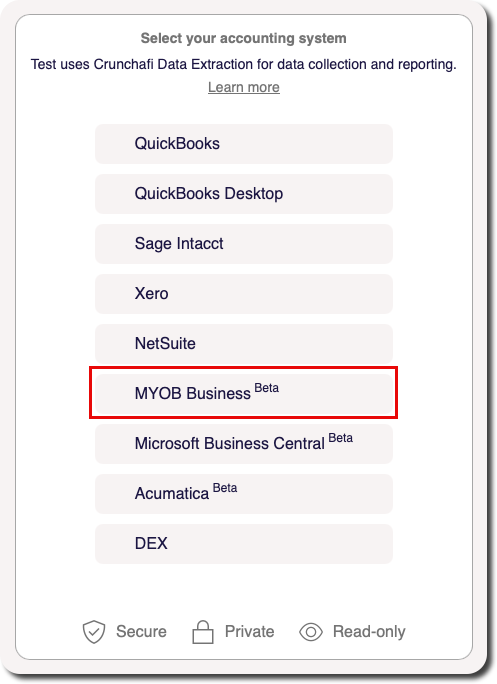
2. Select MYOB Business
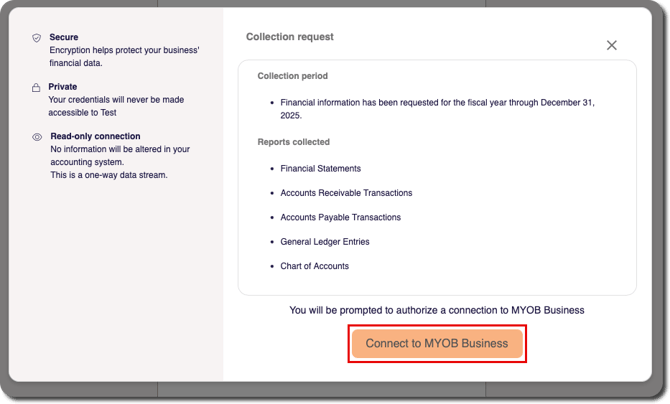
3. Review the additional context for the information requested by your firm via Crunchafi Data Extraction, including which reports were requested. Click Connect to MYOB Business.
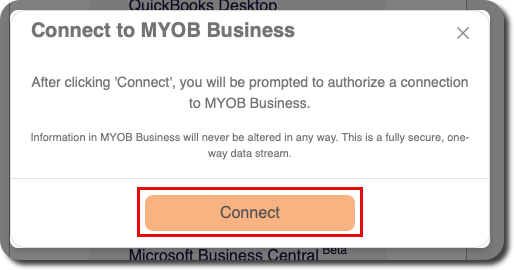
4. Click the Connect button to launch the login screen.
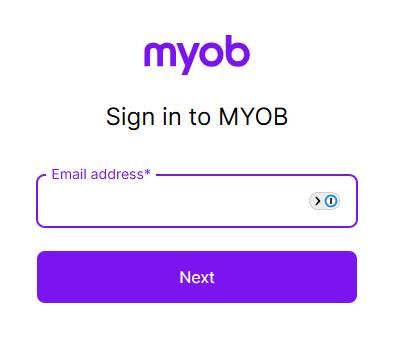
5. Enter your credentials on the MYOB login page.
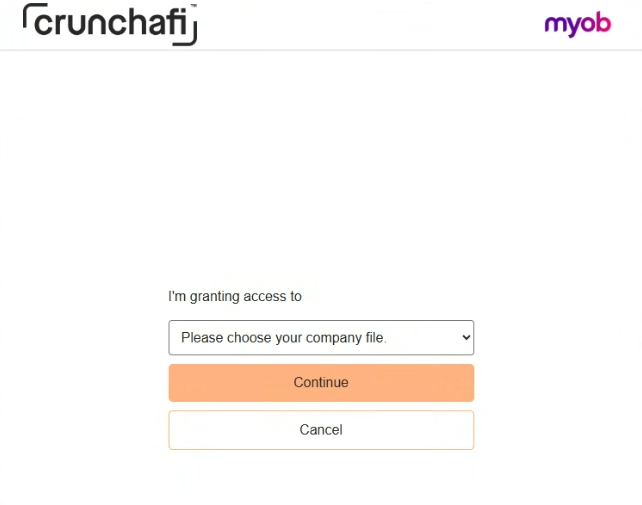
6. Select which entity or entities you would like to give Crunchafi Data Extraction access to and then click Continue.
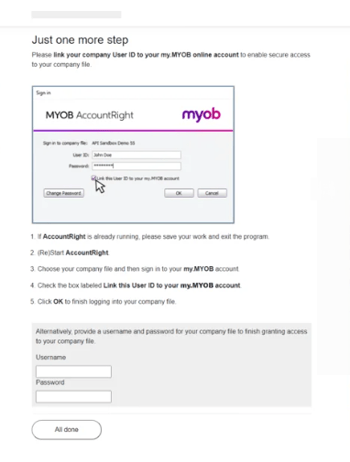
7. Follow the instructions in the pop-up to link your company User ID to your my.MYOB online account to enable secure access to your company file and grant access to Crunchafi Data Extraction.
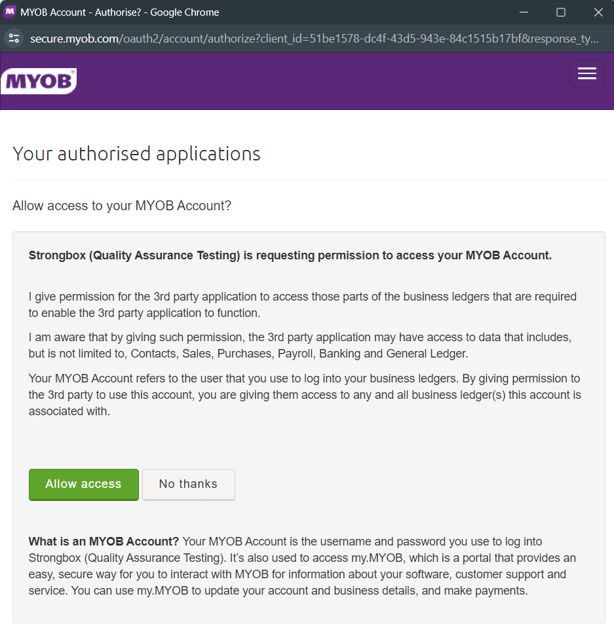
8. Click Allow access when prompted to confirm Crunchafi Data Extraction as an authorized application.
Next Steps
When the connection starts, the portal will provide a progress bar and status updates.
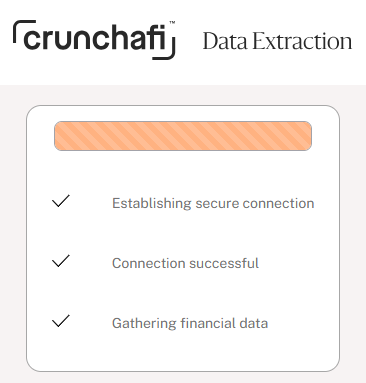
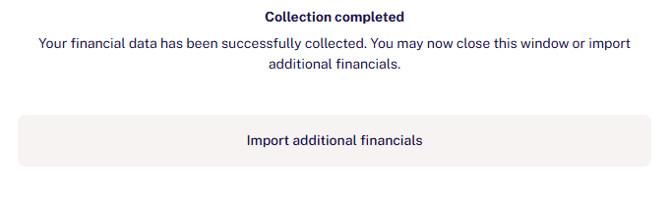
The Crunchafi Data Extraction window will display when the collection is completed and you have successfully collected reports. Depending on your firm's collection settings, you may have the opportunity upload additional documents or download a copy of the submitted reports.