
The steps in this article must be completed by a NetSuite admin from your organization to continue with connecting to Crunchafi Data Extraction.
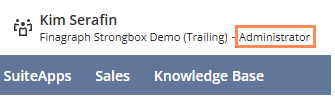
To confirm you are logged into NetSuite as an admin, locate your name in the top-right corner of the dashboard and confirm the user role next to the company name. Click here for more details.
Enable REST Web Services
1. From your NetSuite dashboard, navigate to Setup > Company > Enable Features.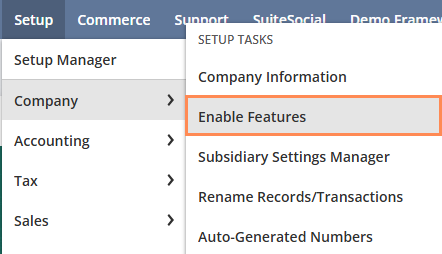

3. Scroll down to the SuiteTalk (Web Services) section and select REST WEB SERVICES.

4. Click I agree from the SUITECLOUD TERMS OF SERVICES window if prompted.
5. Click Save.
Enable Token-Based Authentication
1. From the SuiteCloud tab in NetSuite, scroll down to Manage Authentication.
2. Select TOKEN-BASED AUTHENTICATION.
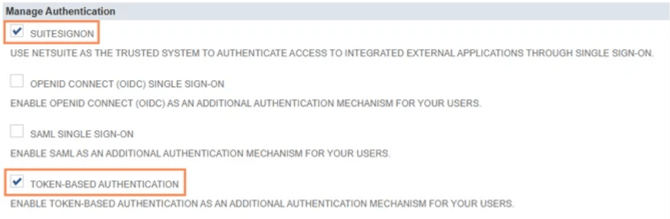
3. Click I agree from the SUITECLOUD TERMS OF SERVICES window if prompted.
4. Click Save.
Next Steps
Once these steps are completed, you can connect your NetSuite subscription to Crunchafi Data Extraction. For further instructions, view our article: Connecting to NetSuite.