
View our walk-through or follow the instructions below.
TOURIAL_EMBED_HERE
Once a client's ERP/accounting system is connected, the token temporarily stored in Data Extraction allows you to request new reports without having to repeat the connection process.
IMPORTANT
The tokens stored by Crunchafi are secure and read-only, and we never store login credentials. Token are stored for 90 days. Initiating a refresh as detailed in this article renews the token for another 90 days but doesn't add to your connection count.
Data refreshes are supported for all Data Extraction Native Connectors except QuickBooks Desktop.
How to Refresh Data
1. Go to the workspace for the relevant company in Data Extraction.
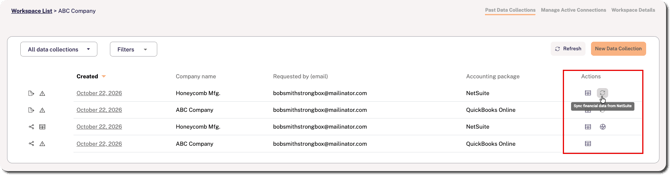
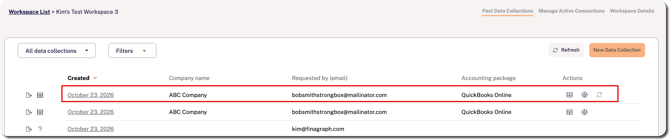
2. Find the most recent connection for the accounting system you want to refresh.
3. Click the refresh icon located under the Actions column.
NOTE
If the refresh icon is not displayed, this means that the data may have already been refreshed by a more recent collection or that the token was revoked or expired.
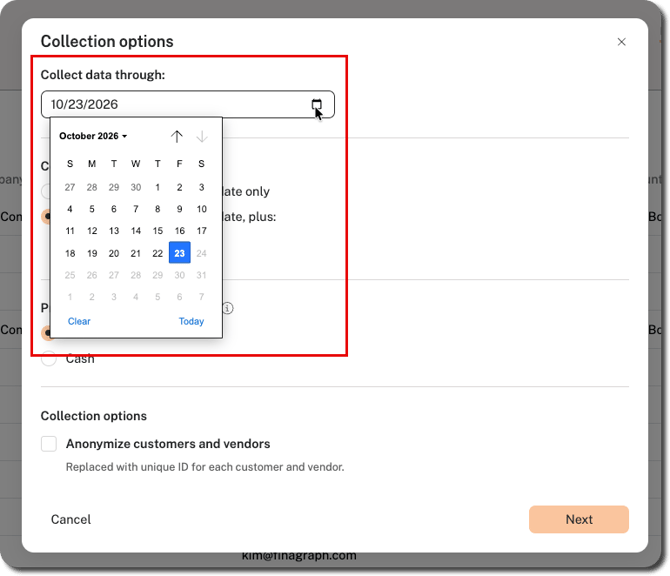
4. For Collect data through, click on the calendar icon to choose the date through which you want to collect data or type in the date in MM/DD/YYYY format. For example, this may be the last day of the month your client just closed.
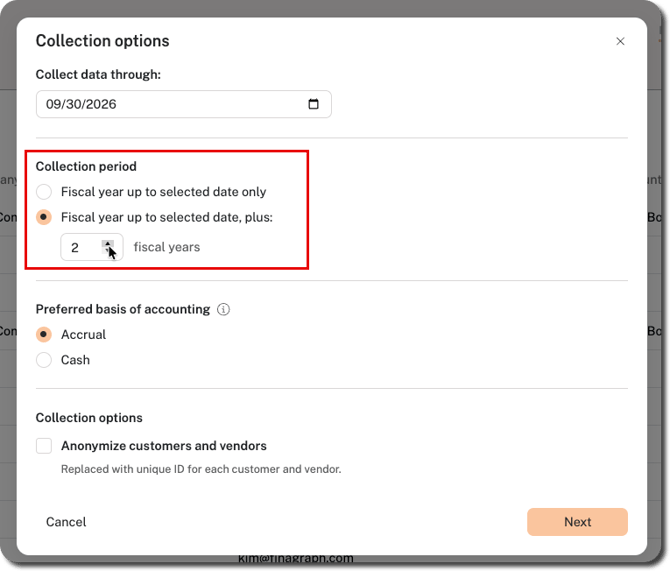
5. For Collection period, hover over the field and use the up/down arrows at the far-right to change the number of additional fiscal years, or choose the Fiscal year to date only option.
6. Click Next.
7. De-select any accounting data you want to exclude. For example, you may want to consider excluding transaction details for larger datasets.
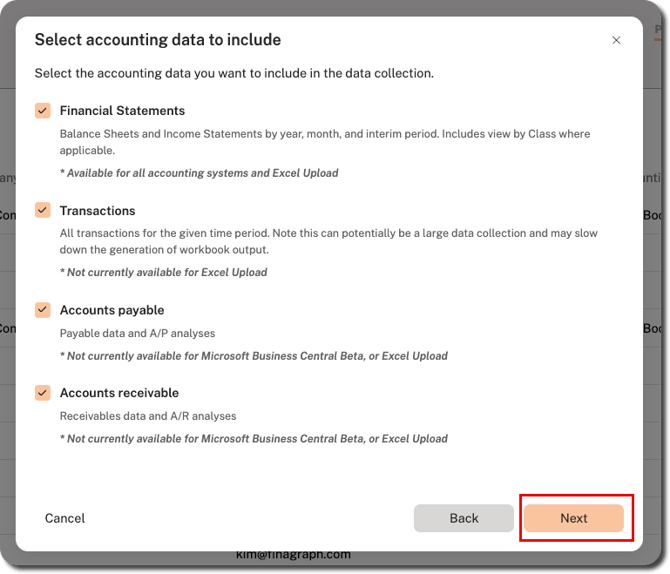
8. Click Next to initiate the data refresh/update.
What's Next
A progress bar appears at the top of the page while the data is being collected. Once finished, the refreshed data collection appears at the top of the workspace details list.
This means the previous data collection for that ERP system can no longer be refreshed. If another refresh is required, you must use the most recent collection.