To enhance security, authorization keys should be updated periodically or when someone with knowledge of the key leaves your organization.
🗒️ NOTE
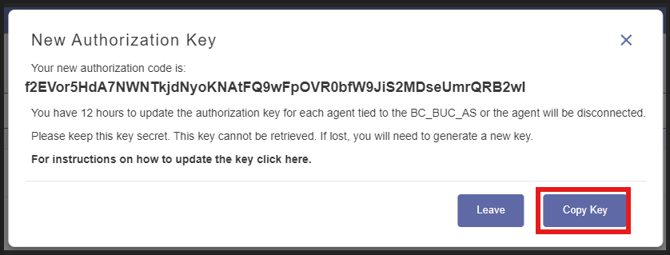
Once a new key is generated, the old key expires within 12 hours.
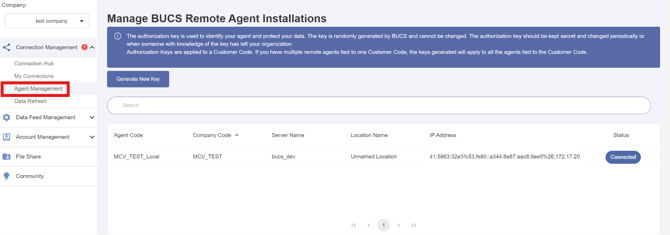
1. From the BUCS Customer Portal, go to Connection Management > Agent Management.
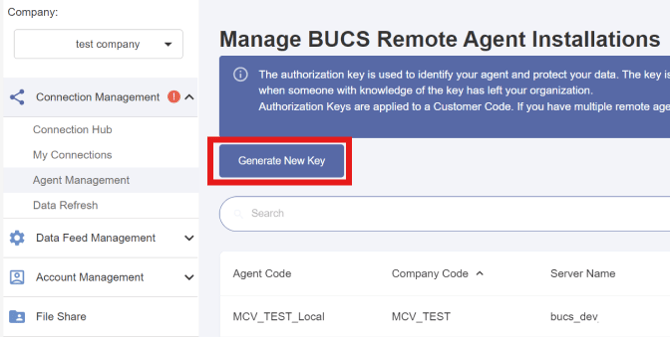
2. Click Generate New Key.
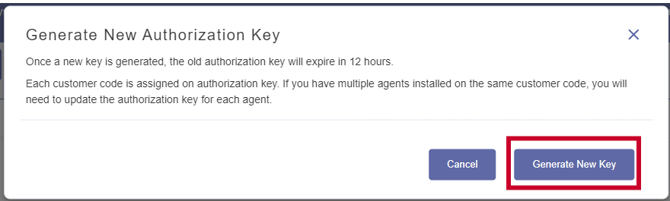
3. Follow the prompts to Generate New Key and Copy Key.
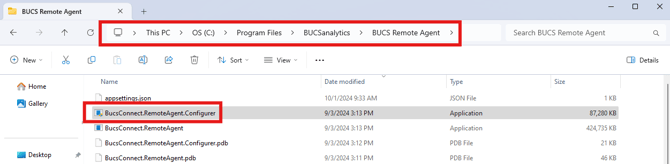
4. Open the File Explorer on the device where the BUCS Remote Agent is installed, find the program at the location below, and click to run.
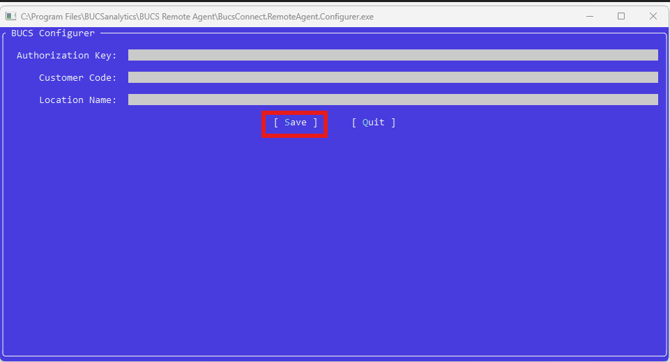
C:\ProgramFiles\BUCSanalytics\BUCSRemoteAgent\BucsConnect.RemoteAgent.Configurer.exe
5. Paste the new value you generated into the Authorization Key field and click Save.
⚠️ IMPORTANT
Do not change the Location Name.