
This article covers the following:
- Submitting Tickets
- Checking Ticket Status
- Ticket Status Definitions
- BUCS Response
- Closed Tickets
- Using the Help Widget
- Professional Services Support
Submitting Tickets
- To address potential issues with reports, add new users, request a data refresh, or ask questions, email support@bucsanalytics.com with an explanation of the issue at hand.
- Upon ticket submission, you'll receive an automated confirmation of receipt from bucshelp@bucs.teamwork.com.
Checking Ticket Status
- Customers can view their tickets by clicking the link provided in the automated email or by using the link directly https://bucs.teamwork.com/support
- To view ticket status, use the BUCS customer login at the bottom, which will redirect to BUCS to login if not already logged in.
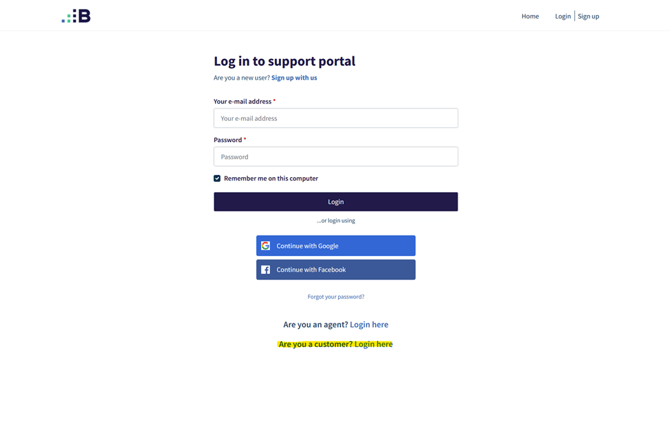
-
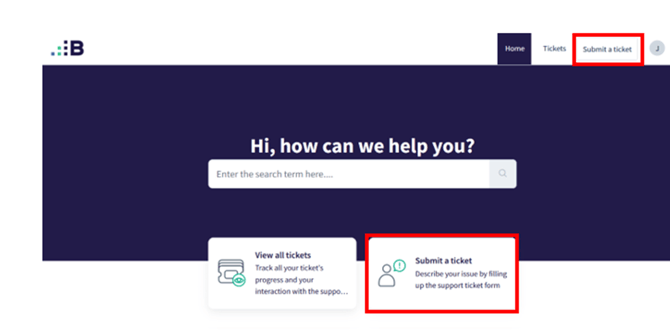
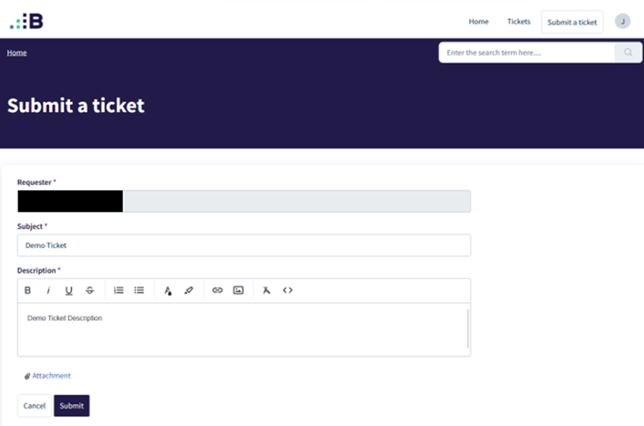
You also can submit tickets here once logged in:
-
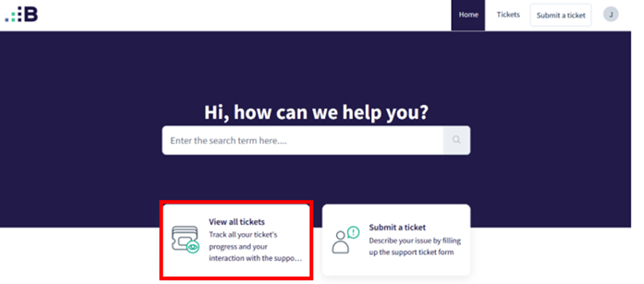
Here you can view ticket statuses:
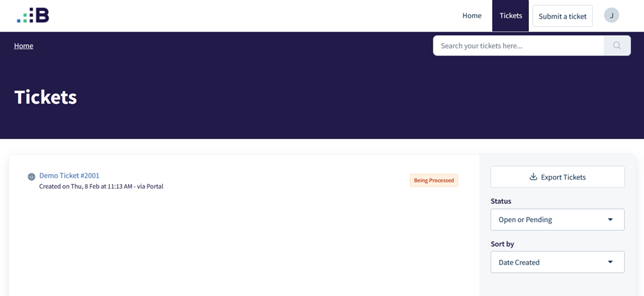
Ticket Status Definitions
Active: All tickets submitted to BUCS start with an ‘Active’ ticket status and when they are assigned.
Waiting on Customer: If clarifications are needed from the customer in order for BUCS to resolve/close the ticket, the status changes to ‘Waiting on Customer’.
Solved: Upon completion of a task, the ticket owner can mark the ticket as ‘Solved’ (only through Help Desk portal).
Closed: After the ticket has been solved and acknowledged by the customer, the ticket will be moved to a ‘Closed’ status.
BUCS Responses to Submitted Tickets
Responses will be sent during regular business hours and not on federal holidays.
Conclusion Email when Ticket Resolved/Closed
When your ticket is solved, the BUCS team member assigned to your ticket will notify you and update the ticket status to 'Closed'.
Additionally, you’ll receive an automated message from bucshelp@bucs.teamwork.com notifying you that your issue has been resolved.
Help Widget
After logging into the BUCS Analytics home page, you’ll notice a small icon in the bottom right-hand corner of the page.
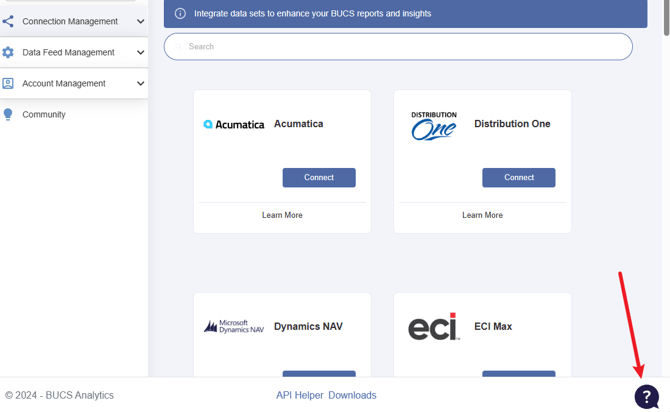
Clicking the icon triggers a pop-up box where customers enter their name, email, support subject, issue description, and screenshot if they choose.
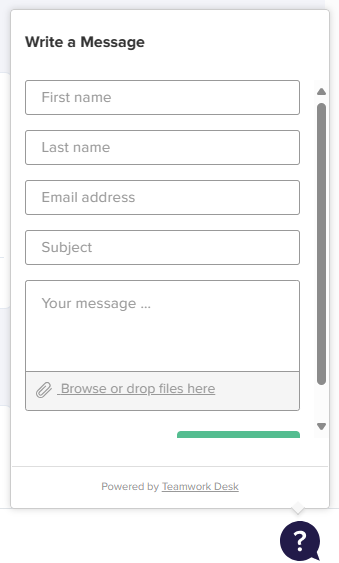
Upon submission, the ticket is sent to BUCS to be assigned to a Client Service team member for resolution.
Professional Service Support
Billable Services:
- New Development: Extensive enhancements or new functionalities.
- Excess Usage: Additional support beyond your plan's scope.
- Special Requests: Complex tasks needing unique expertise or resources.
Non-Billable Services:
- Ongoing Platform Support: Includes general system maintenance, security, and data management ensuring smooth operation.
- Standard Operational Support: Assistance with routine queries and minor troubleshooting.
Understanding billable and non-billable services allows you to
select the option that best meets your needs.
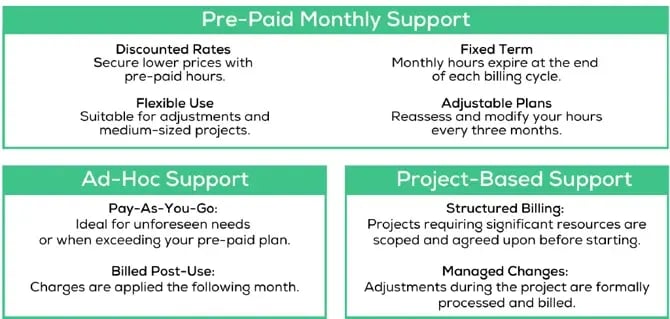
Choose your plan based on expected support needs and budget. Whether you need predictable assistance or flexible help as issues arise, we provide tailored options to fit your situation.
Reach out to the team to discuss Pre-Paid Monthly Support plans: support@bucsanalytics.com