
🗒️ NOTE
To access the Data Refresh menu, you must contact your BUCS account manager who will review the datasets you need to refresh on demand and provide access.
Process Overview
Some data refreshes require combining multiple tables and applying transformation processes. To ensure accuracy, your account manager will curate the specific datasets you need for ad-hoc refreshes. These curated sets will then be made available on the data refresh page for quick, on-demand access.
Refreshing Data Sets
1. Navigate to Connection Management > Data Refresh.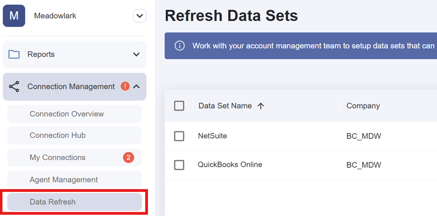
2. Select the dataset(s) you want to refresh, click the Refresh All button.
⚠️ IMPORTANT
Once started, your data refresh will process in the background and may take up to an hour to complete.
The status will change to Pending and the progress bar will show the percentage completed.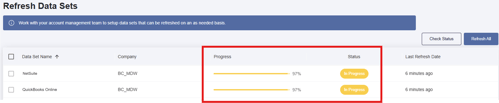
ℹ️ TIP
The progress bar updates automatically at regular intervals. If you’d like the latest status right away, you can refresh the page or click the Check Status button to see the current completion percentage.
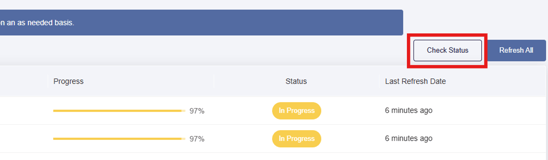
When the refresh is complete, the status will change to Succeeded, confirming your data set has been updated with the latest data.
