
⚠️ NOTE
There may be fees associated with setting up a new data connection. Contact your account team to confirm pricing.
Pre-Implementation
To connect, the BUCS Remote Agent must already be installed on the machine where your Microsoft SQL Server data is located. Click here for Remote Agent Installation instructions.
Implementation Steps
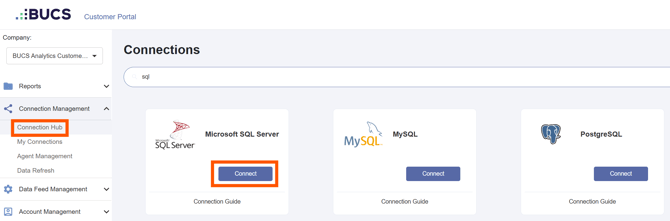
1. Go to Customer Portal > Connection Management > Connection Hub.
2. Locate or search for the Microsoft SQL Server connector and click Connect.
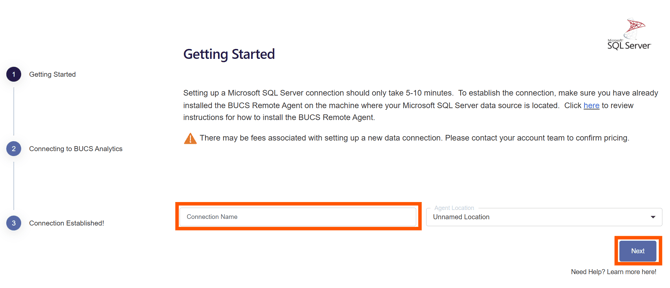
3. Enter a name for your connection and click Next. The connection name should be descriptive and specific to the connection.
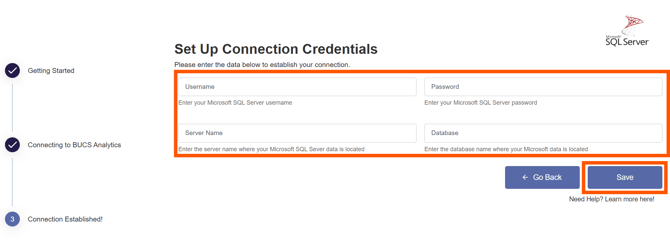
4. Enter your Microsoft SQL Server username and password along with the server name and database where your Microsoft SQL Server data is located. Enter the Application Name of the data source you are connecting. Click Save.
4. Connection Established
A Connection Established message will appear if the connection was successful and data from Microsoft SQL Server will continuously sync to BUCS. If the connection was not successful, you will be prompted to try again.
🗒️ NOTE
It may take up to 24 hours for newly synced data to appear in the BUCS platform.