
Go to Connection Management > My Connections to see all the connections created for the companies you have access to within the platform, including the connection status and the date the data was last synced/refreshed.
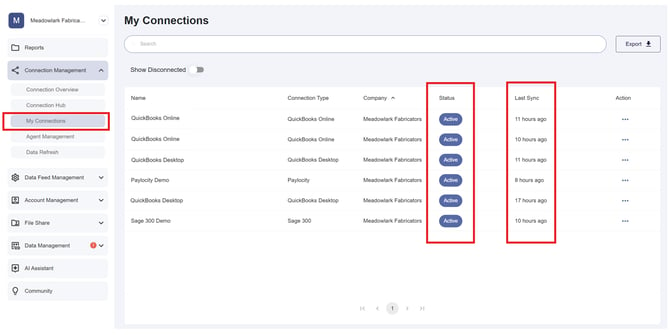
The statuses indicate the following for connections:
- Active: The connection is active and data is refreshing according to the set schedule (e.g., hourly, daily, monthly, etc.).
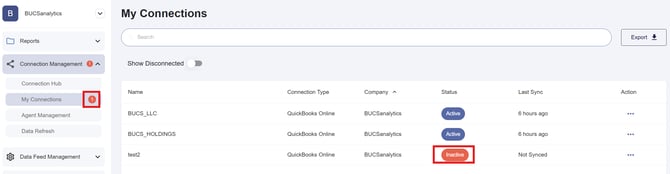
- Inactive: The connection has been disrupted and data is no longer refreshing.
- Disconnected: The connection has been deactivated intentionally and data is no longer being integrated into the BUCS platform.
⚠️ IMPORTANT
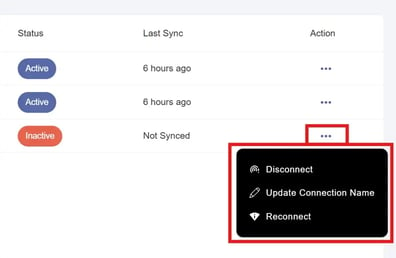
If a connection has become inactive, a notification bubble appears on the My Connections menu as an alert. The connection can be re-established by clicking the ...(more) option under the Action column and selecting Reconnect.
Edit or Deactivate Connections
Click the ... (more) option under the Action column for the connection and select Edit or Deactivate.
The Edit button will take you back to the connection wizard where you can change connection settings, such as usernames or passwords required to support the connection.
🗒️ NOTE
For file connection types such as Excel or SharePoint, you can use the Action menu to Add Files or View Files you have already connected to the BUCS platform.