
A lease should only be deleted (i.e., removed from the active My Leases dashboard) if: 1) the lease has expired and 2) it is no longer included in the annual financial reporting period. View the following article for more information: When should leases be deleted?
Remove a Lease
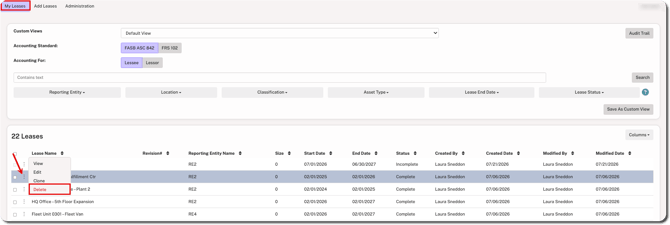
1. Hover over the ⋮ (more) option to the left of the lease name and select Delete.
2. Click Delete when prompted to confirm.
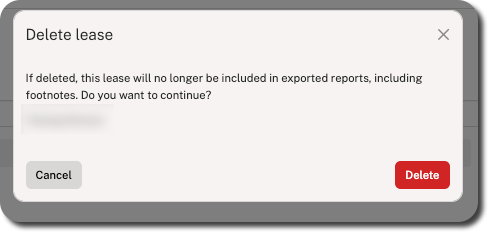
This action changes the lease status to Deleted. Leases in this status are not included in the calculations for Journal Entries, Amortization Entries, or Footnote Disclosures, and they will also no longer be billable.
To view deleted leases on your dashboard, click on the Lease Status filter and select the Deleted checkbox.
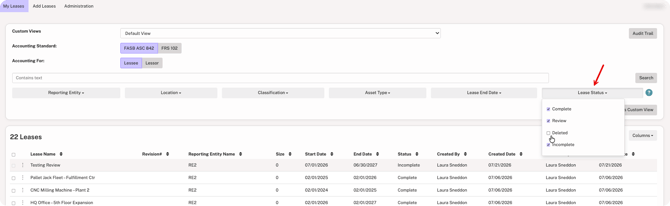
This refreshes the view to show leases with all selected status, including Deleted.
Restore a Lease
1. Hover over the ⋮ (more) option to the left of the lease name and select Restore.
2. Confirm when prompted.
Once confirmed, the lease will be restored to full functionality and can be included in report exports.
NOTE
Lease revisions cannot be restored.