View our walk-through or review the information below.
TOURIAL_EMBED_HERE
There are two types of audit trails in Crunchafi Lease Accounting: operational/system logs and lease-related activities.
Lease Audit Trails
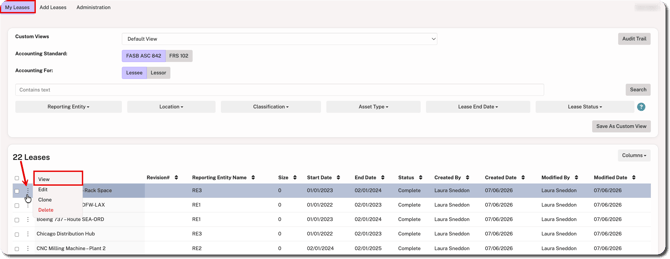
To see the audit trail for a specific lease, go to the My Leases page, click the ⋮ (more) option to the left of the lease name, and click View.
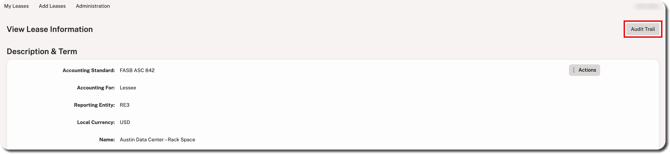
Click the Audit Trail button located in the top-right corner.
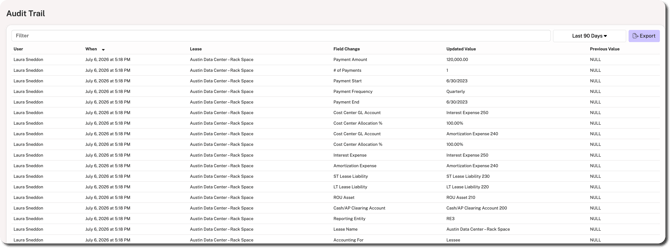
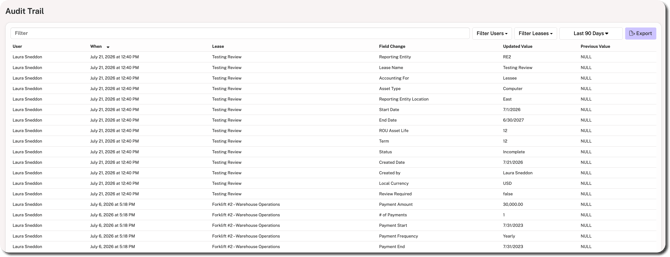
The audit trail provides a breakdown of any values set or changed, including the name of the user who made the change, the date/time, and the previous value (if applicable). Click on the Last 90 Days dropdown (default) to choose a built-in date filter or set a custom date range. Additionally, you can filter by entering keywords and/or click Export to download the log.
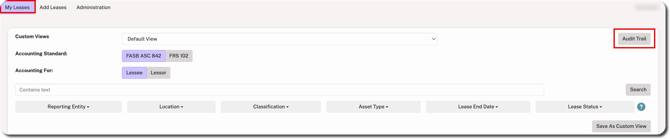
To see the audit trail for all leases in the client account you are viewing, click Audit Trail in the top-right corner of the My Leases page.
The audit trail provides a breakdown of any values set or changed across leases, including the name of the user who made the change, the name of the lease that was modified, the date/time, and the previous value (if applicable). You can filter this audit trail by entering keywords, selecting one or more specific users, selecting one or more specific leases, and/or setting a specific date range. Click Export to download the log.
Operational Audit Trails
There are two operational/system audit trails: one for firm users that show activity across client accounts and one at the client account level that shows activity for a specific client only.
Firm Audit Trail
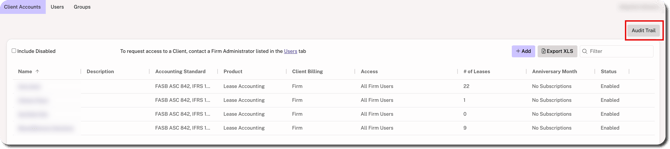
When logged in as a Firm Admin, click Audit Trail in the top-right corner from any tab (i.e., Client Accounts, Users, or Groups) to see the activity across all your client accounts.
NOTE
The firm-level audit trail is only visible to users with the Firm Admin role.
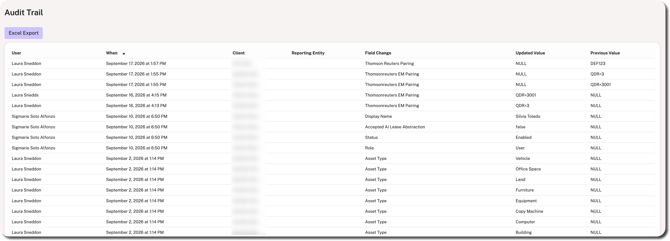
The audit trail shows all activity related to system configurations and other lease-related settings ranging from changing a client's status to adding asset types. This includes the name of the user, the time/date, the client name, and previous values (if applicable). Click Excel Export above the table if you need to download the log for further viewing/filtering.
Client Account Audit Trail
When logged in as an Admin or Accounting Admin, go to the Administration tab and click Audit Trail in the top-right corner to see activity across the account.
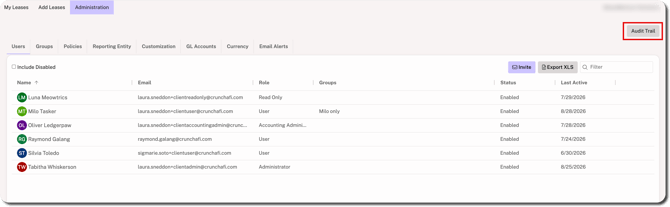
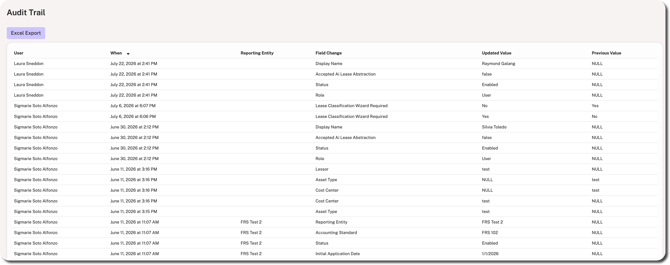
The audit trail shows all account-level activity related to system configurations and other lease-related settings ranging from setting the Initial Application Date for a Reporting Entity to adding or updating users. This includes the name of the user, the time/date, and previous values (if applicable). Click Excel Export above the table if you need to download the log for further viewing/filtering.