
Customer Payment Portal
The Customer Payment Portal is now live for all firms and direct bill customers. It gives you a single place to view, manage, and pay your Crunchafi invoices � without needing to contact support for information you should have at your fingertips.
View & Pay Invoices
See all open invoices in one clear dashboard and pay directly � no emails, no support tickets.
Autopay & Payment Methods
Set up Autopay and manage your saved payment methods. Please contact our billing team to enroll in autopay.
See invoice history going forward
Starting now, every invoice will be tracked.
Note: this is for new invoices � historical
invoices are not included.
Review Before You Pay
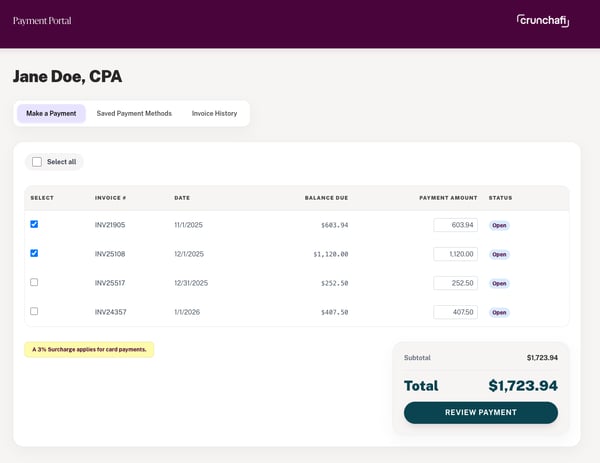
Select specific invoices and confirm your total before submitting. No surprises.
�
Make a Payment
From the�Make a Payment�tab, select the invoices you want to pay, review your total, and submit. You can pay individual invoices or select multiple at once.
�
�
�
�
�
�
�
�
�
�
Saved Payment Methods
Under�Saved Payment Methods, you can add, update, or remove payment methods and designate a default. ACH is available in addition to credit card.�
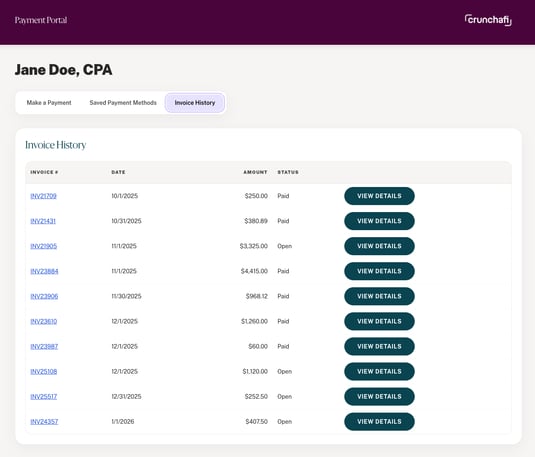
Autopay is not yet self-serve in the portal. �While Autopay is available, it cannot be enabled directly in the portal in this initial release. To set up Autopay,� contact our billing team �and we will configure it for your account. Self-serve Autopay setup is coming in a future update.
�
Invoice History
The�Invoice History�tab shows your complete billing record � invoice number, date, amount, and status. Click�View Details�on any invoice to see a full breakdown.
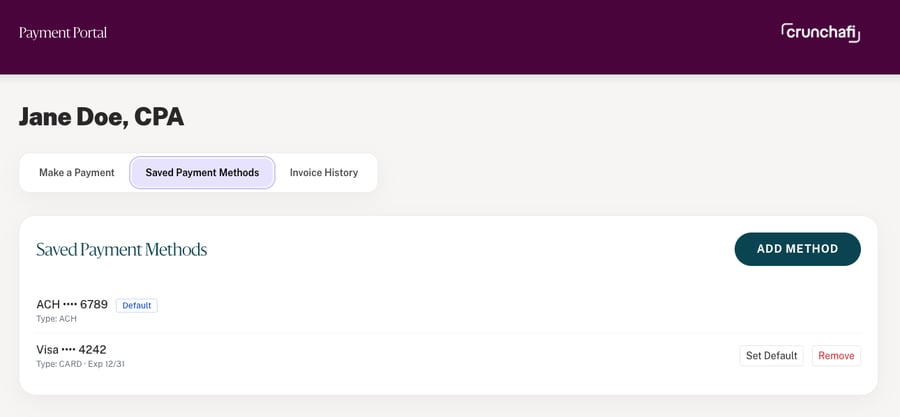
Invoices from before October 2024 will not appear in the portal.�The Customer Payment Portal is integrated with NetSuite only. Invoices issued prior to October 2024 (previously managed in Chargebee) are not currently visible here. We are working on a solution to make historical invoices accessible, but this is a longer-term effort. If you need records of past invoices, please�submit a billing inquiry�and our team can assist.
�
�
Understanding Your Invoice Types
You may receive more than one invoice in a given month. Each invoice type reflects a different billing event. Here's what each one means.
LA Usage
�
Receiving multiple invoices in one month is expected and by design. An LA Usage invoice and an LA Renewal invoice in the same month are separate billing events � they are not duplicates. If you have questions about a specific invoice,�submit a billing inquiry.
�
Net Billing
Crunchafi uses net billing for leases. This means you only pay for net growth in your lease count � never for activity that cancels itself out.
At the start of each renewal period, you are billed for your active lease count at that time. From there, billing operates on a net basis throughout the year:
Remove 1, Add 1
Remove 1, Add 2
Add with no Removal
No invoice generated. The activity cancels itself out � your net lease count did not change.
One invoice generated for the one net-new lease. You only pay for the net increase.
Invoice generated for each new lease added above your current count.
�
Grace Period: �Leases added and deleted within the same calendar month are not billable. You will not receive an invoice for lease activity that begins and ends in the same month.
�
Anniversary Month & Renewal Billing
Your anniversary month is determined by when your first lease was created in Crunchafi. It anchors your annual billing cycle.
Client Anniversary Month
Renewal & Anniversary Billing
Your anniversary month is the calendar month in which your first lease was entered. It is dated as of the first of that month.
For non-committed contracts, Crunchafi bills the annual fee for all leases not in deleted status on each anniversary date. For committed contracts, fees are billed per contract terms.
�
Deleted Leases
Leases placed in and remaining in deleted status before the anniversary month will not be billed in subsequent years. If a deleted lease is restored, any previously unbilled years will become due.
�
Proration
Leases added after your original anniversary month are prorated to bring them in line with your upcoming anniversary date.
Proration is calculated on a monthly basis. When a new lease is added mid-year, you are invoiced for the months remaining until your next anniversary � not a full year.
Example:�Your anniversary month is July. You add leases in April. You will be invoiced on April 30 for three months (April, May, June) � prorated to align with the July anniversary month. At renewal in July, those leases are included in the full annual bill.
Billing Frequency
Crunchafi issues invoices monthly for any new leases added to the system, and annually when your anniversary renewal comes to term. This means it is normal to receive an LA Usage invoice and an LA Renewal invoice in the same month � they represent separate billing events.
�
Credit Card Surcharge
Effective with the launch of the Customer Payment Portal, a 3% surcharge applies to all credit card payments. This surcharge does not apply to ACH or other payment methods.
3% surcharge applies to credit card payments only.�To avoid the surcharge, use ACH as your default payment method. You can add or update your payment method at any time in the�Customer Payment Portal�under Saved Payment Methods.
The surcharge is displayed clearly at checkout in the portal before you confirm your payment. You will see it noted on the Make a Payment screen prior to submitting.
This is standard practice across many SaaS billing platforms. If you have questions about this change,�contact your Customer Success Manager�or�submit a billing inquiry.
�
�