Requirements
- An admin must create a Web Services User in Sage Intacct and grant that user access to all the necessary reports for connection to Data Extraction.
- Setup depends on your organization's permission type in Sage Intacct. Before continuing, make sure to take the steps in one of the articles below:
- For optimal results, ensure all QuickStart categories are properly defined in the general ledger chart of accounts. Review this article for more information.
Sharing Requested Data
1. Copy and paste the secure URL shared by your firm into your browser.
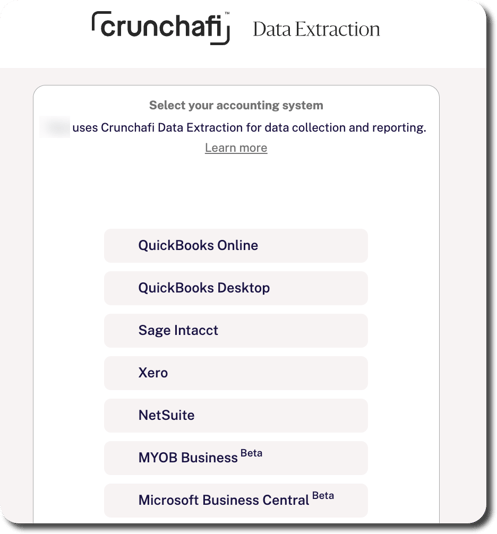
2. Select Sage Intacct from the list.
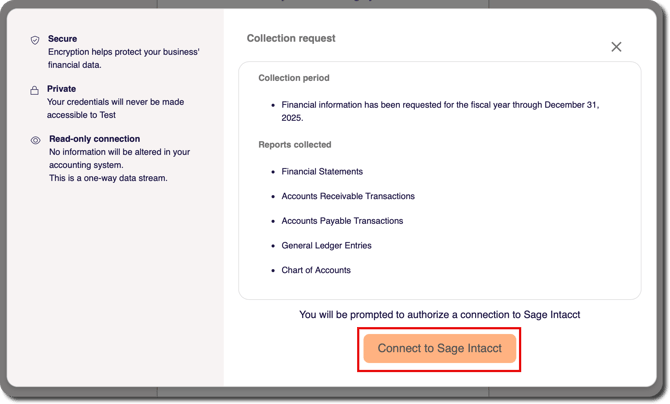
3. Review the additional context for the information requested by your firm via Crunchafi Data Extraction, including which reports were requested. Click Connect to Sage Intacct.
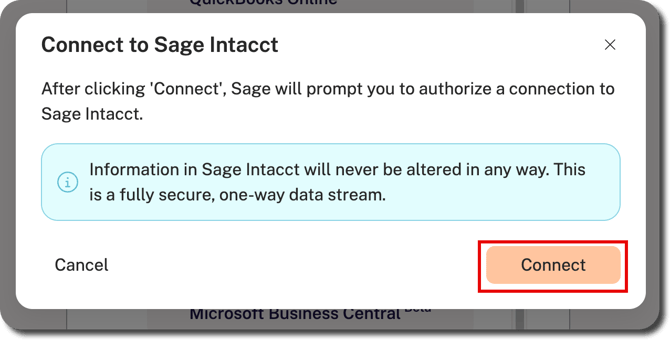
4. Click the Connect button to launch the login screen.
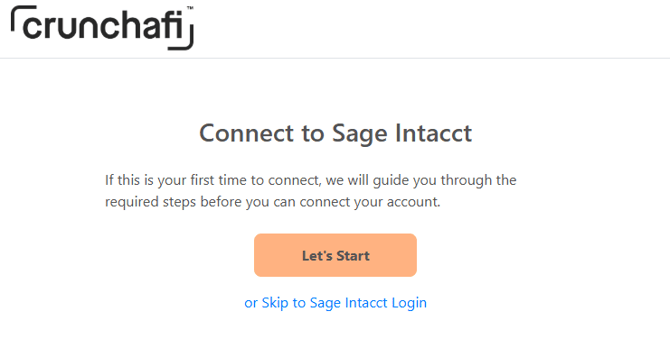
5. If you have already created a Web Services user for this connection, click Skip to Sage Intacct Login. If you have not, click Let's Start to follow the on-screen instructions.
NOTE
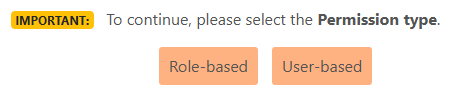
If you clicked Let's Start, you must select either Role-based or User-based permission type to reveal the instructions and move forward.
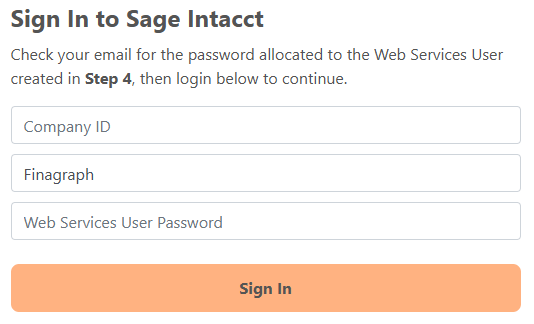
6. At the bottom of the screen, enter the Web Services user credentials to log in.
7. If you have multi-entity enabled in your Sage Intacct account, you'll be prompted to select the entity for which you want to share data. You can also select to share consolidated books, if applicable.

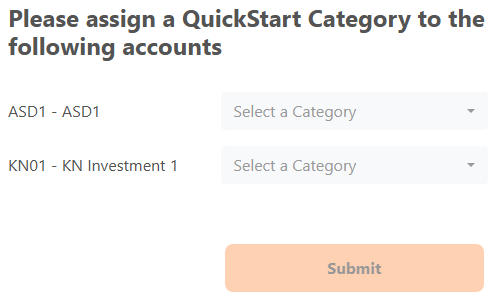
8. Crunchafi uses QuickStart Categories assigned to general ledger accounts to interpret the structure for financial data in Sage Intacct. If any categories are missing, you will be prompted to assign them. The collection process cannot begin until this is completed.
NOTE
This will not change any settings inside Sage Intacct and will be only be used for the purposes of this connection. We recommend that you make note of these accounts and make similar changes within Sage Intacct for consistency in your reporting.
9. Click Submit to complete the connection.

Next Steps
When the connection starts, the portal will provide a progress bar and status updates.
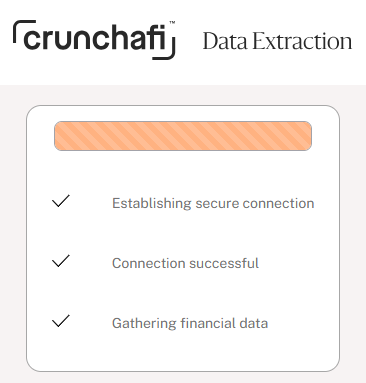
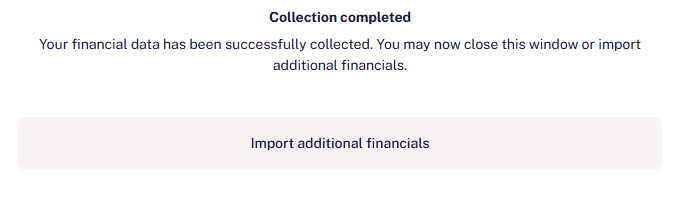
The Crunchafi Data Extraction window will display when the collection is completed and you have successfully collected reports. Depending on your firm's collection settings, you may have the opportunity upload additional documents or download a copy of the submitted reports.